Sign up with Google
 Sign in with Zoho

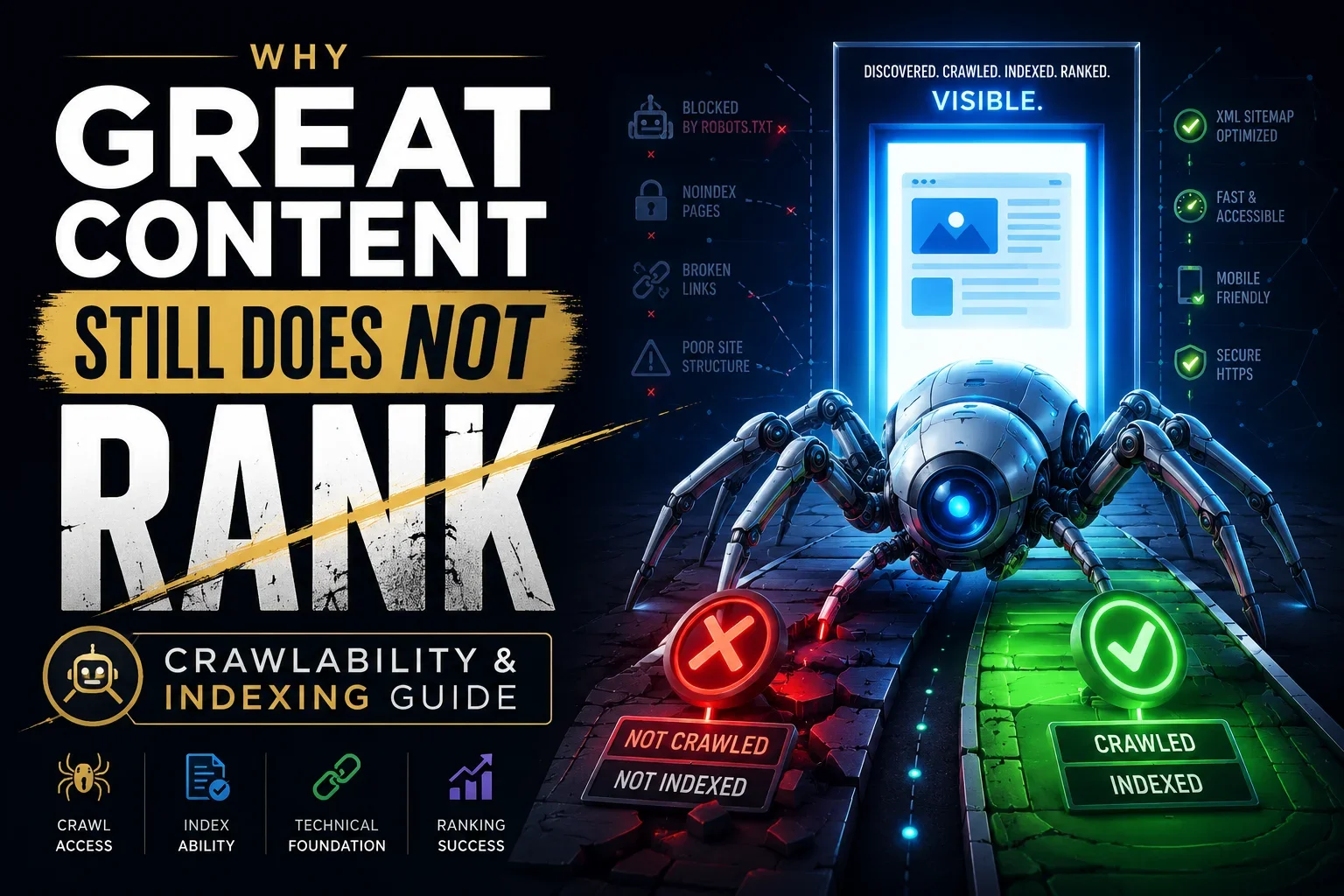
You can publish the most useful guide in your industry, write better than your competitors, and optimize every heading for the right keyword. Yet your page may still receive little or no organic traffic.
The problem is often not the content itself.
Before Google can rank a page, it needs to find the URL, crawl it, process the content, understand which version is primary, and decide whether the page deserves a place in its index. A failure at any stage can keep a strong page out of search results or make it far harder to rank.
This is why content quality and technical SEO must work together.
A valuable article that Google cannot discover is invisible. A page blocked from crawling cannot be properly evaluated. A JavaScript dependent page that fails to render may appear nearly empty to search engines. A duplicate page with the wrong canonical signal may be ignored in favor of another URL.
This guide explains the full process in plain language. You will learn why Google may not show your content, how to find the exact cause in Google Search Console, and what to fix first.
The Important Difference Between Ranking and Indexing
Many site owners use the phrase “my page is not ranking” when they actually have an indexing problem.
These are different issues.
A page cannot rank meaningfully unless Google has indexed it. But indexing alone does not create rankings.
Google still evaluates relevance, helpfulness, freshness, search intent, topical authority, links, usability, and many other signals after a page enters the index.
How Google Gets Your Content Into Search
Google search visibility follows a connected process.
Discovery → Crawling → Rendering → Indexing → Ranking
Each stage depends on the stage before it.
Discovery
Discovery is how Google first learns that a URL exists.
Google can discover a page through:
- Internal links from other pages on your website
- External links from other websites
- XML sitemaps submitted in Google Search Console
- Navigation menus, category pages, and breadcrumbs
- RSS feeds and content hubs
- Redirects from old URLs
- Historical crawl data
A URL that has no internal links, no external links, and no sitemap inclusion may remain unknown to Google for a long time.
Crawling
Crawling happens when Googlebot requests a URL from your server.
During this step, Googlebot checks:
- Whether the server returns a successful response
- Whether robots.txt permits crawling
- Whether the page loads without severe errors
- Whether important resources are available
- Whether the URL redirects somewhere else
- Whether the page links to more URLs
Googlebot needs to access the page before it can fully inspect many indexing signals.
Rendering
Rendering is the process of loading and processing a page in a browser like environment.
This matters most for JavaScript heavy websites.
Google may initially retrieve the raw HTML and later render JavaScript to see content that is inserted dynamically. If key text, links, product information, headings, or metadata only appear after JavaScript executes, rendering becomes essential for SEO.
Indexing
Indexing is Google’s decision to store a page and potentially show it in search results.
Google does not index every crawled URL.
It may exclude a page because it is:
- Duplicate or near duplicate
- Thin or low value
- Marked with noindex
- Canonicalized to another URL
- Soft 404 like
- Blocked from being properly evaluated
- Low quality compared with similar pages
- Part of a weak or confusing URL pattern
Ranking
Ranking is the final visibility stage.
Google compares indexed pages and decides which pages best answer each query. Content can be indexed yet receive few or no impressions if it does not match search intent, has low authority, lacks topical depth, or competes against stronger pages.
Why Good Content Can Still Stay Invisible
Good writing is necessary, but it is not enough.
Below are the most common reasons high quality content fails to appear or perform in Google.
1. Google Has Not Discovered Your Page
A page cannot be crawled if Google does not know the URL exists.
This often affects new blog posts, isolated landing pages, resource pages, and service pages buried deep inside a website.
Common discovery problems
- The new page has no internal links
- The page is not included in the XML sitemap
- Important content is only reachable through search filters
- The URL is hidden behind a form, login, or JavaScript interaction
- Navigation does not link to the page
- The page is an orphan page
- The website has very few external links or a limited crawl history
- The page was published but never linked from a category or related article
What is an orphan page?
An orphan page is a page with no internal links pointing to it.
The URL may exist in a sitemap or be accessible if someone knows the address. But users and crawlers cannot reach it through your site structure.
Orphan pages often receive weak crawl attention and little internal authority.
How to fix discovery issues
- Add at least two to five contextual internal links from relevant existing pages
- Link the new page from a category, hub, or resource page
- Add the canonical version of the URL to your XML sitemap
- Use descriptive anchor text that tells users and search engines what the page covers
- Include important pages in navigation or breadcrumbs where appropriate
- Check that the page is not more than a few logical clicks from a major site section
- Request indexing in Google Search Console after publishing or updating a major URL
Example
Suppose you publish a detailed guide titled “Best CRM Software for Small Law Firms.”
If it sits alone with no links from your software category, legal-tech hub, related CRM articles, or sitemap, Google may discover it slowly. Adding links from relevant pages gives Google a path to the new content and clarifies its topical relationship to the rest of the site.
2. Your Robots.txt File Is Blocking Googlebot
Robots.txt is a file located at the root of a domain. It gives crawlers instructions about which URL paths they can request.
For example:
textUser-agent: * Disallow: /admin/ Disallow: /search/
This is useful for controlling low value sections such as internal search results, account areas, cart pages, or private back-end paths.
But a single incorrect rule can prevent Googlebot from accessing important content.
Common robots.txt mistakes
- Blocking the entire site with Disallow: /
- Blocking blog folders by accident
- Blocking product categories or service pages
- Blocking CSS and JavaScript files required to render important content
- Blocking pages that also contain a noindex tag
- Forgetting to remove staging environment rules after launch
- Blocking parameter URLs without checking whether valuable pages use those parameters
Why blocking and noindex conflict
A noindex directive tells Google not to include a page in search results.
But Google generally needs to crawl the page to see that instruction.
If you block a URL in robots.txt and also place noindex on the page, Google may not crawl the page and therefore may not process the noindex instruction. This can create confusing indexation behavior.
What to do instead
Use the correct tool for the correct goal.
3. The Page Has a Noindex Tag
A noindex directive tells Google not to show a page in search results.
It can be placed in the HTML source or sent through an HTTP header.
Meta robots example
xml<metaname="robots"content="noindex, follow">
The page can still be crawled, and Google can still follow links from it. But the page itself should not appear in Google Search.
Why noindex errors happen
- A staging template is accidentally copied to production
- A CMS setting applies noindex globally
- An SEO plugin is configured incorrectly
- A developer adds noindex during testing and forgets to remove it
- Tag, category, or archive pages are intentionally excluded but important pages inherit the setting
- A page is set to “discourage search engines” at the CMS level
How to check for noindex
- Use Google Search Console URL Inspection
- View the page source and search for noindex
- Crawl the site with Screaming Frog or Sitebulb
- Inspect HTTP response headers for X-Robots-Tag
- Check your CMS and SEO plugin page settings
Important rule
Only use noindex when you truly do not want the page to rank.
Do not use it simply because a page is new, has low traffic, or needs improvement. If the page has business value and you want it to attract search visitors, it should usually be indexable.
4. Google Chose Another Canonical URL
Canonicalization tells Google which version of similar or duplicate pages should be treated as the preferred URL.
A canonical tag looks like this:
xml<linkrel="canonical"href="https://example.com/preferred-page/"/>
Canonicals are signals, not absolute commands. Google can choose a different canonical when other signals conflict.
Common canonicalization problems
- The canonical points to the wrong page
- The canonical URL redirects
- Multiple canonical tags appear on one page
- The page canonicalizes to a non-equivalent page
- HTTP and HTTPS versions both exist
- Both www and non-www versions are accessible
- Trailing slash and non-trailing slash URLs duplicate each other
- URL parameters create duplicate page versions
- Internal links point to non-canonical versions
- XML sitemaps include duplicate or non-canonical URLs
The consistency rule
Your major canonical signals should agree.
For an important page, align:
- Canonical tag
- Internal links
- XML sitemap
- Redirect behavior
- HTTPS preference
- Hostname preference
- URL formatting
- Hreflang references, where relevant
Example
Imagine these three URLs show nearly the same page:
- https://example.com/services/seo
- https://www.example.com/services/seo/
- http://example.com/services/seo?source=menu
The preferred version should return a 200 status code and use a self-referencing canonical. The other versions should redirect cleanly to the preferred URL where possible.
5. The Page Is Crawled but Currently Not Indexed
“Crawled, currently not indexed” is one of the most frustrating statuses in Google Search Console.
It usually means Googlebot visited the URL but chose not to add it to the index at that time.
This is not always a technical error. It can also be a quality or value decision.
Common causes
- The page is too similar to another page
- The content is thin compared with competing resources
- The page does not offer unique information
- The page has weak internal links
- The topic has low search demand
- The page is part of a large collection of similar pages
- The content appears auto-generated or lacks useful editing
- The page has poor user value or weak topical relevance
- Google has not yet decided the URL is worth indexing
How to improve a crawled but not indexed page
- Make the page meaningfully different from similar pages
- Add first-hand experience, examples, screenshots, data, or original analysis
- Improve internal links from relevant high-value pages
- Make the title and heading structure clearer
- Remove duplicate templates and boilerplate where possible
- Verify the page is self-canonical
- Ensure the page returns a 200 status code
- Confirm it is not accidentally blocked or marked noindex
- Add the page to the XML sitemap only if it is a canonical, indexable URL
- Give Google time to recrawl after substantial improvements
Do not react with thin rewrites
Changing a few sentences, adding more keywords, or requesting indexing repeatedly rarely solves a quality or duplication problem.
The improvement must be meaningful.
Ask this question:
Does this page provide a distinct reason for Google to index it instead of the other pages already available?
If the honest answer is no, consolidate, redirect, expand, or reposition it.
6. The Page Is Discovered but Currently Not Indexed
“Discovered, currently not indexed” means Google knows the URL exists but has not crawled it yet.
This may happen because Google has limited crawl interest, because the site has many URLs, or because the page appears low priority compared with other URLs.
Common causes
- Weak internal linking
- A large website with crawl waste
- Thousands of filter, tag, calendar, or parameter URLs
- Slow server response times
- A new or low-authority domain
- Large batches of recently published pages
- Duplicate or low-value URL patterns
- Inconsistent sitemap quality
- Excessive redirect chains
- Server instability
How to improve discovery to crawl progression
- Add strong contextual internal links
- Include the URL in a clean XML sitemap
- Remove low-value URLs from the sitemap
- Improve server reliability and response time
- Fix redirect chains
- Control crawl traps such as faceted navigation
- Avoid publishing hundreds of near-identical pages at once
- Build topic clusters so new content has clear internal relevance
- Improve the site’s information architecture
For a full diagnostic framework covering robots rules, canonicals, redirects, crawl budget, XML sitemaps, structured data, Core Web Vitals, JavaScript SEO, and indexing problems, use this technical SEO encyclopedia.
7. JavaScript Prevents Google From Seeing Important Content
JavaScript is not automatically bad for SEO.
The problem appears when essential SEO elements depend entirely on client-side rendering and Google cannot process them reliably or quickly.
What Google needs to see
Google should be able to access:
- Primary content
- Product descriptions
- Headings
- Internal links
- Navigation links
- Canonical tags
- Meta robots tags
- Structured data
- Price and availability information
- Pagination links
- Category content
Common JavaScript SEO failures
- Content loads only after a click or user action
- Important links are not standard HTML anchor links
- Infinite scrolling hides content without crawlable pagination
- JavaScript requests fail during rendering
- Content is blocked by API authentication
- Metadata changes only after JavaScript runs
- The page shows empty HTML before rendering
- Lazy-loaded content never enters Google’s rendered view
- JavaScript bundles are slow or blocked
- Error states return a 200 status instead of a true 404 or 500 response
Better rendering options
How to test JavaScript content
- Use Google Search Console URL Inspection
- Review the rendered HTML and screenshots where available
- Compare raw HTML with rendered HTML
- Crawl using JavaScript rendering enabled
- Check browser DevTools for console errors
- Confirm that critical links use <a href="...">
- Test pages without relying on user interactions
- Inspect network requests for failed API calls
8. The Page Returns the Wrong HTTP Status Code
HTTP status codes tell browsers and crawlers what happened when they requested a URL.
Incorrect status codes create confusion for Google and poor experiences for users.
Important status codes
What is a soft 404?
A soft 404 occurs when a page looks empty, removed, or error-like but returns a 200 successful status code.
Examples include:
- A product page for a deleted item that says “product unavailable” but returns 200
- A search result page with no results and little useful content
- A thin category page with a generic “nothing found” message
- A custom error page served with a 200 response
Google may treat these pages as low quality or error-like and exclude them from the index.
How to fix soft 404 problems
- Return a true 404 when a page no longer exists
- Use a 301 redirect only when a closely relevant replacement exists
- Do not redirect every deleted URL to the homepage
- Add useful alternatives to discontinued product pages where appropriate
- Make empty category pages genuinely useful or remove them from indexing
- Monitor Search Console Page Indexing reports
9. Internal Linking Is Too Weak
Internal links are one of the strongest signals you can control directly.
They help Google discover pages, understand topical relationships, and identify which URLs matter most on your website.
Signs of weak internal linking
- Important pages receive no contextual links
- New blog posts are linked only from the homepage
- Service pages are buried several clicks deep
- Anchor text is vague, such as “click here” or “learn more”
- Old articles never link to new resources
- Category pages do not organize related content
- Important pages are only accessible through site search
- Internal links point to redirected URLs
- Broken links create dead ends
Internal linking best practices
- Link from relevant, established pages to new content
- Use natural and descriptive anchor text
- Build hub pages for major services or topics
- Link cluster articles back to a central pillar page
- Link pillar pages to relevant supporting guides
- Fix broken internal links quickly
- Replace internal redirect links with final destination URLs
- Give high-priority pages more prominent contextual links
- Keep vital conversion pages easy to reach through the site architecture
A simple internal-linking example
If you publish a guide on crawlability and indexing, link to it from related pages about:
- XML sitemaps
- Google Search Console
- Canonical tags
- Robots.txt
- JavaScript SEO
- Technical SEO audits
- Internal linking
- Core Web Vitals
This creates a clear topical network that helps users and Google understand the page’s role.
10. Your XML Sitemap Sends Poor Signals
An XML sitemap is a discovery aid, not a command for Google to index every listed URL.
A clean sitemap helps Google find the URLs that matter. A messy sitemap makes it harder to identify your preferred pages.
Your sitemap should generally contain
- Canonical URLs
- Indexable URLs
- Pages returning 200 status codes
- Important pages you want in search
- Correctly formatted absolute URLs
- Recently updated pages with accurate lastmod dates where supported by your process
Your sitemap should usually exclude
- Redirected URLs
- 404 and 410 URLs
- noindex pages
- Robots blocked pages
- Parameter duplicates
- Search result pages
- Login, cart, checkout, and account pages
- Thin tag archives with no search value
- Staging URLs
- Non-canonical URL variations
Sitemap quality checklist
- Submit the sitemap in Google Search Console
- Reference it in robots.txt if appropriate
- Check sitemap processing errors
- Compare sitemap URLs with crawlable URLs
- Ensure every listed URL is canonical and indexable
- Update the sitemap automatically when high-value pages are added or removed
- Do not manipulate lastmod dates on every deployment unless the page genuinely changed
11. Your Website Has Crawl Waste
Crawl budget matters most for large websites, but crawl waste can affect smaller sites too when poor URL management creates thousands of unnecessary paths.
Crawl budget refers to the amount of crawl attention Google is willing and able to allocate to a site over time.
Crawl waste often comes from
- Faceted navigation
- Filter combinations
- Sort parameters
- Internal search URLs
- Session IDs
- Calendar pages with endless date combinations
- Duplicate URL formats
- Redirect chains
- Broken URLs
- Hacked spam pages
- Infinite pagination paths
- Tag archives with no unique value
Example of a faceted navigation problem
An e-commerce store may allow users to filter by:
- Color
- Size
- Brand
- Price
- Material
- Availability
- Rating
Each filter combination can produce another URL.
Without a strategy, a store with a few hundred products can generate thousands or millions of low-value combinations. Googlebot may spend time crawling these instead of important category pages, product pages, and editorial content.
How to reduce crawl waste
- Decide which filtered pages deserve indexation based on search demand
- Prevent low-value parameter combinations from creating crawl traps
- Use canonicalization where appropriate
- Keep internal links focused on valuable URL patterns
- Remove low-value parameter URLs from XML sitemaps
- Fix redirect chains and unnecessary redirects
- Monitor Googlebot behavior through server logs on large sites
- Use consistent URL conventions across the site
12. The Content Is Good, but Not Unique Enough
A page may be well written and still not offer enough unique value for Google to index or rank it prominently.
This is especially common with:
- Location pages built from the same template
- Product category pages with only product grids
- AI generated articles with generic advice
- Programmatic pages with minimal differentiation
- Service pages that repeat the same claims
- Affiliate pages with copied manufacturer descriptions
- Tag archives with thin introductions
- Glossary entries that repeat definitions found everywhere else
Ways to create clear unique value
- Include original examples
- Add expert commentary
- Use your own screenshots or workflows
- Show before and after improvements
- Include first-hand process details
- Add data from your audits or campaigns where privacy permits
- Answer objections and edge cases
- Provide templates, checklists, calculations, or decision tables
- Compare options in a useful way
- Update claims when tools, platforms, or search behavior changes
A useful test
Ask a simple question:
If this page disappeared from the internet, would searchers lose something useful that they cannot easily find elsewhere?
If the answer is yes, you are building stronger indexable content.
How to Diagnose a Page That Is Not Ranking
Do not guess. Use a repeatable workflow.
Step 1: Confirm the Exact URL
Check that you are reviewing the correct version of the page.
Verify:
- HTTP versus HTTPS
- www versus non-www
- Trailing slash versus non-trailing slash
- URL parameters
- Uppercase versus lowercase variations
- Final URL after redirects
Step 2: Use Google Search Console URL Inspection
Enter the exact canonical URL into URL Inspection.
Review:
- Whether the URL is on Google
- Crawl allowed status
- Page fetch status
- Indexing allowed status
- User-declared canonical
- Google-selected canonical
- Referring sitemap
- Last crawl date
- Mobile usability signals
- Enhancements and structured data details where available
Step 3: Check the Page Source
Review the raw HTML for:
- noindex
- Canonical tag
- Correct title tag
- Main heading
- Important text content
- Internal links
- Structured data
- Hreflang tags where relevant
Step 4: Check the HTTP Response
Confirm that the page returns:
- A 200 status code for valid content
- A single clean redirect where a redirect is expected
- No redirect loop
- No server error
- No inconsistent desktop and mobile behavior
Step 5: Check Robots.txt
Confirm that robots.txt does not block:
- The page itself
- The folder containing the page
- Required JavaScript or CSS resources
- Essential assets needed for rendering
Step 6: Compare Canonical Signals
Confirm that:
- The page has one correct canonical tag
- The canonical points to a live 200 URL
- Internal links point to the canonical URL
- The sitemap contains the canonical URL
- Redirects support the same preferred URL
- No conflicting URL variations are promoted elsewhere
Step 7: Review Internal Links
Ask:
- Does the page have relevant internal links?
- Is it linked from a hub, category, or older article?
- Is the anchor text descriptive?
- Is it buried too deeply?
- Is it orphaned?
- Are internal links pointing to outdated redirected versions?
Step 8: Assess Content Value
Look beyond word count.
Check whether the page has:
- A clear search intent match
- Unique analysis
- Complete answers
- Useful formatting
- First-hand expertise
- Strong topical relevance
- Updated information
- A reason to exist apart from similar pages
Step 9: Request Recrawl Only After Meaningful Fixes
Use Google Search Console to request indexing after you make substantial changes.
Do not repeatedly request indexing without improving the page. A request is not a guarantee of indexation or ranking.
Crawlability and Indexing Checklist
Use this checklist before concluding that your content has a ranking problem.
Discovery checklist
- The page has at least one relevant internal link
- The page appears in a logical category or hub
- The canonical URL is included in the XML sitemap
- The page is not orphaned
- Important URLs are easy to reach through site navigation
Crawlability checklist
- Robots.txt does not block the page
- The server returns a valid response
- No redirect chain exists
- Critical resources are not blocked
- The page does not require login or user interaction to reveal core content
- The site does not create excessive low-value URLs
Indexability checklist
- The page does not use noindex
- The canonical tag is correct
- The canonical URL returns 200
- The page is not a soft 404
- The page is not a low-value duplicate
- Sitemap, canonical, redirects, and internal links are aligned
Rendering checklist
- Essential text appears in rendered HTML
- Important links are crawlable HTML links
- JavaScript errors do not block content
- Metadata and structured data are available reliably
- Mobile and desktop versions show equivalent primary content
Ranking readiness checklist
- The page matches a real search intent
- The page offers unique value
- The content answers the query completely
- Internal links reinforce topical relevance
- The page is supported by related content
- The page has a compelling title and clear headings
- The information is current and trustworthy
Frequently Asked Questions
Why is my page indexed but not ranking?
Your page may be indexed but still have weak rankings because Google believes other pages better satisfy the query.
Common causes include:
- Poor search-intent match
- Stronger competitors
- Weak topical authority
- Limited backlinks
- Weak internal links
- Generic content
- Low click appeal in search results
- Outdated information
- Poor user experience
Indexing makes ranking possible. It does not make ranking automatic.
How long does Google take to index a new page?
There is no fixed timeline.
Some pages are crawled and indexed quickly. Others take days, weeks, or longer. The timing depends on factors such as internal links, sitemap quality, site authority, server health, crawl demand, content uniqueness, and the size of the site.
Focus on making the URL easy to discover, technically accessible, and clearly worth indexing.
Can a robots.txt file stop a page from appearing in Google?
Robots.txt primarily controls crawling, not guaranteed indexation.
A blocked URL may still appear in limited form if Google discovers it through links or other signals. If you need a page to stay out of Google Search, allow crawling and use noindex, or protect sensitive content with authentication where appropriate.
Should every page be included in the XML sitemap?
No.
Only include pages that you want search engines to treat as important, canonical, indexable URLs. Do not add redirects, error pages, noindex pages, or low-value duplicate URLs.
Why does Google choose a different canonical than mine?
Google may select another canonical when your signals conflict.
Review:
- Internal linking
- Sitemap URLs
- Redirects
- Duplicate page content
- Canonical tags
- HTTPS and hostname consistency
- Parameterized URLs
- Content similarity between pages
The strongest approach is to make all major signals point to the same preferred URL.
Final Thoughts
Great content is not enough when search engines cannot reliably find, crawl, render, and index it.
The strongest SEO strategy combines useful content with clean technical foundations.
Start by confirming that Google can discover your URL. Then check crawlability, robots directives, server responses, canonicals, internal links, XML sitemaps, rendering behavior, and indexation status. Once those fundamentals are in place, focus on relevance, originality, topical authority, and user value.
When a good page remains invisible, do not assume the writing has failed.
First, make sure Google can actually see it.