Sign up with Google
 Sign in with Zoho

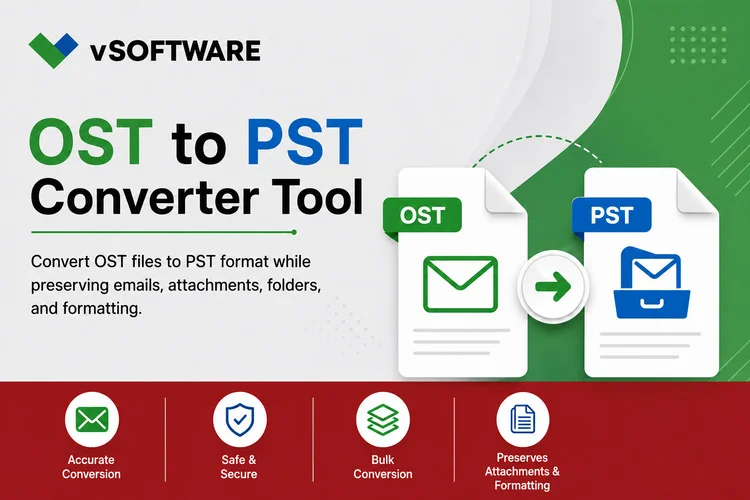
Outlook opens, but an old mailbox is missing. You search the computer and find a large .ost file. It is tempting to think that renaming it to .pst will bring everything back. Unfortunately, the two files serve different purposes, and recovery depends on whether you can still access the original email account.
An OST file is Outlook’s local copy of mail from an account such as Exchange or Microsoft 365. A PST file is an Outlook Data File that you can open separately or use to store an exported archive. Understanding that difference can save you from buying software you do not need—or deleting the only copy of data you still have. Microsoft Support
Start With the Most Important Question: Can You Access the Mailbox?
Before looking for OST Recovery Software, sign in to the email account through its web interface. Are the missing messages there?
If they are, the server still has the data. The problem may be with Outlook’s local copy, profile, or synchronization. For an Exchange account, Outlook can create a fresh OST from the mailbox on the server. Microsoft recommends checking synchronization problems and rebuilding a damaged local file when appropriate. Microsoft Support
Do not delete or replace the OST immediately if you suspect it contains messages that never synced to the server. First, close Outlook and preserve a copy of the file. Then compare what you can see in Outlook with what appears in webmail. That comparison tells you whether you are dealing with a damaged cache or potentially missing local data.
What If Outlook Opens but Some Emails Are Missing?
A missing message does not always mean a damaged OST. Outlook may be set to keep only a limited period of mail offline, while older messages remain on the server. A folder might also be waiting to sync.
Check the account in webmail, then look at Outlook’s sync status and the affected folders. Microsoft notes that the amount of mail available in an OST depends partly on the “Mail to keep offline” setting. If the messages exist on the server, changing sync settings and allowing Outlook time to download them may solve the issue without conversion. Microsoft Learn
If Outlook reports a data-file error, Microsoft’s Inbox Repair tool, SCANPST.EXE, can check an Outlook data file for problems. Back up the file before attempting a repair. Repair is worth considering when Outlook cannot open its data file, but it should not replace checking whether the mailbox itself is still available. Microsoft Support
When Should You Export to PST?
If you can open the mailbox normally and want a separate archive, export the mailbox to PST through Outlook. You do not need to convert the OST file directly in this situation: Outlook can read the connected account and create the PST.
In classic Outlook for Windows, go to File > Open & Export > Import/Export, choose Export to a file, and select Outlook Data File (.pst). Choose the mailbox or folder you need, include subfolders where appropriate, and save the file in a location you can find again.
Check your offline mail settings before exporting. Microsoft says that when Cached Exchange Mode is in use, Outlook exports only the items available in the current cache. If you expect years of mail but have synced only recent months, verify what the export will contain before treating it as a complete backup. Microsoft Support
Once the export finishes, open the PST and inspect several folders. An export is useful only if the emails you need actually made it into the file.
What If the Original Account Is Gone?
This is the harder case. Perhaps an employee account was removed, an old server is unavailable, or you have an OST copied from another computer. An OST is associated with the account and Outlook profile that created it. Microsoft does not provide a normal import OST command that works like opening a PST. Microsoft Support
First, ask whether the mailbox can be restored by your email administrator or provider. If the server-side mailbox is still recoverable, that may offer a clearer route to the full data.
If the mailbox cannot be restored and the OST is your only remaining copy, an OST to PST Converter may be an option. Treat its results as something to test, not as a guaranteed recovery. The condition of the OST, the data actually stored in it, and the tool’s capabilities all affect what can be recovered.
How to Evaluate an OST to PST Converter
Start with a copy of the OST and keep the original untouched. A trial version should let you see whether the software can read the file and identify the folders you need. If it permits a sample export, open that PST in Outlook rather than relying on a preview inside the converter.
Pay attention to the details that matter in your archive: message dates, sender information, folder names, attachments, contacts, and calendar items if you need them. Check the trial’s export limits before paying. A tool that displays every email but exports only a small number in its free version may still be useful for testing, as long as you understand the restriction.
For business mail, also consider where the files are processed. An offline desktop tool and an online upload service present different privacy considerations. Ask your organization’s administrator before placing company email in a third-party service.
A Simple Recovery Decision
The most useful next step depends on what is still available:
- Mailbox works and data is on the server: Fix Outlook’s sync or profile issue. Export to PST through Outlook if you need an archive.
- Outlook opens, but some mail is missing: Check webmail and offline sync settings before attempting recovery.
- Outlook reports a data-file error: Back up the OST, then investigate Microsoft’s repair and rebuild guidance.
- Account is unavailable and only the OST remains: Check whether the mailbox can be restored. Test recovery software on a copy if it cannot.
These paths can save considerable time. Converting a file will not retrieve messages that were never stored in that file.
Check the Recovered PST Carefully
Whether you exported from Outlook or used recovery software, open the finished PST and compare it with what you expected. Look at an old folder, a recent folder, and messages with attachments. Search for a distinctive subject line. If the file came from a business account, check the records most likely to matter before you archive or transfer anything.
Keep the original OST, the new PST, and a record of how you produced it until the checks are complete. If a folder is missing, you will still have the source file available for another attempt.
Final Thoughts
OST recovery begins with finding out where the mailbox data still exists. When the account and server are available, Outlook’s own sync and export options are usually the clearest path. When only a disconnected OST survives, recovery becomes less certain, and an OST to PST Converter should be tested against the actual file. Work from a backup, inspect the output in Outlook, and keep the original until you know the messages you need are present.