Sign up with Google
 Sign in with Zoho

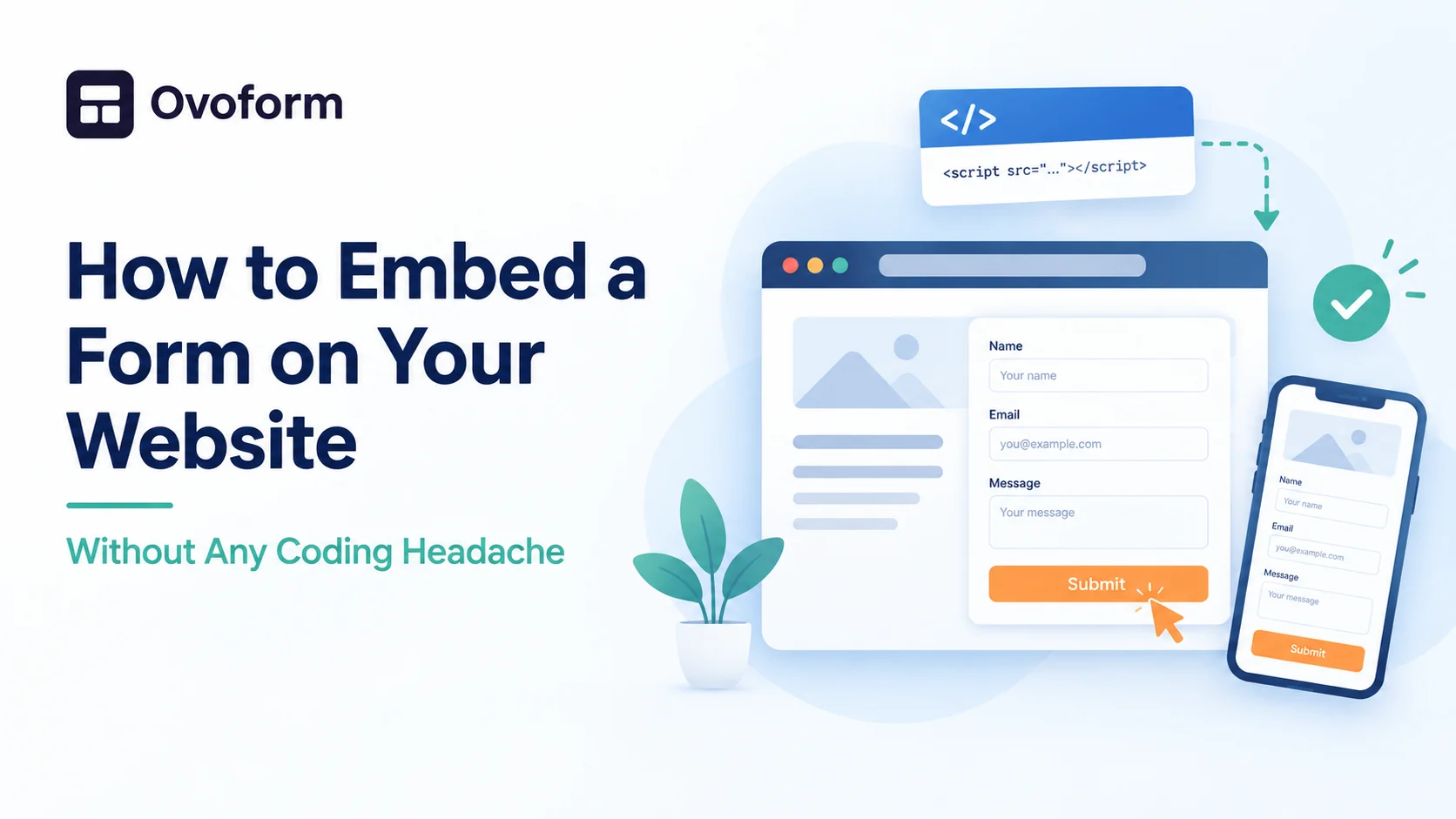
Sending visitors to a separate page just to fill a form can feel like a detour. Many of them never come back. When you embed a form directly on your website, people can submit their details without leaving the page they are already reading. It looks cleaner, feels smoother, and usually gets more responses.
What Does Embedding a Form Mean?
Embedding means placing a form you built elsewhere inside your own web page. The form appears as a natural part of the page, but the responses are still collected and stored by the form tool. You do not need to build the form from scratch or manage a database. You just paste a small piece of code, or sometimes a simple link, into your page.
Common Ways to Embed a Form
- Iframe embed. The most common method. You copy a short iframe snippet and paste it into your page’s HTML. The form shows up inside a frame.
- Script embed. A small script loads the form and often adjusts its height automatically, so there are no awkward scrollbars.
- Popup or slide-in. The form opens when someone clicks a button or after a few seconds on the page.
- Plugin or block. Website builders and content platforms often have a custom HTML block or an embed block where you can paste the code.
Step-by-Step: Embedding a Form
- Finish and test your form. Fill it yourself once and check that responses arrive properly.
- Copy the embed code. Look for a Share or Embed option in your form tool.
- Open your page editor. Choose the page where you want the form, such as Contact or Pricing.
- Add a custom HTML block. Paste the code where the form should appear.
- Preview and publish. Check the page on desktop and mobile before it goes live.
If you are still choosing a tool, this list of embedded form builders for websites compares a few good options.
Tips for Better Embedded Forms
- Match your site’s look. Use similar colors and fonts so the form feels like part of the page.
- Keep it short. A smaller form fits better inside a page and gets more completions.
- Set the right width. Make sure the form fills its container without overflowing on small screens.
- Place it where people decide. Near the end of a service description or below key benefits works well.
- Add a clear button label. “Request a quote” works better than a plain “Submit.”
- Show a thank you message. Let people know the form went through.
Mistakes to Avoid
Do not skip mobile testing, since many forms look fine on a laptop but break on a phone. Avoid placing multiple forms on one page, because it confuses visitors. Also check that the page loads over HTTPS, as people trust secure pages more when sharing personal details.
Final Thoughts
Embedding a form takes only a few minutes, yet it can change how many visitors turn into leads, signups, or customers. Choose a simple form, paste the code, test it properly, and keep an eye on your responses. If you want to see how it feels in practice, you can try a free form builder and embed your first form today.