Sign up with Google
 Sign in with Zoho

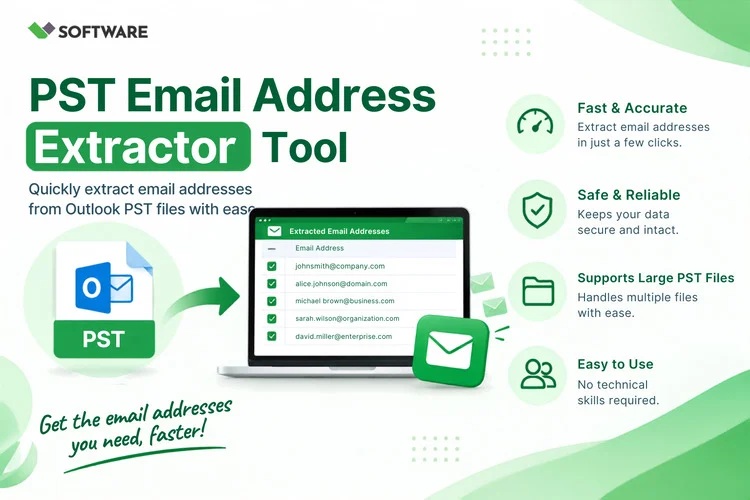
An Outlook archive can look harmless from the outside. It is just one PST file sitting in a folder. Open it, though, and you may find years of emails, old projects, customer conversations, newsletters, internal discussions, and thousands of email addresses.
That creates an interesting problem. What if you need the useful contact addresses but do not want to open every message manually?
I looked into this question while studying how Outlook users handle old mailbox data. The manual method seems manageable at first. You open an email, copy the sender’s address, paste it into a spreadsheet, and move to the next message. After twenty or thirty emails, the weakness of this approach becomes obvious. It is slow, repetitive, and surprisingly easy to get wrong.
A PST Email Address Extractor is designed to perform this job in bulk. It scans a PST file, finds email addresses in selected mailbox fields, and places the results into an organized list. The idea is simple, but the quality of the result depends heavily on the settings used during extraction.
Why are email addresses difficult to collect from Outlook?
A PST file does not contain only a list of contacts. It can hold complete emails, attachments, calendar entries, tasks, contact cards, and custom folders. Email addresses may be scattered across many parts of that data.
The obvious places are the From and To fields. However, useful addresses may also appear in CC, BCC, email headers, signatures, forwarded conversations, and message bodies. Some addresses may appear hundreds of times, while others may occur only once in an old but important conversation.
Outlook lets a user view these details, but reviewing a large archive one message at a time is not realistic. Even Outlook’s standard export options may not collect every address mentioned across the mailbox.
This is where dedicated PST Email Address Extractor Software becomes useful. Instead of treating the PST as a series of messages that must be opened individually, it scans the selected areas of the mailbox as a data source.
A practical bulk-extraction example
Imagine a small company that has kept the Outlook mailbox of a former sales employee. The PST archive contains four years of communication with customers, distributors, and service providers. Unfortunately, many of those people were never added to the formal contact list.
The company does not need every address in the mailbox. Internal employee addresses are already available elsewhere. Automated notification addresses and newsletter senders are not useful either. The actual requirement is to identify external business contacts found in the Inbox and Sent Items during the employee’s final two years.
Copying addresses manually would waste hours and still produce a messy list. A better process would be to select the two relevant folders, apply a date range, exclude the company’s internal domain, and remove duplicate results.
This example shows why extraction is not simply about finding as many addresses as possible. A useful contact list comes from narrowing the results to match a clear purpose.
What happens during PST email extraction?
Most extraction applications follow a similar process. A user adds a PST file and waits for the software to read its folder structure. The required folders and email fields are then selected. If the application includes filters, the user can restrict the scan by date or email domain.
Once the scan begins, the software looks for addresses in the chosen areas. The discovered records are collected and, if requested, duplicate entries are removed. The final list can usually be saved as a CSV or TXT file.
CSV is helpful when the information needs to be reviewed in a spreadsheet. Columns can be sorted, filtered, or prepared for import into another authorized system. TXT is suitable when only a plain list of addresses is needed.
The original PST file should remain unchanged throughout this process. Even so, keeping a backup before working with an important mailbox is a sensible precaution.
Features that make a real difference
When I compared the typical capabilities of these tools, duplicate removal stood out as one of the most important. An active customer may have exchanged hundreds of messages with a company. Without deduplication, the same address could appear hundreds of times in the exported file.
Folder selection is equally useful. Deleted Items, Junk Email, and newsletter folders can add a great deal of irrelevant data. Selecting only the folders connected with the task produces a cleaner result.
Date filters are valuable when a PST file covers several years. A business may need recent contacts rather than every address found in the entire archive.
Domain filters offer another layer of control. They can exclude a company’s own domain, remove common automated senders, or focus the search on a particular organization.
Batch processing matters when several PST archives must be examined. Loading each file separately may be acceptable for an individual user, but it becomes inconvenient when an administrator is handling many former employee mailboxes.
An application should also support large PST files without becoming unstable. Before processing a business archive, it is worth checking whether the software has any limits on file size, folder count, or the number of messages it can scan.
Why the exported list still needs human review
Software can identify text that follows the pattern of an email address, but it cannot always decide whether that address is useful.
A typical export may include no-reply accounts, automated alerts, test addresses, mailing-list senders, old employee accounts, and contacts that are no longer active. Some addresses may be technically valid but unrelated to the purpose of the extraction.
For that reason, the output should be treated as a working list rather than a finished contact database. Sorting the results by domain can make the review easier. Obvious automated accounts can be removed, and important addresses can be checked against existing business records.
This review stage is also a good time to add context. An email address alone says very little. If the information is available and its use is permitted, fields such as the person’s name, company, role, or last communication date can make the contact record more meaningful.
Can you extract emails without installing Outlook?
Some applications can extract emails from PST file archives without relying on a working Outlook installation. This can be helpful when an old PST file has been moved to a different computer or when Outlook is no longer configured with the original account.
However, “Outlook not required” should not be confused with “no verification required.” Users should still confirm that the software supports their PST type, file size, and operating system. Testing the application on a copy of the archive is safer than beginning with the only available file.
Contact extraction is not permission to send marketing emails
This is the part that deserves more attention. Finding an email address in an old business mailbox does not automatically give someone permission to add it to a promotional mailing list.
The extracted information should be used only for a defined and lawful purpose. Companies need to consider consent, privacy obligations, internal data policies, and applicable anti-spam rules before contacting anyone.
Access also matters. A PST file may contain private conversations, personal addresses, and confidential business information. Only authorized people should process it, and the exported file should be stored securely. Temporary copies should be deleted when they are no longer needed.
For sensitive archives, local processing may provide more control than uploading the complete PST file to an unknown website.
A sensible workflow for better results
The most practical approach is to decide what information is needed before starting the scan. “Extract every address” sounds convenient, but it often produces a large and unhelpful list.
Start with a backup. Choose the relevant PST file and select only the folders connected with the task. Apply a suitable date range and exclude unnecessary domains. Turn on duplicate removal, export the results, and then review them manually.
This workflow combines automation with judgment. The software handles the repetitive search, while the user decides which contacts are relevant and appropriate to retain.
Final thoughts
Bulk email address extraction can save a considerable amount of time, especially when Outlook archives contain thousands of messages. A reliable PST Email Address Extractor can search several mailbox fields, process selected folders, remove repeated addresses, and create an exportable list.
Still, the tool is only one part of the job. Good results depend on careful filtering, manual verification, secure data handling, and a clear reason for collecting the information.
If I had to reduce the process to one lesson, it would be this: do not aim for the largest possible list. Aim for a relevant, accurate, and responsibly managed list. That is what turns PST Email Address Extractor Software from a simple scanning utility into a genuinely useful tool for working with archived Outlook data.