Sign up with Google
 Sign in with Zoho

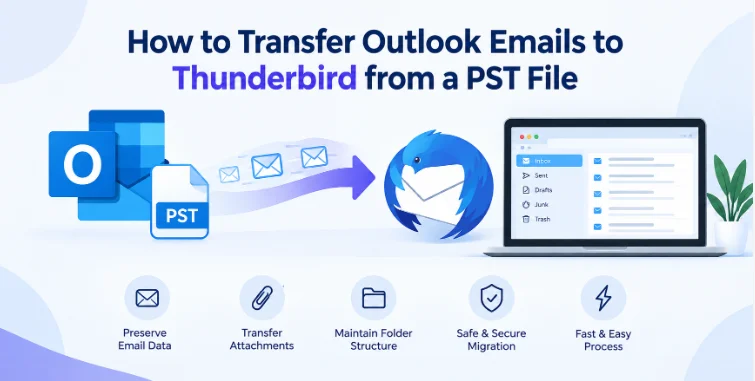
If you need to access old Outlook emails from another email client then switching from Microsoft Outlook to Thunderbird can be helpful. But it's not as simple as just opening a PST file directly in Thunderbird. Outlook stores mailbox data in the PST format, while Thunderbird uses the MBOX mailbox format.
The main issue is the difference in format. Fortunately there are practical ways to move the emails. In this guide, we will talk about the available ways and provide a step-by-step method using GainTools PST to MBOX Converter.
Why Cannot Thunderbird Read PST File of Outlook Directly?
PST and MBOX are different mailbox file formats.
PST can contain Outlook emails, attachments, folders, contacts and other mailbox information. Thunderbird uses MBOX for storing email messages.
So just copying a PST file into Thunderbird's profile folder will not make the e-mails available. PST data needs to be converted into a format that Thunderbird can read.
It may be possible to manually forward or save individual messages for a few emails. But these methods are inconvenient if there are hundreds or thousands of emails in an Outlook archive.
Ways to Transfer Outlook Emails to Thunderbird Practically
1. Manually Forward Important E-mails
You can open some emails in Outlook and forward them to an account you have set up in Thunderbird. This is fine for a small number of messages, but not a practical solution for a whole archive.
2. Export Single Emails
The other option is to save individual messages from Outlook and then import them using a compatible Thunderbird workflow. Again, this is a lot of manual labor.
3. Migrate PST to MBOX
A simpler way to perform an entire mailbox migration is to convert the PST data into MBOX. Once the emails are in MBOX format, you can import them into Thunderbird.
A dedicated converter can also come in handy when you need to preserve email content, attachments and important message properties during the migration.
How to Use the Converter Step by Step
The following process can be used to convert Outlook PST files to MBOX and make the mailbox available in Thunderbird.
Step 1: Make the PST File
First, find the Outlook PST file that contains the emails you want to move. Make a backup copy before you start the conversion.
This is especially true when the PST has years of business or personal correspondence. Work on the copy, not the original file.
Step 2: Install and Run the Software
Download and install GainTools PST to MBOX Converter on a Windows computer (supported).
It is an application to convert PST file into different formats like MBOX, EML, EMLX and MSG. According to the product information from the official page, it can work without internet connection as well.
Step 3: Search and Add PST File
Select Browse to locate the PST file on your computer. Choose the file you want and let the program scan it.
Once the scanning is done, the PST data will be shown in the application so that you can verify the selected mailbox is correct.
Step 4: Preview PST Data Files
See the folders and messages that are available for conversion.
The preview feature allows you to view folders and email content, including fields such as To, From, CC, BCC, and message text. This allows a check that the outlook data needed is present before conversion.
Step 5: Select MBOX as Output Format
Choose MBOX from the list of output formats. This is the correct target format for the migration, since Thunderbird uses MBOX to store the mailbox.
Choose the data or folders you want to migrate.
Step 6: Pick Output Location
Select a folder to save the converted MBOX data.
You might want to create a dedicated folder like Thunderbird Migration so that the converted files are easy to identify when you start the Thunderbird import process.
Step 7: Begin the Conversion
Click the Conversion option to begin the PST to MBOX process.
The software is developed so that it can retain the email properties and attachment during conversion. The official product page also claims that non-English characters can be handled during migration.
A key point for planning a large migration is that the current product documentation says that the application converts one PST file at a time. If you have more than one PST file, process and validate them individually.
Step 8. Import MBOX Files to Thunderbird
After conversion open Thunderbird and import converted mailbox to required profile or folder using suitable MBOX import workflow.
Once imported check Inbox Sent Items and other folders migrated. Open a few messages and check their content and attachments.
Practical Example
Imagine a user with a 12 GB Outlook PST file, with some 35,000 emails from years of project communication. Thunderbird does not directly open the PST.
Firstly, the user takes backup of the PST. The PST is then loaded into the converter and previewed and exported to MBOX. The MBOX data is converted and imported into Thunderbird.
The user then reviews several hundred randomly selected emails from a variety of folders, including those with attachments. This check helps catch any migration issues before archiving the original PST.
Benefits
There are many advantages of having a dedicated workflow for PST to MBOX conversion:
· Transforms Outlook PST data into Thunderbird-compatible mailbox format.
· Maintains the content and key attributes of the message.
· Allows you to convert attachments.
· Offers a preview before conversion.
· Allows users the flexibility of choosing the destination location.
· Supports different versions of Outlook PST file.
· Supports non-English characters.
· Does not need an internet connection to do the conversion.
Employs a guided workflow that you can follow without requiring advanced technical knowledge.
System Requirements
According to the official product information, the Windows application supports:
OS: Windows 11, 10, 8.1, 8 and 7
Processor: 1 GHz or faster
RAM: 512 MB minimum
Hard Disk: 100 MB free space
Input Format: PST
You can check the conversion by using the free trial. The official page states that it allows you to convert 10 emails from each PST folder.
FAQs
Can Thunderbird open PST files?
No Thunderbird does not natively use Outlook PST as its mailbox format. The PST data should be converted to a compatible format like MBOX.
Can you move Outlook attachments to Thunderbird? Yes.
Yes, the converter’s official documentation states that attachments are exported with the email data. Always check a few converted messages after migration
Do I need to be connected to the Internet to convert?
The official product page says the application can run without an internet connection.
Can I convert multiple PST files at the same time?
The official FAQ states that the application can only convert one PST file at a time. Therefore, multiple PST files need to be processed separately.
Will my original PST file be altered?
The safest way is to take a backup copy of the original PST and make the conversion from the backup copy.
How can I check the migration?
Some emails from the original Outlook mailbox can be compared with their Thunderbird equivalents. Check the message details, sender and recipient fields, dates, folders, and attachments.
Conclusions
The Outlook PST data needs to be converted into a format that Thunderbird can use to import Outlook emails. You can get by with manual methods for a few messages, but they quickly become unmanageable as your archive increases in size.
GainTools PST to MBOX Converter is the best way to export PST file to MBOX in an organized way. Prepare the PST for conversion, scan & preview the data, select the output as MBOX, choose the destination, convert the file and finally import the MBOX file data to Thunderbird. The overall transition would be safer and easier if the original PST was kept as a backup and the migrated emails were verified.






 🌎🔒#gdupco.webp)