Sign up with Google
 Sign in with Zoho

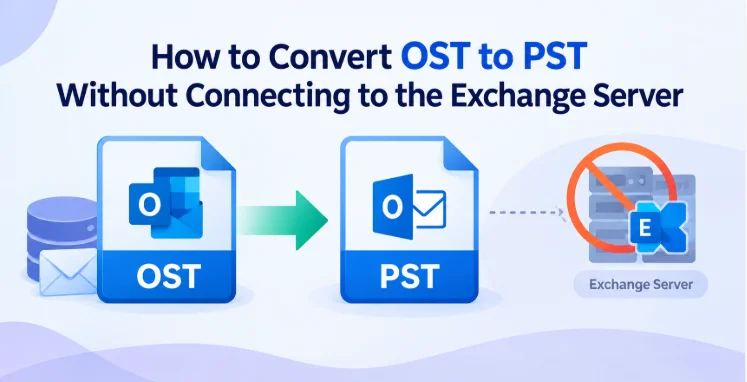
OST files are usually related to an Outlook profile which is linked to an Exchange account. This works fine so long as the account and Exchange Server is available. The problem appears when the server is down, the employee account is deleted, the Outlook profile is deleted or the old OST file needs to be opened on another computer.
In such cases, opening OST file in Outlook may not be sufficient. Outlook may prompt for the original account, fail to connect to Exchange or refuse to open the file.
Converting OST to PST is one of the workable options for the recovery of emails and other mailbox items from an existing OST file. PST can be opened or imported into Outlook regardless of the original Exchange connection.
Why can’t you directly open an OST without Exchange?
OST file is designed as an offline copy associated with an Outlook/Exchange profile. This is not something that you will want to open by itself through the regular interface in Outlook, like a stand-alone PST.
For example, assume an employee leaves a company and their Exchange account is disabled. The local computer still has a 12 GB OST file with a few years of emails, contacts, calendars and tasks. After the account is removed, Outlook may stop syncing or give you normal access to that mailbox.
Things go from bad to worse when the original Exchange Server isn’t available.
Instead of trying to connect the old profile again and again, you can work with the existing OST file directly and convert the contents of that file into PST.
How to Convert OST Without Exchange in Real Life
1. Verify If the Original Account Is Still Accessible
If the Exchange account is active and available, normal Microsoft Outlook export options may be enough. However, these methods rely on Outlook and the connection to the mailbox.
2. Find the Existing OST File
Before you try to convert the OST file, make a backup copy of it if it is already stored locally. Never play around with the one copy of important mailbox data.
3. Don’t Change the Original OST
Do not rename, modify or overwrite the source file during the recovery. Copy and use the copy to convert.
4. Use an OST Converter Tool
If you don’t have Outlook or Exchange, a standalone conversion utility is convenient to use, though a paid license or upgrade is typically required to export full-size or large OST files past free trial limits.
Real Life Scenario: Recover 12 GB OST without Exchange
Consider an employee of a company that has left and had his Exchange account disabled. The employee’s computer had a 12 GB OST file that contained roughly six years’ worth of business correspondence.
The IT admin attempted to open Outlook but the application prompted for the Exchange account which was not available. The profile was recreated but the mailbox was inactive and the problem still existed.
The administrator copied the 12 GB OST file to another recovery folder. Instead of trying to connect Outlook to the old Exchange environment, the copied OST was imported into the GainTools OST to PST Converter.
The application scanned the file and showed its mailbox folders. The administrator previewed Inbox, Sent Items, Contacts, Calendar and project folders, selected required mailbox data and chose PST as output format.
The output PST after conversion was saved to a separate local drive. Then it was opened or imported into Outlook without the original Exchange Server.
This makes an important point that the OST-to-PST process works with the OST data available locally and there is no need for the original Exchange mailbox to be online. The software is also capable of exporting the entire OST data or selected folders, as per the official product documentation.
How to convert OST to PST without Exchange: A Step-by-Step Guide
Backup OST
Find the OST file and copy it to another folder or an external storage device. Leave the original alone.
Installing the Converter
Install OST to PST software on Windows computer. The product page currently says it supports Windows 11, 10, 8.1, 8 and 7, both the 32-bit and 64-bit editions.
Import OST file
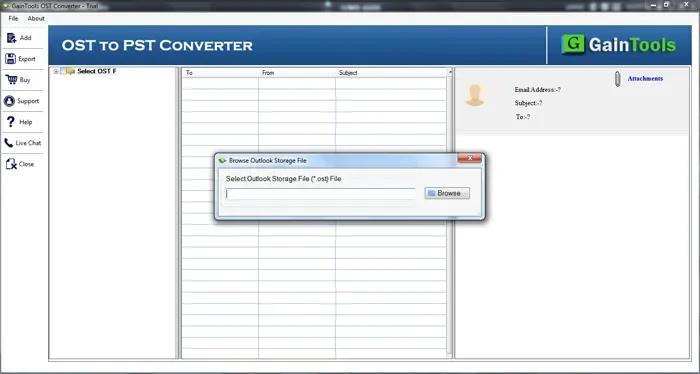
Launch the application and navigate to the Browse option to locate the copied OST file. This is a file-based conversion process and does not require a connection to the original Exchange Server.
Preview and Scan the OST
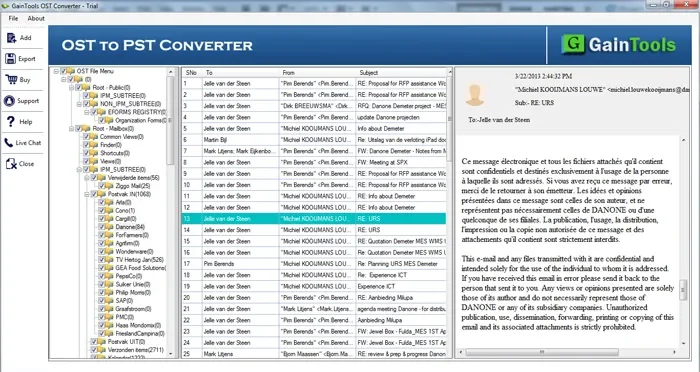
Allow the application to scan the OST file. Previews folders and mailbox items before exporting them in the preview interface. Software provides previewing of selected OST and selecting specific items for export.
Pick Out the Data You Need
You can choose either the entire mailbox or individual folders. For example, if you only need business emails and contacts, you don't need to export all the folders available.
The software allows exporting folders such as Inbox, Outbox, Calendars, Journals, Contacts, etc.
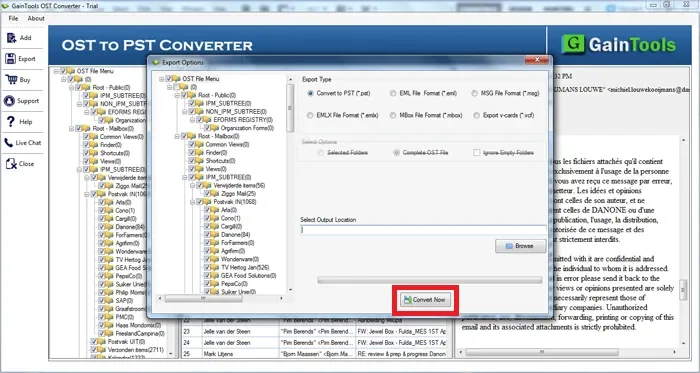
Choose PST as Output
Choose PST from the list of output formats. The current product page mentions PST, MBOX, EML, EMLX and MSG as supported output formats.
Choose an Output Location
Select a location with enough free space. Do not save the output to a nearly full system drive for a large OST.
Begin Conversion
Click on Convert Now to start exporting selected OST data to PST. The converted file is saved locally in the location you specify by the app.
Check the PST
After conversion, open the resultant PST file in Outlook and verify the important folders. Check emails, attachments, contacts, calendar entries and folder structure before deleting or archiving original OST.
Advantages of an OST to PST Converter
No dependence on the original Exchange mailbox: Handy when the server or account no longer exists.
Preview before conversion: You can preview the OST contents before export.
Selective conversion: Convert only selected folders instead of entire mailbox.
Supports OST files of all sizes: The vendor claims that the software supports OST files of all sizes.
Multiple mailbox items: You can export emails, messages, contacts, calendars, notes and tasks.
Supports multiple Outlook versions: The product website mentions that the product supports Outlook versions 2003, 2007, 2010, 2013 and 2016.
Local output: The user can save the resulting PST to a location of their choice.
System Requirements
From the official product specifications:
Operating System: Windows 11/10/8.1/8/7 (32-bit & 64-bit)
Processor: 1 GHz or higher
RAM: Minimum 4 GB recommended (8 GB+ recommended for large files like 12 GB)
Hard Disk: 100 MB of free space
Display: 1024 x 768 resolution
Input: OST
Output formats: PST, MBOX, EMLX, EML, MSG
Language: English
It is understandable that big OST files would have a lot more free disk space than the stated minimum since the source and resultant PST can occupy a lot of storage.
Frequently Asked Questions
The Exchange server is offline or the account is deleted. Can I still get my data?
Yes, you can convert OST to PST without an active Exchange connection. If you have the local OST file, a dedicated converter can read and process it independently.
Do I have to recreate the original Outlook profile?
Not only for the conversion process. You can export data from OST file direct and save it to PST.
Is it possible to convert only selected OST folders?
Yes. The software allows selecting individual folders instead of exporting the entire OST.
Is a corrupted OST file convertible?
Yes, a corrupted OST file is convertible. According to the vendor, its application can scan and recover corrupt OST files and supports corrupt data. Results may differ depending on source file conditions.
Does converter supports big OST files?
The product documentation says it can export OST files of different sizes and there is no specific file size limitation.
Is there any preview of OST data before PST creation?
Yes. The software provides preview of selected OST data before export.
Conclusion
Converting OST to PST is especially helpful if you can’t reach the original Exchange Server, the account has been deactivated, or an old Outlook profile can’t open its mailbox. Traditional Outlook export methods require a working Outlook environment and often require access to the original mailbox.
GainTools OST to PST Converter is a file-based solution that allows the user to access and preview the contents of the OST when only the local OST file is available. It scans the OST file and allows the user to select the desired folders to export the mailbox data to PST.
The safest way to do this is to keep the original OST, work from a copy, convert the necessary data and check the resulting PST before using it as the main archive. This method allows the recovery of valuable mailbox information without the need for the missing Exchange connection.