Sign up with Google
 Sign in with Zoho

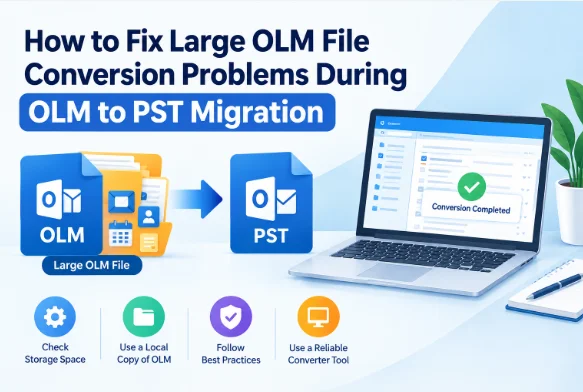
The OLM file is huge, and it is difficult to move emails from Mac Outlook to Windows Outlook. The conversion might take longer than expected, the OLM file might not load or the PST might be incomplete. Large mailboxes may also have thousands of emails, attachments, contacts, calendars, notes and other items in them which makes the migration more demanding.
If you are facing issues during large OLM to PST conversion, the first step is to find out whether the problem is with the source file, available storage, system resources or the conversion method. The guide tells the practical ways to troubleshoot the problem and a step-by-step method with OLM to PST Converter.
Conversion Problems with Large OLM Files?
An OLM file can be very large and contain years of accumulated mailbox data. It can also contain emails, attachments, contacts, calendars, notes, appointments and journals. Processing all this information requires adequate storage and system resources.
Typical problems include:
· OLM file takes a long time to load.
· Conversion looks to be frozen at a specific stage.
· The application won’t respond.
· The created PST is missing expected items.
· Looks like attachments are missing.
· The output PST is not being found due to the wrong destination.
· Not enough free storage on the computer.
· The OLM file is placed on an external or unstable drive.
The problem does not always mean that the OLM file itself is too large. The process can also be affected by the available disk space, the computer configuration, the file location and the conversion method.
Practical Ways to Fix Large OLM Migration Problems
1. Check Disk Space Available
Check the free space on the Windows drive before you begin. The converted PST will require additional storage space and may also require additional working space during processing.
If the drive is nearly full, delete any temporary files you don’t need or choose another drive that has enough space.
2. Copy OLM File to Local Drive
If the OLM file is saved on a network location, USB drive or external hard disk, copy the OLM file on the Windows computer first.
Having a local copy can reduce interruptions from unstable connections or slow external storage.
3. Make a Copy of the Source OLM
Never try to troubleshoot the only copy of a critical mailbox. Before you begin the migration, make a backup.
This also means you can repeat the conversion if you want to change the output location or selected folders.
4. Turn Off Unnecessary Applications
Big conversions can use up a lot of system resources. Before you start, close any unnecessary applications, especially those that use a lot of memory or disk activity.
5. Don’t Cut Off the Conversation
If it appears that the software is working on a large mailbox, give it some time to do so. Don’t kill the app just because the conversion takes longer than expected.
6. Use a Dedicated OLM to PST Converter
If the manual migration seems a bit tricky, a dedicated converter can help. GainTools OLM to PST Converter provides support for OLM files of any size, create a preview file before actual conversion and export emails, contacts, calendars, notes, journals, appointments and other mailbox items to PST format.
Practical Example: Converting a Huge OLM File
Let's say an employee has an 18 GB OLM file with years of business emails, attachments, contacts, and calendar information. The mailbox contains a large number of individual items and a manual migration takes too long.
First, the user backs up the OLM file and copies the working copy to a local Windows drive. After confirming the availability of enough storage, the user deletes irrelevant applications and imports the OLM file into the converter.
Preview of the mailbox structure is shown. The user checks the folders and selects the required data instead of blindly exporting everything. The output format is set to PST, a storage location with sufficient space is selected and the conversion is started.
Once done, the user opens the created PST file in Windows Outlook and verifies some folders, emails, attachments, contacts and calendar items. This gives a practical method to ensure migration before the original OLM backup is deleted.
How to Fix the Issue Using the Tool: A Step-by-Step Guide
Step 1: Prepare OLM Files
Find the original OLM file and take a backup copy. Work with the copy, not the original mailbox archive.
Step 2: Export OLM to Local Drive
Copy the OLM file to a local drive on Windows. Ensure the drive has sufficient free space for conversion and resulting PST.
Step 3: Download and Execute the Converter
Download and install OLM to PST Converter at Windows machine. According to the product page, the conversion does not require the installation of Microsoft Outlook.
Step 4: Adding OLM File
Click on browse option and select OLM file which you want to convert. Run the software to scan the mailbox.
Step 5: Check Mailbox Preview
Look at the shown folders and mailbox items. The software provides a preview before conversion, so you can preview the available data and select the items you need.
Step 6: Choose PST as Output
Select PST as the export format. Specify a folder on a drive that has enough free space.
Step 7: Begin the Conversion
Click Convert Now to begin. For a very large OLM file, don't run other resource-intensive tasks during the conversion.
Step 8: Check the PST
After conversion process is completed, locate the output PST and open it up in compatible Windows Outlook version. Check critical folders, emails, attachments, contacts, calendars and other necessary stuff.
Benefits
There are a number of advantages to a dedicated conversion approach in practice:
No stated limit on OLM file size: It says its utility can handle large OLM files without any file size restriction.
Preview before conversion: Users can preview the mailbox data before exporting.
Selective migration: Instead of blind processing of everything, required mailbox items can be selected.
Complete mailbox export: Exports all emails, contacts, calendars, notes, journals, and appointments.
No need to install Outlook: As per the product page, Outlook does not need to be installed on the conversion machine.
Preservation of folder series and metadata: The software says folder series and metadata are preserved.
Windows Outlook compatibility: The resultant PST can be imported in supported editions of Windows Outlook.
Simple working process: It is just a short process of adding, previewing, selecting PST, selecting destination and converting.
System Requirements
The product page lists the following system requirements:
Processor: 1 GHz or higher
RAM: Minimum 512 MB RAM
Hard drive: 100 MB free space
Display: 1024 x 768 resolution
Operating system: Windows
Input: OLM
Output: PST
The product page also lists support for Windows Outlook 2019, 2016, 2013, 2007, 2003 and Mac Outlook 2019, 2016, 2011 OLM files.
Frequently Asked Questions
1. What is the maximum size of OLM file for conversion?
It states that its OLM to PST conversion utility does not have any limitation regarding file size. But real-world considerations like available storage and computer resources can still influence processing time.
2. Why is my large OLM file taking too long to convert?
A large mailbox can hold thousands of emails and attachments, as well as contacts, calendars, notes, and other items. The time it takes to process the data may depend on the amount of data and the system resources available.
3. Should I split a large OLM file prior to conversion?
You may not need to split up if you're using software that can handle big OLM files. Check the available storage first, copy the OLM local and give enough time for processing.
4. Is it Possible to Change an OLM File Without Outlook?
Yes. It says you do not need to install Microsoft Outlook to do the OLM to PST conversion.
5. Will the emails be converted with attachments?
OLM data including emails, contacts, calendars, notes, journals, appointments and related email details can be exported as per the product page. It also says attachments and formats are preserved.
6. The conversion appears to be stuck. What can I do?
Verify that the OLM is stored locally. Check the available disk space. Close unnecessary applications and give the software enough processing time. If it still persists, repeat the process with a backup copy of the OLM.
7. How to preview OLM data before conversion?
Yes. The software also allows users to preview OLM data before the final export, so that they can review and select the required mailbox items.
Conclusion
Large OLM files can make the Mac Outlook to Windows Outlook migration complicated, especially when the mailbox has years of emails, attachments, contacts, calendars, and other data. Good first steps include checking storage, using a local copy, closing unnecessary applications, backing up the source file and avoiding interruptions.
When manual methods are difficult, GainTools OLM to PST Converter provides a dedicated workflow to load OLM file, preview data and select required data and export to PST. Its product documentation claims it handles large OLM files with no file-size limit and that you don’t need Outlook installed on the conversion machine.