Sign up with Google
 Sign in with Zoho

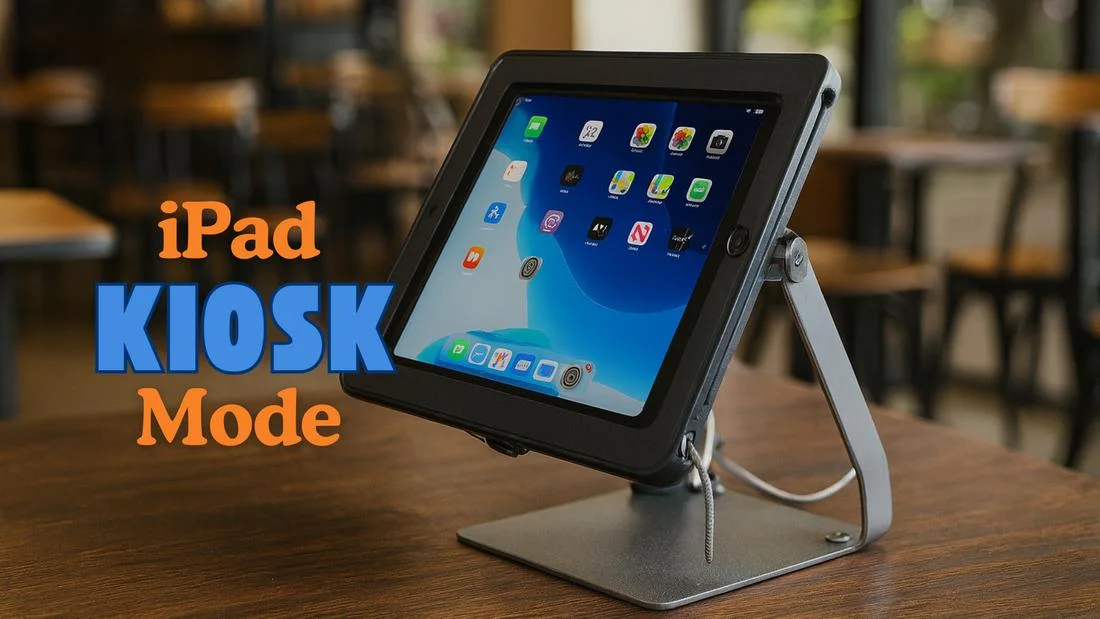
Walk into almost any modern restaurant, clinic, or retail store and you’ll see an iPad doing exactly one job. It might show a menu, check in a patient, or take a payment. No one is browsing the web or changing the wallpaper. That focus isn’t an accident. It’s the result of kiosk mode.
If you’ve wondered how to put iPad in kiosk mode, this guide covers the basics, the two main setup methods, real-world use cases, and the kiosk management habits that keep devices running smoothly.
What Is Kiosk Mode?
What is kiosk mode? It’s a setting that locks a device to a single app, or a short list of approved apps, so it works as a dedicated tool. On an iPad, that means the home button, app switcher, Settings, and every other app are out of reach for anyone using the screen.
Think of it as turning a general-purpose tablet into a purpose-built machine. A restaurant’s ordering screen, a hospital’s check-in station, and a school’s exam tablet are all ordinary iPads that have been locked down to do one thing well.
Why Businesses Use iPad Kiosk Mode
The appeal is practical. Kiosk mode delivers four main benefits:
- Security: Users can’t change settings, install apps, or poke around in places they shouldn’t.
- A better customer experience: The screen always shows the right app, with no stray notifications or accidental exits.
- Protection in public spaces: Devices in busy, unsupervised areas are far less likely to be misused.
- Lower IT costs: A locked-down device generates fewer problems, so fewer support tickets and fewer on-site visits.
Single-App vs. Multi-App Mode
Before you set anything up, decide how restrictive the kiosk should be.
Single-app mode locks the iPad to one application. It’s ideal for a payment screen, a survey station, or a digital menu where nothing else is needed.
Multi-app mode allows a small, approved set of apps. This suits a clinic where staff might need a scheduling app alongside a check-in form, or a classroom using two or three learning tools.
Choose the narrowest option that still lets people do their job. The fewer doors you leave open, the fewer problems you’ll have.
How to Put iPad in Kiosk Mode: Two Methods
Method 1: Guided Access (Built-In, Best for One or Two Devices)
Apple includes a free feature called Guided Access. Here’s how to use it:
- Open Settings > Accessibility > Guided Access.
- Turn it on and set a passcode.
- Open the app you want to lock.
- Triple-click the side button (or home button on older models) to start the session.
It takes a minute and costs nothing, which makes it great for a single device or a quick event. The catch is that everything is manual. Every iPad must be configured by hand, and there’s no central control. For a handful of devices that’s fine. For a fleet, it falls apart quickly.
Method 2: MDM (Best for Businesses and Multiple Devices)
A Mobile Device Management (MDM) platform handles kiosk setup remotely and at scale. The typical flow looks like this:
- Enroll your iPads, either through Apple Business Manager for automatic setup or manually.
- Create a kiosk profile in your MDM dashboard.
- Choose single-app or multi-app mode and add restrictions, such as disabling the camera or blocking screenshots.
- Assign the profile to individual devices or entire groups.
- Let the devices configure themselves. No one needs to touch them.
This is where kiosk management really shines. Instead of walking from store to store with a passcode, an IT team can lock down hundreds of iPads in an afternoon.
Guided Access vs. MDM at a Glance
Real-World Use Cases
Retail: iPads serve as product catalogs, stock checkers, and point-of-sale screens. Locking them to one app keeps shoppers on track and the checkout flow uninterrupted.
Restaurants and cafés: Digital menus, self-ordering stations, and feedback screens cut wait times and free up staff. Customer feedback collected on the device can also guide menu and service decisions.
Healthcare: Clinics use kiosk iPads for patient check-in and appointment scheduling. Less paperwork, shorter queues, and no access to anything beyond the intended app.
Education: Teachers lock tablets to a single learning tool or exam app, which keeps students focused and discourages cheating during tests.
Corporate offices: Visitor management is a natural fit. Guests sign in, print a badge, and notify their host, all on a secure, tamper-resistant screen.
Kiosk Management Best Practices
Setting up kiosk mode is the easy part. Keeping a fleet healthy over months and years is where good kiosk management matters.
Protect the exit. Always set a strong passcode so only authorized staff can leave kiosk mode. Rotate it periodically.
Disable what you don’t need. Turn off the camera, screenshots, and any other features irrelevant to the kiosk’s purpose.
Update remotely. Push app and OS updates over the air, scheduled outside business hours. Test on a small pilot group before rolling out widely.
Monitor in real time. Track battery levels, connectivity, and storage so you can fix problems before customers notice.
Group your devices. Organize by location, role, or use case so you can apply policies in bulk instead of one device at a time.
Plan for theft and loss. Make sure you can remotely lock or wipe any device that goes missing.
Keep an inventory. Know where every iPad is, what’s installed on it, and who is responsible for it.
Troubleshooting Common Problems
- Stuck in kiosk mode? With MDM, release the device remotely. With Guided Access, use the passcode.
- Forgot the passcode? Reset it through your MDM or Apple Configurator.
- App frozen or outdated? Push an update or trigger a remote restart.
- Need to change what the kiosk does? Edit the policy in your dashboard and the change reaches every assigned device automatically.
Where Kiosk Mode Is Heading
Kiosks are getting smarter. Expect AI-powered assistants that recommend products, answer common questions, or guide people through a purchase. Management tools are also moving toward predictive monitoring, flagging a device that is low on storage or an app that keeps crashing before anyone is affected. The result is less manual work for IT and a smoother experience for users.
So, Is Kiosk Mode Right for You?
If you run one or two iPads, Guided Access is a perfectly good starting point. If you manage devices across several rooms, stores, or cities, an MDM platform is the more practical choice. It saves time, keeps every device consistent, and gives you control without the legwork.
Either way, the principle is the same: a device with one clear job performs better, stays safer, and costs less to maintain. Now that you know what kiosk mode is and how to put an iPad in kiosk mode, you can turn any tablet into a reliable, purpose-built tool.