
 Sign up with Google
 Sign in with Zoho
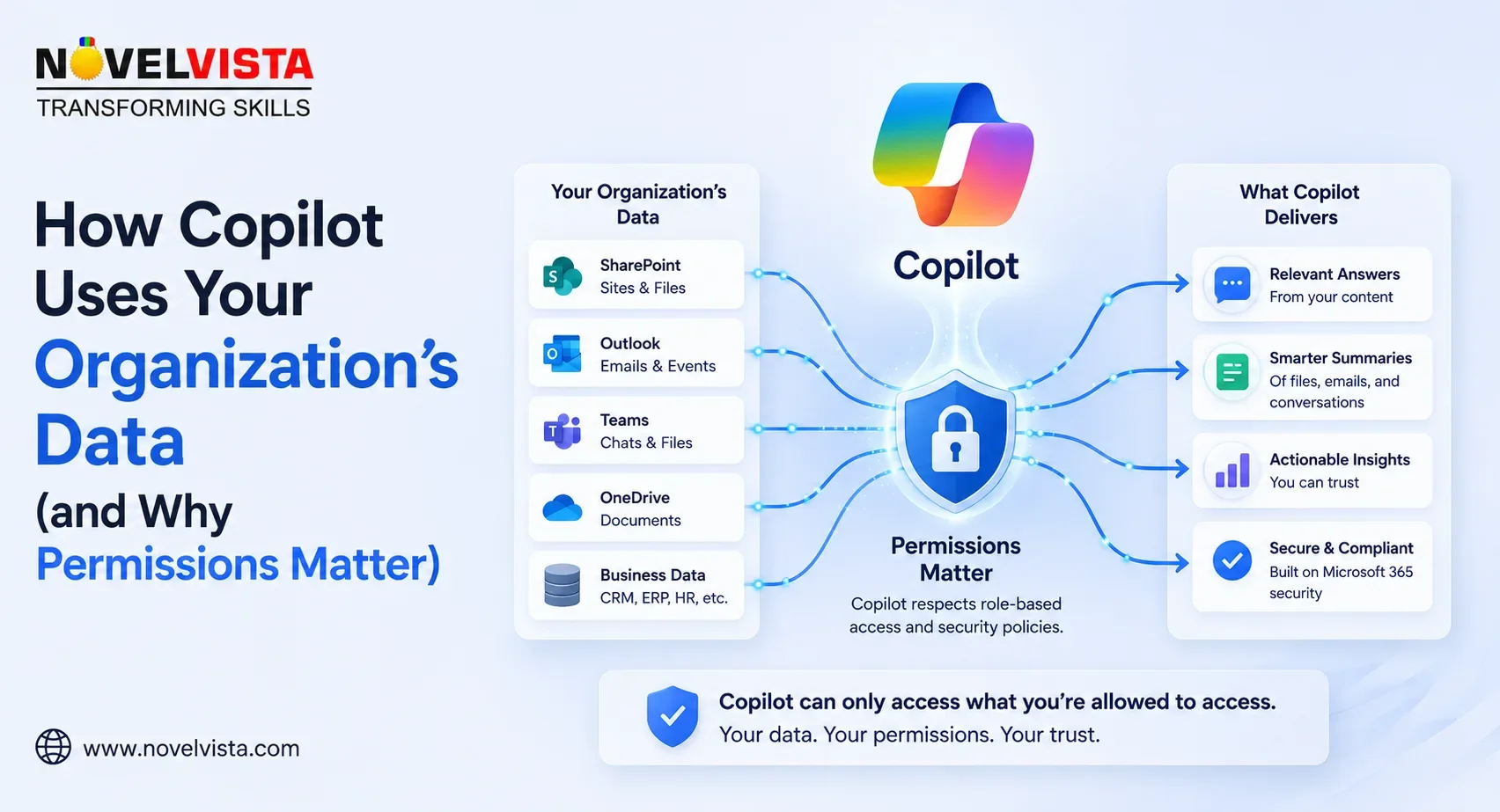
Microsoft 365 Copilot is often described as an AI assistant for the workplace, but its real value comes from more than generating text. Copilot can use the information already available across your organization such as emails, documents, meetings, chats, calendars, and contacts to provide responses that are relevant to your actual work.
This capability can save employees significant time. However, it also raises an important question: what organizational information can Copilot see?
The answer is closely connected to your existing Microsoft 365 permissions. Copilot does not create a new security model. Instead, it works within the access controls your organization already has in place. That makes permission management one of the most important parts of preparing an organization for AI.
How Copilot Connects to Organizational Data
When a user sends a prompt to Microsoft 365 Copilot, the request is processed using the user’s current context. Copilot can use Microsoft Graph to retrieve relevant information from Microsoft 365 services, including Outlook, Teams, SharePoint, OneDrive, and other connected systems.
For example, an employee could ask:
“Summarize the decisions made about the customer migration project last week.”
Copilot may identify relevant emails, meeting transcripts, Teams conversations, calendar events, and documents that the employee is allowed to access. It then uses this information to generate a response that is more useful than a generic answer from a public AI model.
This process is known as grounding. Grounding connects the language model with trusted, organization-specific information so that its response reflects the user’s actual working environment. Microsoft explains that Copilot preprocesses prompts, retrieves relevant information through Microsoft Graph, sends the grounded prompt to the language model, and then performs further security, compliance, and responsible AI checks before returning the response.
Copilot Does Not Automatically See Everything
A common misunderstanding is that enabling Copilot gives it unrestricted access to every file, conversation, and database in the organization.
That is not how Microsoft 365 Copilot is designed to work.
Copilot only accesses information that the signed-in user is already authorized to access. If an employee cannot open a confidential SharePoint document, Copilot should not use that document when responding to the employee’s prompt. If the employee has view access, however, Copilot may be able to discover, summarize, or reference the content when it is relevant.
This is sometimes called permission trimming. Search results and AI-generated responses are filtered according to the identity and access rights of the person making the request.
In simple terms, Copilot acts less like an all-access corporate administrator and more like a highly efficient assistant working under the user’s existing identity.
Why Permissions Become More Important with AI
Poorly managed permissions were already a security risk before Copilot. Employees may have access to folders they no longer need, SharePoint sites may contain broad organization-wide sharing settings, and sensitive files may be stored in locations with outdated membership lists.
The difference is that Copilot can make information easier to discover.
A document that was technically accessible but buried inside an old SharePoint folder may rarely have been opened. With Copilot, a user may find its information simply by asking a natural-language question.
Copilot does not necessarily create the permission problem. It can expose weaknesses that were already present.
This is why organizations should avoid treating Copilot deployment as only a licensing or productivity project. It should also be viewed as a data-governance initiative. Before expanding access, organizations should review shared sites, group memberships, public links, external users, inherited permissions, and confidential repositories.
The Role of SharePoint and OneDrive
SharePoint and OneDrive are major sources of organizational knowledge for Microsoft 365 Copilot. Their sharing and membership settings directly influence what information Copilot can discover and reference.
For example, imagine that a confidential salary-planning spreadsheet was accidentally saved in a SharePoint site available to all employees. Copilot is not independently breaking security controls if an employee receives information from that file. The underlying issue is that the employee already had permission to access it.
Microsoft notes that SharePoint and OneDrive access controls, discovery settings, lifecycle policies, sensitivity labels, and data-loss-prevention conditions can affect what Copilot can use without giving Copilot additional permissions.
Sensitivity Labels and Information Protection
Permissions are only one part of the protection model. Organizations can also use Microsoft Purview sensitivity labels, encryption, retention policies, data-loss-prevention rules, auditing, and compliance controls.
When encrypted content is protected through Microsoft Purview, Copilot must respect the usage rights assigned to the user. In supported scenarios, generated content may also inherit the highest-priority sensitivity label from its source information. Copilot interactions can be audited and managed through Microsoft Purview for compliance, investigation, retention, and eDiscovery requirements.
These controls are especially important for organizations handling financial information, intellectual property, employee records, legal documents, healthcare data, or regulated customer information.
What About External Data?
Organizations can extend Copilot beyond Microsoft 365 by connecting external systems such as customer relationship management platforms, knowledge bases, service-management tools, and file repositories.
However, permissions still matter. Access rules configured through Microsoft 365 Copilot connectors should accurately reflect who is allowed to see the original source information. Incorrect connector permissions could make external content visible to a wider audience than intended. Microsoft therefore recommends reviewing and validating connector access settings through the Microsoft 365 admin environment.
Preparing Your Organization
A secure Copilot rollout starts with understanding where organizational data is stored and who can access it. IT and security teams should identify overshared locations, remove unnecessary permissions, review guest access, apply sensitivity labels, and define clear ownership for important sites and documents.
Organizations should also educate employees. Users need to understand that an AI-generated response may contain outdated, incomplete, or incorrectly interpreted information. Important decisions should still be verified against the original source.
Final Thoughts
Microsoft 365 Copilot can transform scattered workplace information into useful answers, summaries, and actions. Its effectiveness comes from connecting AI with the context already present in your organization.
However, the quality and safety of that experience depend heavily on your data foundation.
Copilot generally sees what the user can already see. Therefore, well-managed permissions help produce a secure and trustworthy experience, while weak access controls can amplify existing oversharing risks.
Before asking whether your organization is ready for Copilot, ask a more fundamental question: are the right people able to access the right information—and only that information?
That is not just a Copilot concern. It is the foundation of responsible enterprise AI.











.webp)