Sign up with Google
 Sign in with Zoho

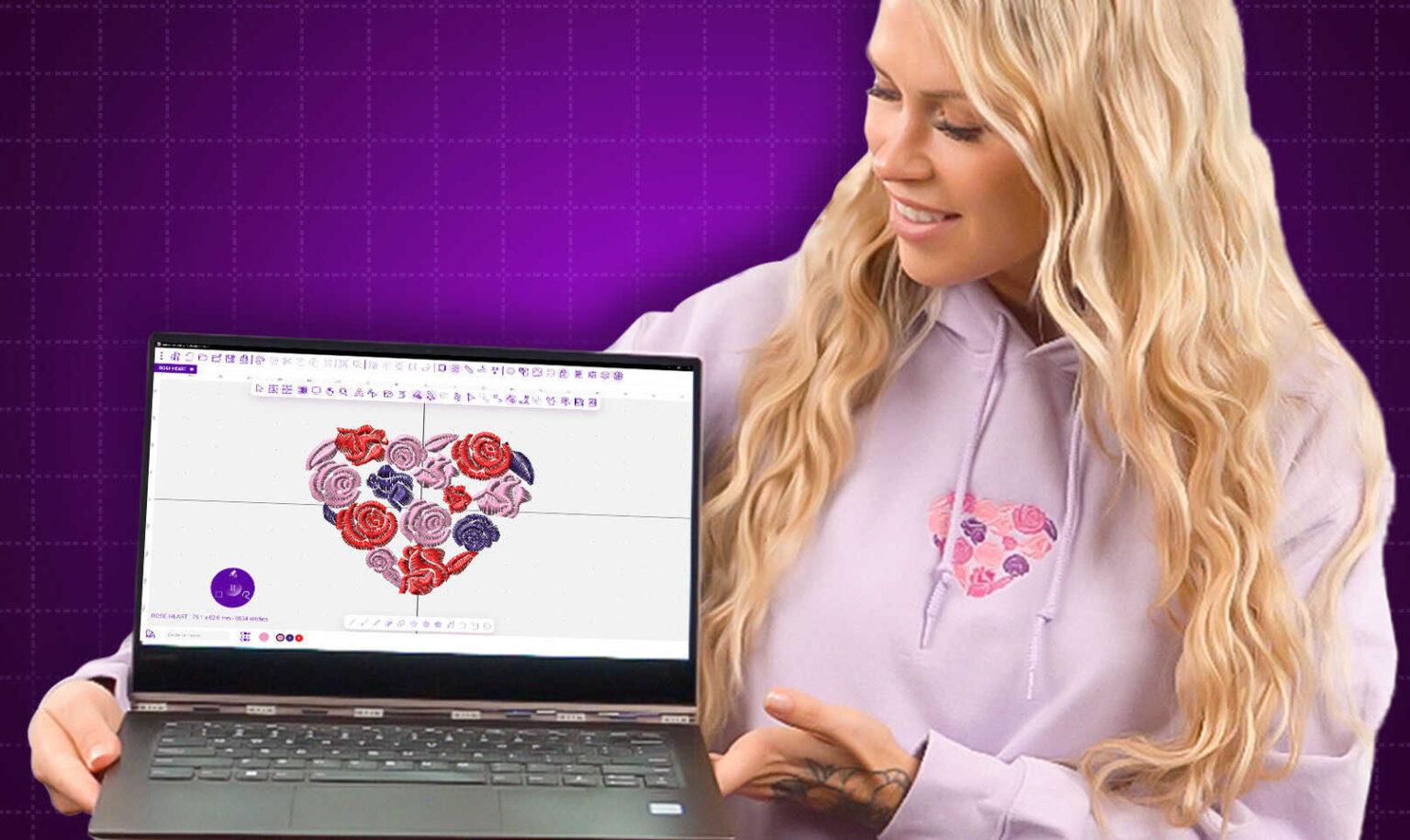
You have a logo that represents your brand. Maybe it is for your small business, a local sports team, or a family reunion. You want it on caps, jackets, or tote bags. Your Elna machine is ready to go. But that JPG or PNG file you have is useless to your machine. It needs stitch data, not pixels. Learning how to convert logo to embroidery for Elna embroidery machine correctly determines whether your final project looks professional or turns into a frustrating disappointment.
Elna machines are known for their precision and reliability. They are part of the Janome family, which means they use the same file formats and share the same commitment to quality . But they have specific requirements when it comes to file conversion. This guide walks you through everything you need to know to achieve clean, accurate stitching every time.
Understanding What Your Elna Machine Needs
Before we dive into conversion methods, let us talk about what your Elna machine actually reads. Elna embroidery machines use the same formats as Janome, since they share technology .
JEF is the default format for all Elna and Janome machines . This is the format you will use most often. It stores stitch data along with color information, so your machine knows exactly which colors go where and in what order.
Newer Elna machines also support JEF+ and JPX formats . JEF+ preserves individual element editability, meaning you can adjust parts of the design later if needed. JPX includes both stitch data and a JPG background image, letting the machine display a fabric preview for better positioning.
Other compatible formats include SEW, EMD, and EXP . Check your machine manual to confirm which specific formats your model accepts. For most modern Elna machines, JEF is your safest bet.
Why Logo Conversion Is Not a Simple File Save
Here is the honest truth. You cannot just rename a file or use a basic converter and expect clean results. A JPG shows what the design looks like. It has no information about stitch density, underlay, pull compensation, or color sequence . When you "convert" a logo to JEF, you are actually creating that information from scratch through a process called digitizing.
A clean, accurate embroidery file has several characteristics:
- Smooth edges with curves that are smooth, not jagged
- Consistent density with even coverage without thin spots or excessive bulk
- Proper underlay with hidden stitches that stabilize the design
- Logical sequencing with efficient color changes and minimal jumps
- Correct sizing matching your specified dimensions with proper stitch recalculation
When all these elements come together, your logo stitches beautifully. When any are missing, problems appear.
Preparing Your Logo for Best Results
Professional results start before you ever open software. Take these steps to set yourself up for success.
Use a high-resolution image. Start with a clean, high-resolution version of your logo. Vector formats like AI, EPS, or SVG work best because they scale perfectly and maintain clean edges . If you only have a JPG or PNG, make sure it is sharp with good contrast. Blurry or pixelated images make it difficult for digitizing software to identify shapes and details, which leads to poor embroidery results .
Simplify the design. Logos with too many colors, gradients, or tiny details create challenges in embroidery. Simplify by removing unnecessary elements. Clean, bold shapes always translate better than cluttered artwork . If your logo has tiny text, consider whether it is essential or if it can be enlarged.
Decide placement and size. A small chest logo needs different stitch density than a large jacket back design. Prepare your logo with the final placement and size in mind . This ensures perfect results.
Match thread colors in advance. Unlike digital prints, embroidery relies on thread colors. Before conversion, select the closest thread shades that match your brand . Thread availability and texture can slightly affect how the logo appears once stitched.
Method 1: Professional Digitizing Services (Most Recommended)
Here is the honest truth. The fastest and most reliable way to convert your logo to embroidery for Elna is to hire a professional digitizing service. This is the option that saves the most time and guarantees quality.
Professional digitizers know Elna machines inside and out. They understand how stitch flow, underlay, density, and pull compensation work for every fabric type . This expertise helps them create designs that stitch cleanly without puckering or distortion. They carefully plan each stitch direction and sequence, ensuring your logo looks crisp, balanced, and professional on any material.
Another major advantage is compatibility. Professionals export your design in JEF format and can also provide other formats like PES, DST, and EXP if needed . You can use your logo on different machines without worrying about file corruption.
Before sending the final file, experts preview and test each logo using embroidery simulation software. This step helps catch errors such as gaps, uneven density, or misplaced stitches . As a result, you receive a ready-to-run, flawless JEF file every time.
Speed also matters. Services like Absolute Digitizing deliver files same-day, and rush jobs can be completed in as little as 2 hours . You also get round-the-clock customer support, so help is always available when you need it.
Professional digitizers offer free unlimited edits until you are completely satisfied. Many even provide a money-back guarantee, showing confidence in their work .
With prices starting from $10 per logo, hiring a professional costs far less than buying expensive software or fixing ruined garments . For most people who need reliable results without the learning curve, this is the smartest path.
Method 2: Elna's Official Software
If you plan to digitize frequently and want complete creative control, Elna's official software is worth considering.
eXuberance is the official embroidery software from Elna . It comes in two versions. Junior handles basic needs. Full offers extended functions and includes other crafting techniques . Both versions let you import and digitize images, convert pictures into embroideries, and apply multiple lettering options.
The software runs on both PC and Mac, which is rare in the embroidery world . You save designs to a USB stick and transfer them directly to your Elna machine. The interface stays intuitive even for beginners, with built-in video tutorials on 47 different topics .
The advantage of official software is guaranteed compatibility with Elna machines. The downside is cost and learning curve. These programs require investment and practice to master.
Digitizer EX is another Elna option for users who want more advanced digitizing capabilities. Digitizer EX Junior V4.0 provides automatic or semi-automatic digitizing options to create embroidery based on clipart images . You get 3D view to preview designs on fabric backgrounds and 14 different font styles for lettering.
For power users, Digitizer EX V5.0 takes things further with 3D satin stitches, cutwork tools, and stumpwork options . It comes with Corel Draw Essential X6 for graphic mode work. This is serious software for serious digitizers.
Method 3: Third-Party Professional Software
Several third-party programs work well for creating JEF files and offer different price points and features.
Wilcom Hatch Embroidery is a popular choice for small businesses and serious hobbyists. It runs on both Windows and Mac and supports JEF export . Hatch includes auto-digitizing, manual editing, and photorealistic previews. The 2026 version introduced Multi Blend for blending stitch types and colors across layers .
Embrilliance takes a modular approach and runs natively on Mac. You buy the base platform, then add modules as you need them. This keeps costs manageable while letting you expand over time. The StitchArtist modules let you digitize from scratch and export to JEF.
SewWhat-Pro is a budget-friendly option for viewing, editing, and converting embroidery files. It handles batch conversion and supports JEF format . It is not a full digitizing suite, but for basic edits and conversions, it works well.
Ink/Stitch is a free plugin for Inkscape that supports JEF export . It includes basic digitizing tools and is great for hobbyists willing to learn. The learning curve is steep, but the price is right.
Method 4: Free Online Converters (Not Recommended)
Free online converters are the easiest and fastest way to turn a logo into a JEF file. You simply upload your image and download the converted file within minutes .
While this method sounds convenient, it often causes more problems than it solves. These converters can distort stitch density, remove fine details, and lose color information . They also struggle with complex or gradient logos. The result is usually a low-quality file that may not run correctly on your Elna machine.
Free converters also raise privacy concerns. When you upload your logo to a random website, you have no idea what happens to it.
For anything where quality matters, avoid free online converters.
Common Problems with Poor Logo Conversion
Let us look at what typically goes wrong when logos are converted poorly.
Jagged edges come from digitizing that traced pixels instead of creating smooth curves. The result looks amateur and unprofessional.
Puckered fabric happens when density is too high or underlay is missing. The fabric gathers and wrinkles around the stitches .
Gaps in coverage occur when density is too low or stitch direction wrong. You see backing or fabric through the design .
Misaligned colors result when registration is off. One color overlaps another or leaves gaps between them .
Thread breaks happen frequently with bad digitizing. The needle hits the same spots too many times, or the path forces the thread into sharp angles .
Design distortion comes from ignoring pull compensation. Circles become ovals, squares become trapezoids .
Step-by-Step: How Professionals Convert a Logo to JEF
Let us walk through the process that professional digitizers use. Understanding this helps you appreciate what goes into a quality file.
Step 1: Receive and prepare artwork. The process starts with your logo in a common file format. Vector files like AI or EPS are ideal. High-resolution JPGs work too. The digitizer reviews the artwork to understand shapes, colors, and complexity .
Step 2: Import into professional software. Using advanced programs like Wilcom Embroidery Studio or Digitizer EX, the digitizer imports your artwork .
Step 3: Manual stitch mapping. This is where art meets engineering. The digitizer manually assigns stitch types to each element of your logo . Satin stitches for borders and text, fill stitches for large areas, running stitches for fine details and underlay.
Step 4: Adjust density and add underlay. Stitch density controls how close stitches sit together. Underlay stabilizes the fabric and prevents shifting . The digitizer sets both based on your fabric type.
Step 5: Set stitch direction and pull compensation. Stitch direction affects how light reflects off the finished embroidery. Pull compensation accounts for fabric distortion during stitching .
Step 6: Assign thread colors. The digitizer matches thread colors to your specifications using standard thread charts .
Step 7: Sequence colors efficiently. The digitizer arranges the stitching order to minimize thread changes and machine stops .
Step 8: Save in JEF format. The finished design exports as JEF, ready for your Elna machine .
Step 9: Quality testing. Before delivery, the file runs through embroidery simulation software to catch any flaws .
Step 10: Delivery and edits. You receive the final file and test it on your machine. If any adjustments are needed, professional services offer free unlimited edits until you are satisfied .
Testing Your Logo Before Production
Never skip this step. Run the design on scrap fabric matching your final material. Watch for thread breaks, puckering, or misalignment. If you see problems, go back and adjust the file.
Test stitching reveals issues that screen previews hide. Density problems, tension issues, and alignment errors all show up in real fabric. Fix them before stitching final products.
Which Method Should You Choose?
Your choice depends on your situation.
If you need guaranteed quality for important logos, professional digitizing services are your best bet. At $10 to $15 per design, you skip the learning curve and get expert results every time .
If you plan to digitize frequently and have time to learn, eXuberance or Digitizer EX gives you long-term control with official Elna software .
If you are a hobbyist experimenting with simple designs, Ink/Stitch offers a free path forward. But be prepared for a learning curve and accept that complex logos may not stitch well.
If you have a very simple design and want to test quickly, auto-digitizing features in software might work. But manual tweaking is usually needed.
If you are just curious, online converters are not worth the quality risk for anything that matters.
Conclusion
Converting a logo to embroidery for your Elna machine is not a simple file save. It is digitizing, a skilled craft that turns pixels into stitch commands. A clean, accurate JEF file ensures your logo stitches smoothly, colors match perfectly, and edges stay crisp.
Professional digitizing services deliver guaranteed quality for a modest fee, making them the best choice for most people who need reliable results. Official Elna software gives you creative control but requires investment in money and learning time. Free tools offer entry points for hobbyists but have limits.
Your Elna machine is capable of stunning embroidery. Feed it properly converted JEF files, and it will reward you with flawless results every time. Whether you choose professional services or decide to learn the craft yourself, the goal is the same: beautiful embroidery that brings your logo to life in thread.