Sign up with Google
 Sign in with Zoho

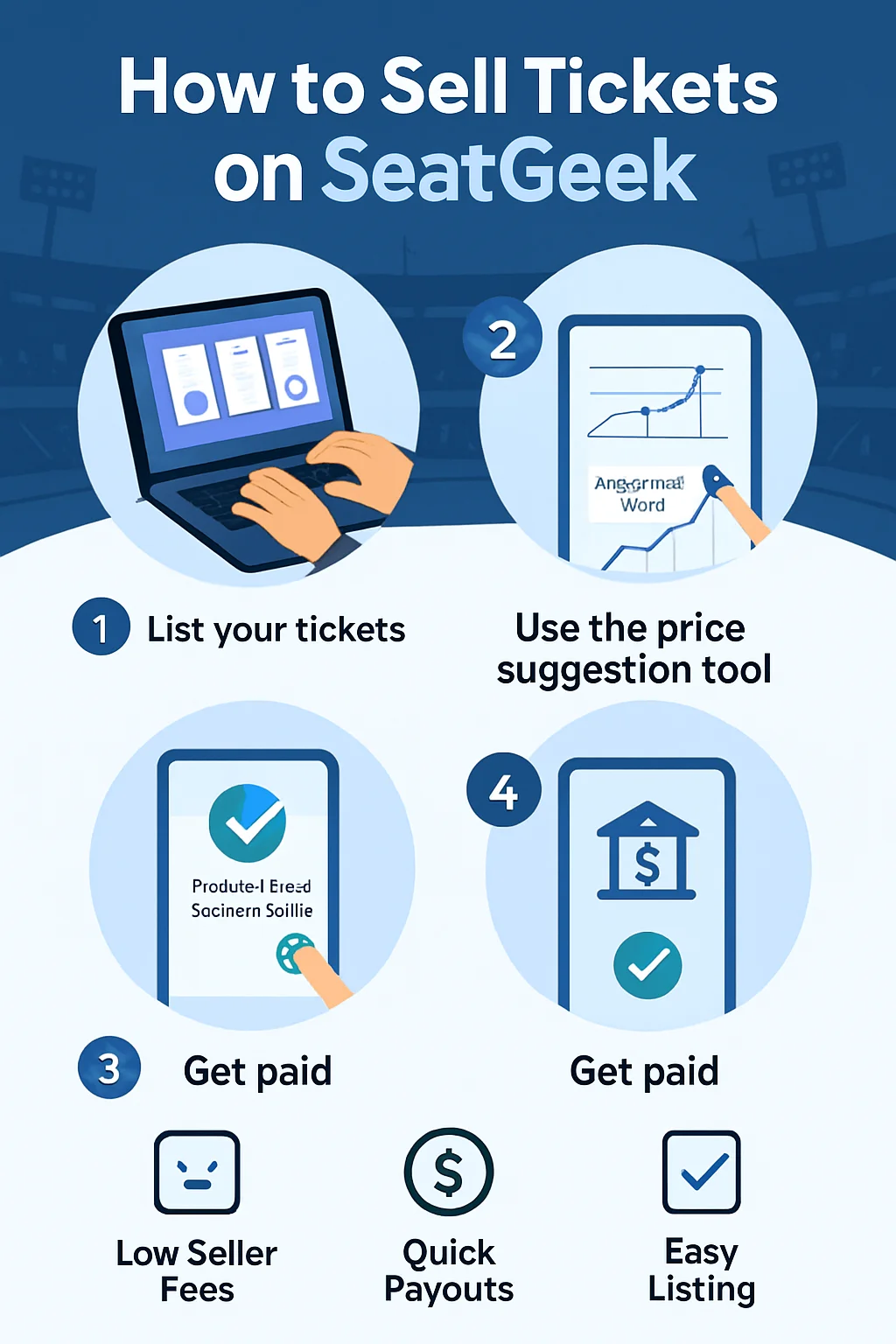
Got tickets you can't use? SeatGeek makes it simple to sell them. Thousands of fans list tickets on SeatGeek every week, from concerts to major league games. This walkthrough covers the whole process, from setting up your account to getting paid. How to Sell Tickets on SeatGeek?
Why Sell Tickets on SeatGeek?
SeatGeek connects your listing with a large, active audience of fans searching for events. That reach matters, since more eyes on a listing usually means a faster sale. The platform also handles payment security on your behalf, so you don't need to arrange transfers yourself. Buyers get a guarantee their tickets are valid, which builds trust and helps listings sell with less hesitation. For sellers, that trust translates into a smoother, more predictable process from listing to payout.
Setting Up Your SeatGeek Account to Sell
Before you can sell anything, you need a SeatGeek account. Signing up takes a couple of minutes on desktop or through the app. You'll need to add some personal details, like your name and contact information. This helps SeatGeek verify who you are and keeps the marketplace safe. Once your account is set up, you can link tickets bought elsewhere or upload PDF and mobile tickets directly.
How to List Tickets on SeatGeek
Listing tickets on SeatGeek only takes a few steps.
- Log into your account on the app or website.
- Tap "Sell" and search for your event.
- Select the specific tickets you want to list.
- Set your price, or use SeatGeek's price recommendation.
- Confirm the listing and choose your payout method.
If you don't see a "Sell" button next to your tickets, they might not be eligible for resale yet. Tickets that haven't been delivered to your account can't be listed. Individual listings are usually capped at eight tickets, though higher-volume sellers may unlock a larger limit.
SeatGeek Seller Fees
SeatGeek charges a seller fee, generally around 10 percent of the ticket price. This fee covers the cost of running the marketplace and processing secure payments. It's deducted from your payout once the sale goes through.
The price you list is not the amount you will receive in full. Entering your original purchase price when listing can also affect sales tax on the difference. Knowing the fee upfront helps you price tickets sensibly instead of guessing.
Using Smart Pricing to Sell Faster
SeatGeek offers a tool called Smart Pricing, which adjusts your listing price automatically based on demand. It uses historical sales data and current market conditions to keep your tickets competitive.
Sellers who use price recommendations tend to see tickets move faster. That's compared with sellers who set a fixed price and leave it. You can still set your own price manually if you'd rather stay in control. Checking similar listings for the same event gives you a useful benchmark either way.
Pricing Your Tickets to Sell
Pricing is the biggest factor in how fast your tickets move. List too high, and buyers will skip past your tickets for a cheaper option nearby. List too low, and you'll leave money on the table for no good reason. A useful starting point is checking what similar seats for the same event are currently listed for.
Prices for popular events tend to shift as the date gets closer, so it helps to check back regularly. Adjusting your price early, rather than waiting until the last minute, generally leads to a better outcome.
What If Your Tickets Don't Sell?
Not every listing sells straight away, and that's completely normal. If your tickets don't sell before the event, they simply stay in your account for you to use instead. There's no penalty for an unsold listing, so it's worth listing early even if you're not sure they'll go.
If a listing has been up for a while with no interest, lowering the price is usually the quickest fix. Comparing your listing against similar ones can also reveal if something needs adjusting, like the seat description or price.
What Happens After Your Tickets Sell
Once your tickets sell, SeatGeek sends you an email confirmation. You'll also see the sale reflected in your account under Sales activity. Some tickets transfer to the buyer automatically through SeatGeek. Others, particularly mobile transfer tickets from platforms such as Ticketmaster or AXS, need to be sent manually.
SeatGeek will let you know if any action is required on your part. To get paid, you'll need to add a valid payout method, such as a linked bank account. Payment usually follows shortly after the transfer is confirmed.
Selling Mobile Transfer Tickets on SeatGeek
Mobile transfer tickets are tickets originally delivered through another provider. Many mobile transfer tickets can be resold, provided they're integrated with the platform. To complete the sale, go to the platform where the tickets were originally delivered. Finish the transfer there, following the on-screen steps.
Tickets with rotating barcodes from unsupported platforms generally cannot be resold this way. It's worth checking eligibility before listing. Sending tickets by the required deadline matters, since late transfers can cause problems for buyer and seller alike.
Tips to Sell Tickets Faster on SeatGeek
A few small habits make a real difference to how quickly tickets sell.
- Price competitively by checking similar listings for the same event.
- List early, since demand often builds as the event date approaches.
- Use Smart Pricing if you're unsure where to set your price.
- Keep ticket details accurate, including seat numbers and delivery method.
- Respond quickly if SeatGeek asks for extra information after a sale.
Frequently Asked Questions
How do I sell tickets on SeatGeek?
Log into your account, tap "Sell," choose your event and tickets, then set a price and confirm the listing.
What percentage does SeatGeek take from sellers?
SeatGeek generally charges sellers around 10 percent of the ticket price as a service fee.
How long does it take to get paid after selling on SeatGeek?
Payment is usually sent shortly after the sale and ticket transfer are confirmed, once a valid payout method is added.
Can I sell mobile transfer tickets on SeatGeek?
Many can be resold, but you'll need to complete the transfer on the original delivery platform.
Does SeatGeek guarantee my tickets will sell?
No. Selling depends on pricing, demand and timing, so there's no guarantee a listing will sell.
Is there a limit on how many tickets I can list?
Standard listings are usually capped at eight tickets, though higher-volume sellers may be eligible for a larger limit.
What happens if my tickets don't sell?
Unsold tickets simply stay in your account for you to use at the event, with no penalty for the listing.
Can I change my listing price after posting it?
Yes. You can adjust your price at any point before the tickets sell, either manually or by switching to Smart Pricing.