Sign up with Google
 Sign in with Zoho

Overview
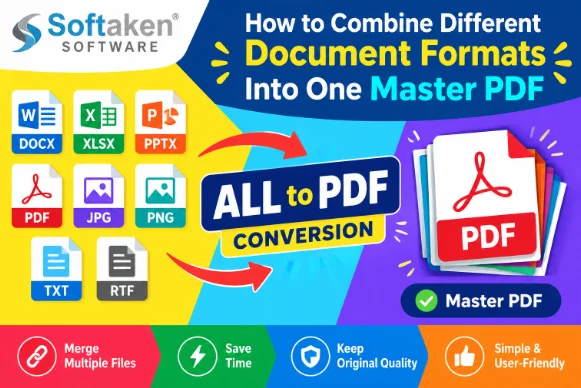
Today’s work involves information stored in a variety of file formats. A project can have Word docs, Excel spreadsheets, images, text files, HTML pages, CSV data or JSON/XML records. Sharing these files one by one can cause problems with document management and can lead to compatibility issues.
This more organized method of converting these different files into one master document in PDF allows for easier distribution, archiving, and review of information. It’s also easier to store, share, print and access across different systems when it’s a single PDF.
Softaken ALLTOPDF and the other tools are used to add various files and merge them into a PDF document, joining the pages into one document. The software supports more than 20 formats including Word, Excel, images, HTML, TXT, RTF, Markdown, CSV, JSON and XML. It also offers batch processing and customizable output options.
What Does It Mean to Combine Document Formats?
Merging different document formats into one master PDF means you first have to convert files that are not already in PDF format into the PDF format and then arrange their resulting pages into a single PDF file.
For example, consider a business project with:
· A project report in DOCX format
· XLSX format financial spreadsheet
· Multiple JPG product images
· Customer-data file in CSV format
· An HTML document reference.
· A .txt file of notes
Instead of sending six separate files, you could convert the files to PDF and then combine the resulting pages into one master document.
The final PDF may be a central copy of the whole project.
Why Creating a Master PDF Is Important for Productivity
There are a few times when a master PDF can be useful:
File sharing: Sending one file is easier than sending multiple attachments.
Archiving: Related project records can be kept together.
Reporting: Data from multiple sources can be incorporated into a single report.
Printing: One PDF is more convenient to print in batch.
Portability: PDF is a standard format for sharing documents.
Organization: Users can group related material together, rather than having to search through multiple folders.
Presentation: A combined PDF is more professional for the final deliverable.
This approach can help businesses, students, administrators and professionals to reduce repetitive tasks when dealing with documents.
How to Manually Merge Different File Formats into PDF
You can manually create a master PDF if you do not have conversion software dedicated to the task. But exactly what happens depends on the formats in question.
How to Manually Merge Different Formats
Organizing the source files: Collect all documents relating to the project and arrange them in the desired order.
Open each file: You can open Word, Excel, image, HTML, or any other supported file in its native application.
Print or export each file as PDF: Use the application’s Save as PDF, Export to PDF or Print to PDF option where available.
Verify the converted PDFs: Check the page layout, fonts, graphics, tables, page orientation and other formatting.
Combine the PDFs: When all the source files have been converted, use a PDF merging application to combine them into a single document.
Organize the pages: Make sure the pages are in the correct sequence.
Save master PDF: Give the final document a meaningful name and save it in a suitable location.
Advantages of the Manual Method
· No need to learn a special purpose conversion application.
· Handy if you just need to merge a couple of files.
· Enables review of individual documents before merging.
· Works with applications that already have a PDF export function.
Disadvantages of the Manual Method
This manual approach is cumbersome when there are many files. Conversion may need to be done on each file and different applications may need to be used for different formats. It can also increase the chances of inconsistent page sizes, orientations, quality settings and file orderings.
Hence, when dealing with large batches of files, it can take a lot of time to manually convert and merge files.
How to Automatically Combine Files Using a PDF Conversion Tool
A dedicated file to pdf converter can simplify the process by managing different source formats from one interface. Instead of converting each document separately, users can add multiple files or folders, configure output settings, perform batch conversion, and merge the output pages.
ALLTOPDF supports 20+ file formats and comes with batch processing, customizable page size and orientation, compression, DPI controls and Combine All Pages option. It also works locally, without requiring an internet connection.
How to Combine Different Formats into One Master PDF
Step 1: Download and launch the application: Install the PDF converter and launch it on your PC.
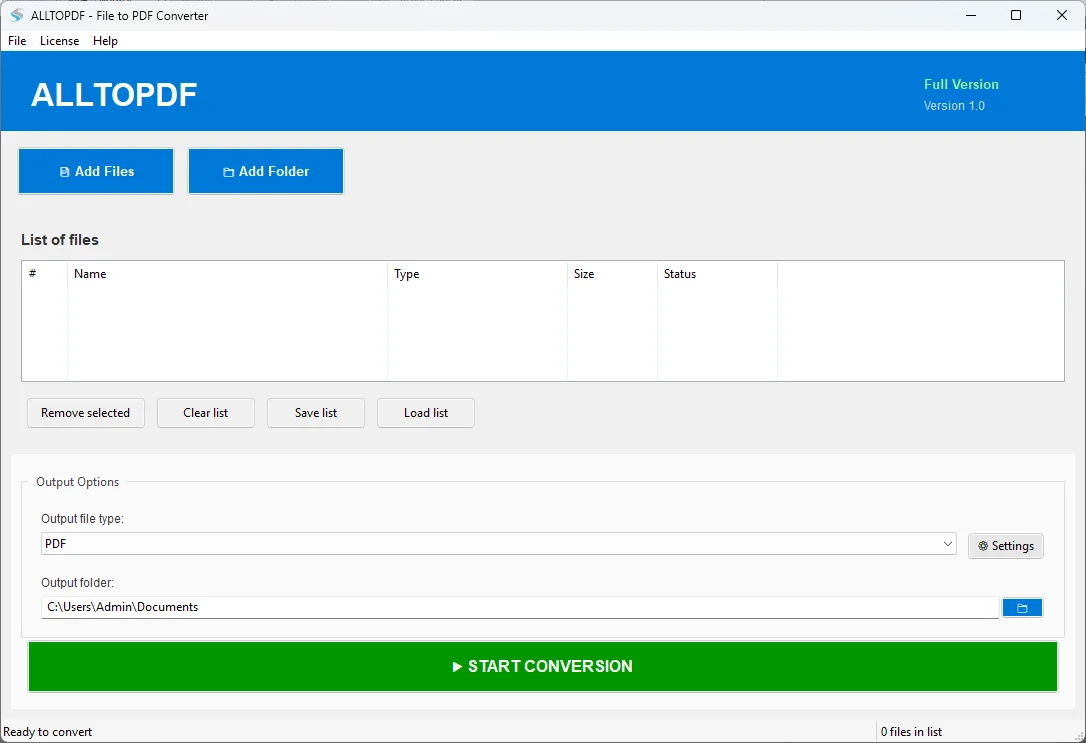
Step 2: Add source files: This option can be used to add single files or folder with multiple documents. DOC/DOCX, XLS/XLSX, TXT, RTF, Markdown, CSV, JPEG, PNG, TIFF, HEIC, SVG, HTML, JSON, XML, and many more formats are supported.
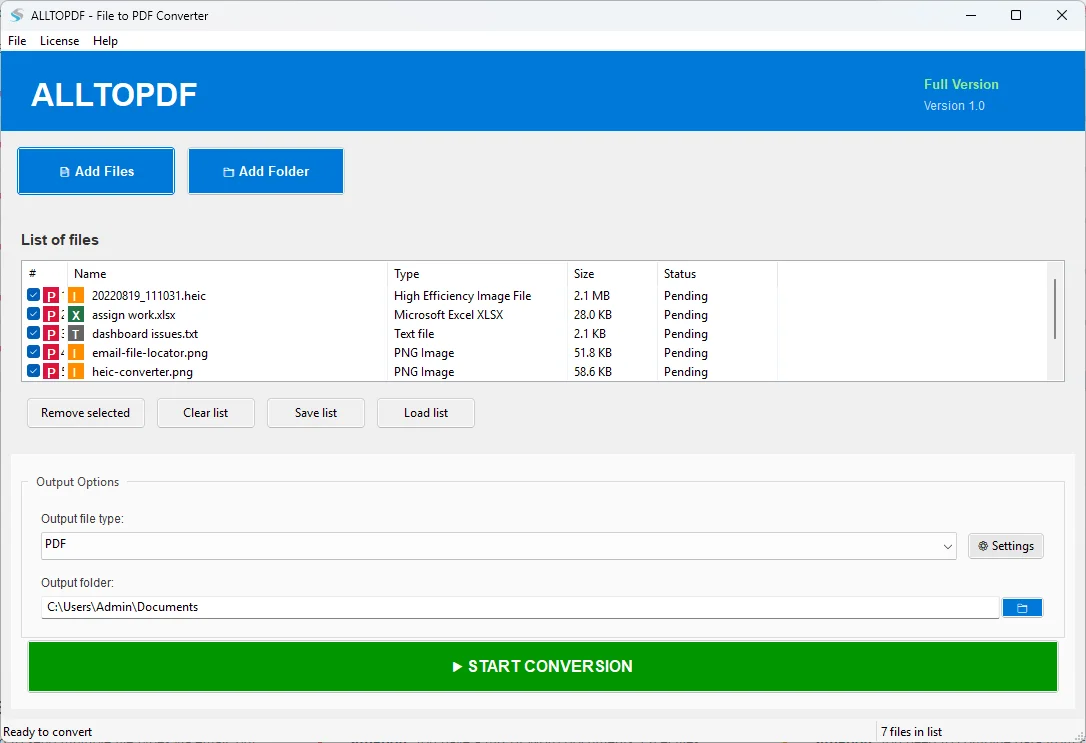
Step 3: Organize your files: Put the files in the order they should appear in the master PDF.
Step 4: Set PDF settings: Select the page size, orientation, margins, compression, dpi, and image quality that best fit your needs.
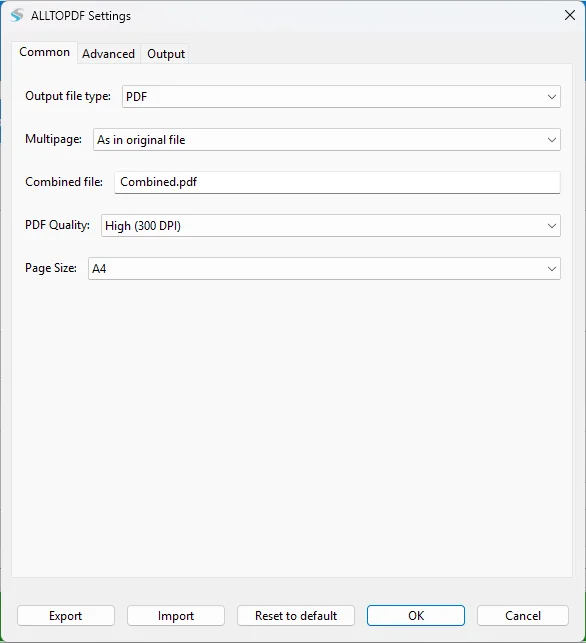
Step 5: Turn on page combining: Choose the option to combine the converted pages into one PDF, rather than generating separate PDF files.
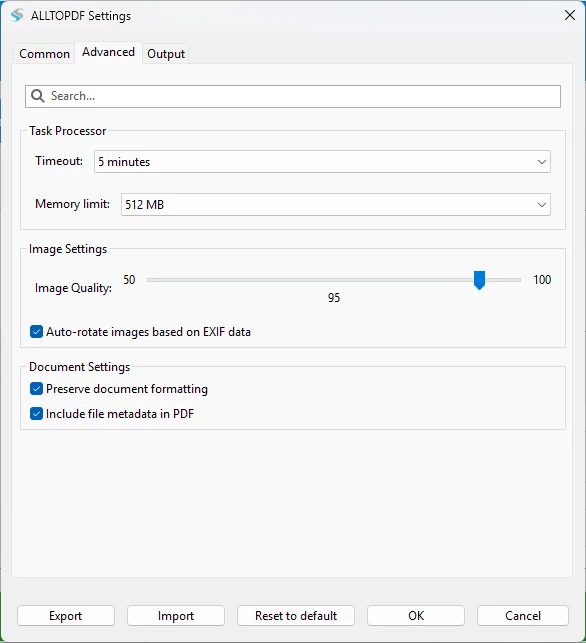
Step 6: Choose output location: Select the folder where you want to save the final master PDF.
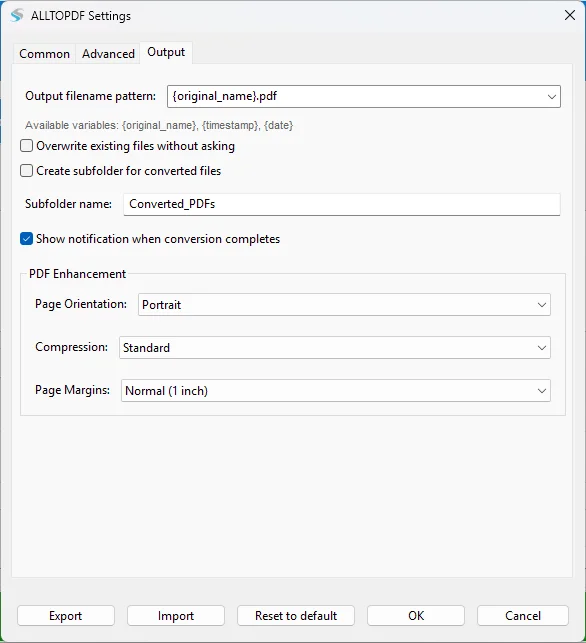
Step 7: Begin to convert: Start the process and see the progress.
Step 8: Check on final pdf: Open the master PDF and review for page order, formatting, images, tables and overall readability.
Advantages of the Tool-Based Approach
Some practical benefits of a dedicated converter might be:
Batch processing: Allows a number of files to be processed as a batch.
Multi-format support: A single application can handle different file types.
Merge pages: Merge converted pages into single PDF.
Customization: You are able to configure the page size, orientation, margins, DPI, compression and image quality.
Time Savings: Eliminate repetitive conversion steps.
Local processing: Process files on your own computer without uploading to an online service.
Progress tracking: The users can track the conversion process.
File-list management: You can save and load file lists for repetitive projects.
System Requirements for Dedicated PDF Conversion Software
Requirements as defined in product information are:
Processor: Any Pentium type processor
Operating System: Windows 10, 8.1, 8, 7 and other supported systems
Memory: 2 GB minimum, 4 GB recommended RAM
Hard Disk: 50 MB space available for installation
Interface language: English
The product page says the application is also available for Windows and Mac.
Frequently Asked Questions
Can you combine Word and Excel files into one PDF?
Yes. Word and Excel files can be converted to PDF first and then combined into a master PDF.
Can I add images to the master PDF?
Yes. PDF conversion supports standard image formats: JPEG, PNG, BMP, TIFF, GIF, HEIC and SVG.
Can I customize the size of PDF pages?
Yes. You can choose from A4, Letter, Legal, A3, A5 and others, as well as portrait or landscape orientation.
Does this process need an internet connection?
No. The product information states that it processes locally and does not require an active internet connection.
Is a master PDF useful for archiving documents?
Yes. Combining multiple related documents into a single PDF makes it easier to store, share and find.
Conclusion
Merging multiple document types into a single master PDF is a handy way of combining information from different sources. The manual way is reasonable for a few files, but it gets boring when documents need to be converted regularly or in bulk.
The workflow is simplified by a dedicated tool-based approach that supports multiple formats, batch processing, customizable PDF-settings and page combining in one application. Softaken ALLTOPDF is a perfect solution for such users who often make reports, archives, portfolios, project documentation, or consolidated records. It is a convenient interface to convert and combine various files into a single PDF document.