Sign up with Google
 Sign in with Zoho

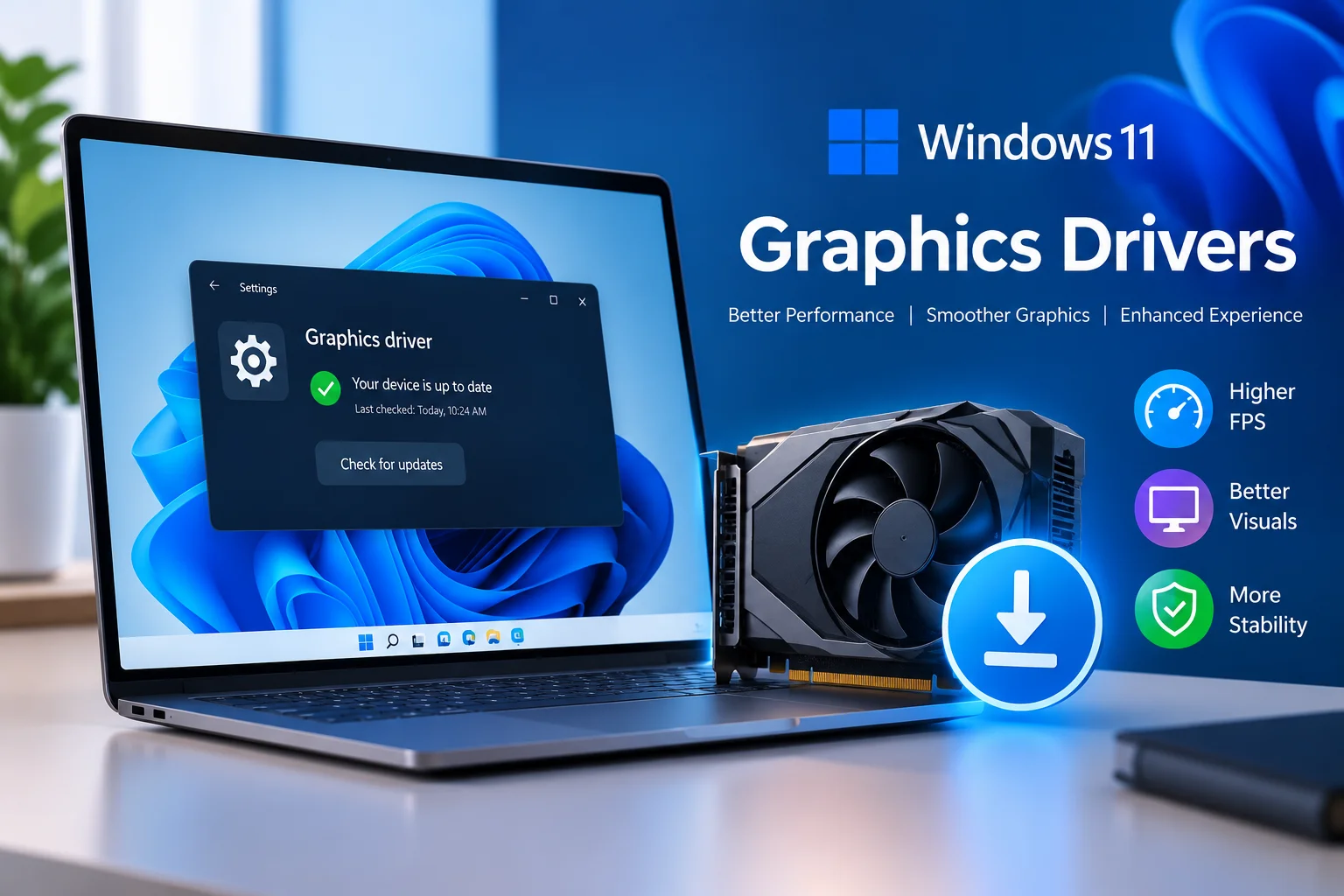
Your graphics driver is the translator between Windows and your GPU. It handles everything from gaming performance to video playback and screen quality. When it's outdated, you'll notice crashes, weird visual glitches, stuttering, or just sluggish performance. That's why keeping it current is one of those small maintenance tasks worth doing. Windows 11 gives you a few ways to handle this: Windows Update, Device Manager, or software straight from your GPU manufacturer. Which one you use depends on your comfort level and what you're trying to fix. Before diving in, though, take a minute to check your current hardware and driver version. This one step saves you from downloading something that doesn't match your setup. It also makes life easier if anything goes sideways after installing. Once you know what you're working with, updating usually takes just a few minutes.
Why Graphics Driver Updates Actually Matter
Think of your graphics driver as the software bridge linking Windows to your GPU. It lets every app and game talk to your hardware properly. Manufacturers push out updates for new game support, security patches, and performance tweaks pretty regularly. Sometimes these updates also quietly fix bugs left over from earlier versions. If you're a gamer, a newer driver can mean better compatibility with titles that just launched. That said, don't expect every single update to boost your frame rate. Some releases are purely about stability or fixing one specific app's quirks. So it's worth skimming the release notes before installing anything optional. Windows 11 will often install a decent driver automatically through Windows Update. But manufacturer releases usually hit the internet before Microsoft certifies them. Staying current also helps when you're troubleshooting a display issue you can't quite explain. A little discipline around updates goes a long way toward avoiding headaches later.
Check Your Current Graphics Driver First
Before you download anything, figure out exactly what GPU you're running. Hit Windows + X, then click Device Manager from the list. Expand Display adapters and you'll see your graphics hardware listed there. Depending on your machine, that might be NVIDIA, AMD, Intel, or an integrated chip. Right-click the adapter, then choose Properties. Click over to the Driver tab to see who made it and which version you're on. The driver date sits right there too, which is handy for comparison. Jot these details down before changing anything. That way, you'll know exactly what you're upgrading from. If you're hunting for windows pc free apps to help with this, be careful where you look. Plenty of third-party "driver update" tools bundle in software you never asked for. Stick to sources you actually trust. It's a small habit that saves you from cleanup work down the road.
Updating Drivers Through Windows Update
For most people, Windows Update is the path of least resistance. Open Settings, then click Windows Update in the sidebar. Hit Check for updates and let Windows scan your system for a minute. Often, it'll find and install a compatible graphics driver on its own. While you're there, click into Advanced options, then Optional updates. Look for anything listed under Driver updates related to graphics. Select what applies, then let the installation run its course. Restart your PC afterward if Windows asks you to. This route works great when you just want something stable and Microsoft-vetted. The catch is that Windows Update isn't always running the newest release. If you're chasing performance for a brand-new game, that lag can be frustrating. In that case, head straight to your GPU manufacturer's site instead. Still, for everyday upkeep, Windows Update is a solid, low-effort starting point.
Installing NVIDIA Graphics Drivers
NVIDIA owners can grab drivers directly from NVIDIA's own support page. Start by confirming your exact card model and which version of Windows you're running. From there, pick the driver package that actually matches your hardware. NVIDIA typically splits things into Game Ready and Studio drivers. Game Ready builds are tuned for gaming and fresh game-day compatibility. Studio drivers, on the other hand, are built for creative work and professional software. Pick whichever matches how you actually use your PC day to day. Download the installer, then run it once it's finished downloading. Walk through the prompts, and take a second look at the installation options offered. A clean install can help if you've been fighting driver issues for a while. For routine updates, though, you usually won't need to go that far. Restart Windows if it prompts you to once setup wraps up. Finally, pop back into Device Manager or NVIDIA's app to confirm the new version landed correctly.
Updating AMD Radeon Graphics Drivers
AMD has its own dedicated app for handling Radeon driver updates. AMD Software can scan your system and detect compatible hardware automatically. Grab the current installer straight from AMD's official support site. Run it, and let it identify what graphics hardware you're working with. Take a moment to review the recommended driver before you commit. Depending on your current setup, AMD may offer a few optional install choices. Follow along with the prompts, and don't interrupt the process partway through. Your screen might flicker or go briefly black during installation, and that's normal. It happens while Windows swaps between driver components behind the scenes. Whatever you do, don't force a shutdown while that's happening. Once it's done, restart if prompted, then open AMD Software to confirm the version. After that, run a few apps just to make sure everything's behaving. This hands-on approach gives you more control than leaving it all to Windows Update.
Updating Intel Graphics Drivers
Intel graphics show up constantly in laptops and smaller desktop builds. A lot of modern Intel processors come with integrated graphics baked right in. Intel offers its own detection tools to help you find compatible updates. Windows Update also handles many supported Intel drivers just fine. Before installing anything, close out of games and anything graphics-heavy. Save your work too, just in case something interrupts the process. Then download the package straight from Intel's support page. Follow the install steps carefully and let it run through completely. Some laptop makers tweak Intel's drivers for their specific hardware configurations. So if something's acting up, check your laptop manufacturer's support page too. Their custom drivers often include fixes tailored to that exact machine. Once installed, restart and take a look at your display settings. Test your external monitor, brightness controls, and a couple of apps. These quick checks usually catch compatibility issues before they become real problems.
What to Do If a New Driver Causes Problems
Every so often, a driver update creates more problems than it solves. Maybe you're seeing crashes, flickering, lower performance, or an app that won't behave. Start simple: restart Windows and try the affected app again. Sometimes a full restart clears up issues on its own. If that doesn't work, open Device Manager and pull up your graphics adapter's properties. Check the Driver tab for a Roll Back Driver option. Use it if the previous version was working fine for you. You can also reinstall the manufacturer's driver through their own software. Just avoid stacking multiple driver packages on top of each other. That tends to create conflicts that are a pain to untangle later. Before making big driver changes, it's worth setting a restore point first. Windows System Restore can undo certain system-level changes if things go wrong. Keep a note of your old driver version so troubleshooting is easier. A careful rollback beats randomly installing version after version hoping something sticks.
Best Practices for Staying on Top of Driver Updates
You really don't need to chase driver updates every single day. Instead, keep an eye out and install what's actually relevant. Gamers should pay closer attention around big game launches or new hardware. Content creators should prioritize updates tied to their professional software. For everyday use, sticking with stable releases is usually plenty. Always pull drivers from manufacturer sites or Microsoft directly. Steer clear of sketchy driver-updater tools promising miracle performance gains. Before installing, close anything unnecessary and save your work first. Make sure you've got enough free space for temporary install files too. After updating, run your usual games and apps to check everything's fine. Watch for odd temperatures, crashes, visual glitches, or sudden performance dips. If nothing seems off, you're done, no further action needed. Keep Windows itself updated alongside your graphics driver for good measure. Together, they tend to smooth out compatibility across your software and hardware.
Final Thoughts
Updating graphics drivers on Windows 11 doesn't have to be complicated. Start by figuring out your GPU and current driver version. Windows Update is the easiest route for most everyday users. Manufacturer tools give you newer releases and a bit more control. Stick to trusted sources, and skip unnecessary third-party utilities. If something breaks, restart first, then consider rolling back if needed. Regular upkeep keeps your games, apps, and displays running the way they should. A few careful habits now can save you from bigger headaches later.