Sign up with Google
 Sign in with Zoho
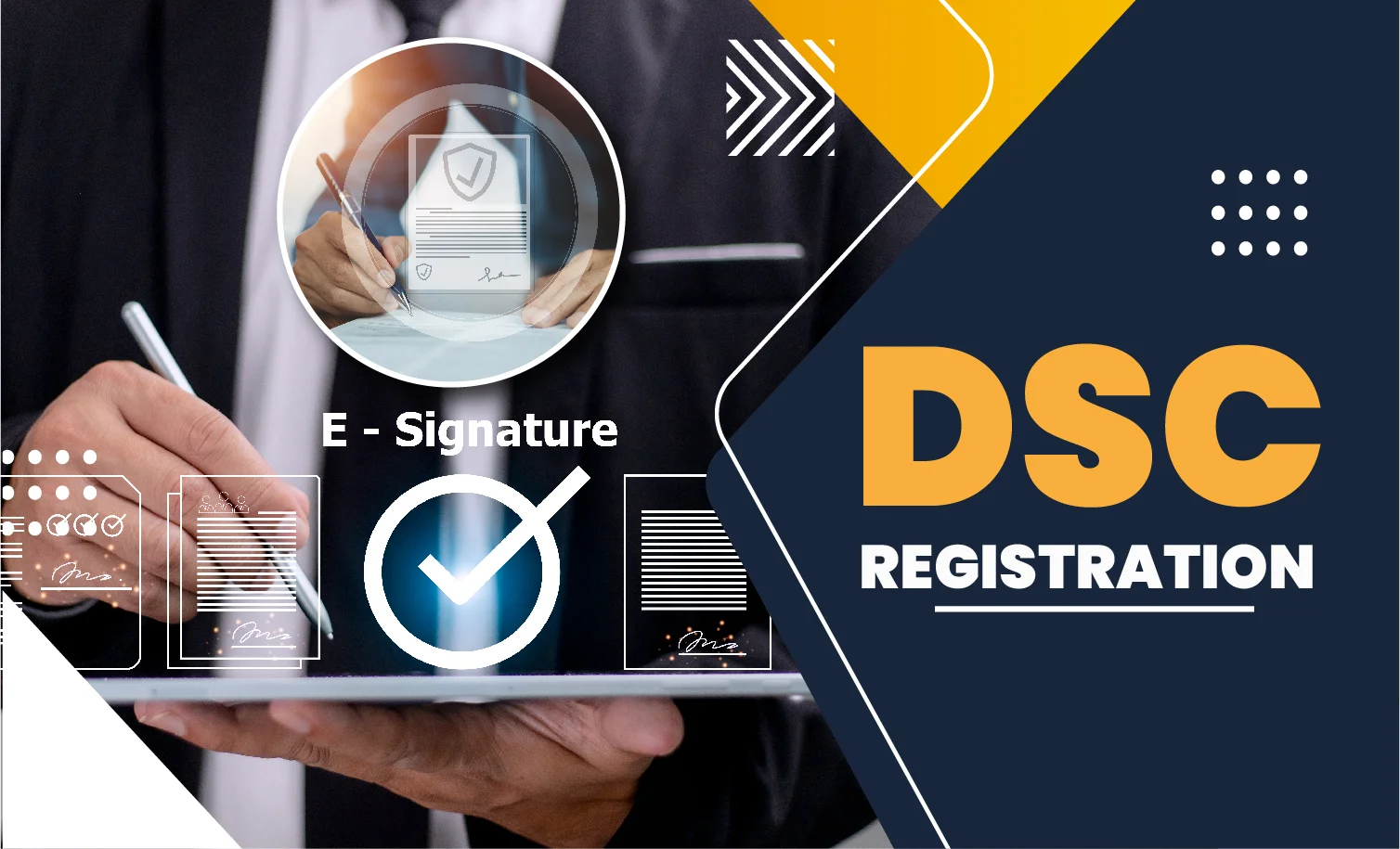
A Digital Signature Certificate or DSC is a secure digital file that safely stores digital signature of the sender and their personal details in an encrypted format. DSC helps to authenticate the sender’s unique identity and generate a digital signature on crucial documents, such as forms, legal documents and emails. DSC is licensed by the Controller of Certifying Authority.
You can also understand DSC as a digital copy of ‘wet signature’. A Certifying Authority issues DSC and it has a limited period validity, which ranges from 1, 2 and 3 years. Therefore, it is important to get it renewed before it expires. Before we jump to explain how to make DSC Registration Online, let us understand a few more details about how does DSC work.
Types of Digital Signature Certificates
1. Class 2 DSC (Now merged with Class 3):
· Used for filing income tax returns, GST returns and company registrations (on MCA website)
· Issued to the authorised signatories
· Verifies identity of the user against the information in a government-approved database
2. Class 3 DSC:
· Highest level of secure DSC; Issued only after in-person verification
· Issued by authorized Certifying Authorities
· Now mandatory for all government filings and documents
· Required for high-value transactions, such as e-tendering, e-auctions etc
Types of DSC Classification
1. Signing
A DSC is commonly used to digital sign documents. By using a DSC, an individual/organisation validates the authenticity of the document. A DSC can be easily integrated to documents, PDFs, income tax returns, GST returns, MCA online forms and other web-based forms and services.
2. Encrypt
Another key use of DSC is to encrypt confidential and sensitive documents, files, data etc. Organisations and individuals use it for web, legal documents, e-tender filing and other confidential records. Businesses and individual users upload the key documents on the web portal after encryption.
3. Sign and Encrypt
DSC is used for both signing documents and encrypting to authenticate the document, especially for important documents and forms. Signing and encrypting is required to file government forms and applications.
Various uses of Digital Signature Certificate
A Digital Signature Certificate is used to establish legal identity of the holder. Being tamper-proof, it can securely sign electronic documents. The process is supported by an encrypted key that is unique to the holder. Therefore, the holder of DSC can’t deny signing of the document.
DSC is important to conduct significant online transactions across the various industries, such as
· GST filing
· MCA e-filing
· Income Tax e-filing
· e-Tendering
· Form 16
· LLP registration
· Legal audits & court documents
· IE code registration
· Customs e-filing
· Patent and trademark e-filing
· e-Procurement
· e-Biding
Why Choose Religare Digital for DSC Registration Online
Religare Digital helps you buy Digital Signature Certificate and USB Token from an authorized Certifying Authority in India. A DSC contains your private key, which is stored in a token. It also has public key, validity and personal details of the user, such as name, organization, etc. We have a dedicated team to assist you in getting DSC and token online.
How to Apply for DSC Registration Online
Applying for Digital Signature Certificate online is a swift, secure and hassle-free process. One just needs to log in on Religare Digital website to apply for digital signature certificate and USB token. Once your application is received, our team will assist you to buy DSC and USB token. Here are some easy steps to follow –
1. Fill application form for DSC and USB Token.
2. Enter your name, email address and mobile number.
3. Verify your request through an OTP.
4. Submit the application.
How to Verify DSC Registration Online
1. To verify the authenticity of DSC, download the Certificate from MCA application.
2. Check ‘Signature Status’ by opening the certificate.
3. Note if the DSC is marked with “?”, if it does, it needs validation.
4. In order to validate, right-click on the signature and select ‘Show Signature Properties.’
5. View certificate details by making a click on ‘Show Certificate.’
6. Visit the Trust tab and click ‘Add to Trusted Identities’ and click ‘OK’ in the Acrobat Security window.
7. Enable options for Certified Documents, Dynamic Content, JavaScript, and System Operations.
8. Click "Validate Signature." Once the signs turn into green tick mark, just click ‘Close’.
9. Your DSC is now authenticated.