Sign up with Google
 Sign in with Zoho
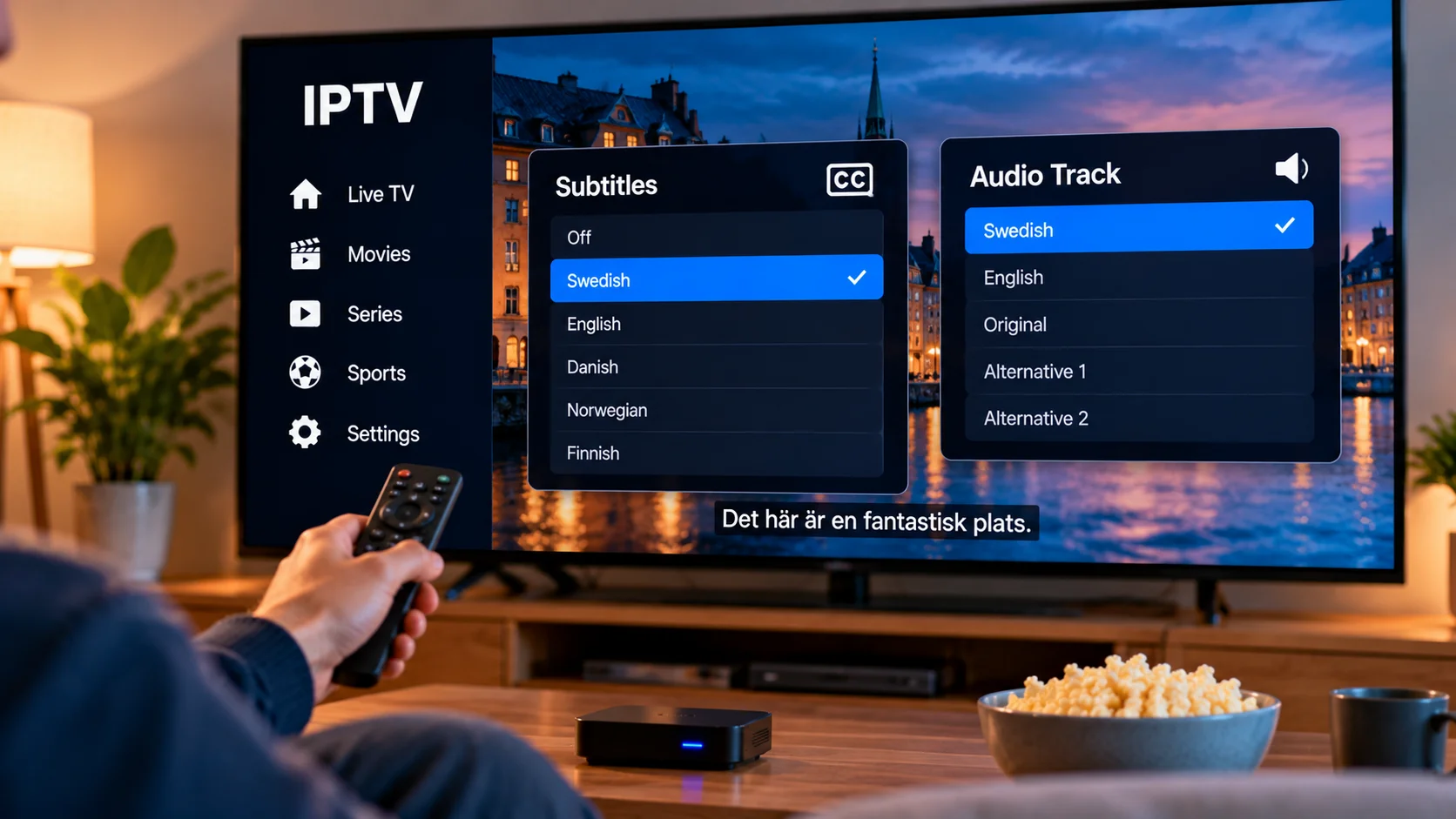
Watching television through IPTV is not only about picture quality and channel selection. Subtitles and alternative audio tracks can make a significant difference for viewers who watch international films, sports, documentaries, or television series.
For households in Sweden, multilingual content is common. A viewer may want Swedish subtitles for an English-language film, original-language audio for a series, or a different commentary track during a sporting event.
Understanding how subtitles and audio options work can make an IPTV setup easier to use.
How Subtitles Work With IPTV
Subtitles are text displayed on the screen to represent spoken dialogue or other relevant audio information.
Depending on the stream and IPTV player, subtitles may be included directly with the content or supplied as a separate track.
When multiple subtitle tracks are available, viewers may be able to select their preferred language through the playback menu.
Common options can include:
- Swedish subtitles
- English subtitles
- Other Nordic languages
- Original-language subtitles
- Subtitles for viewers with hearing difficulties
The exact choices depend on the content source and player.
Why Some IPTV Streams Have No Subtitles
Not every channel, film, or series includes subtitle data.
If the subtitle menu is empty, it does not necessarily mean that the IPTV application is malfunctioning.
The original stream may simply not contain a subtitle track.
Availability can also vary between individual programs on the same channel.
For this reason, users should test several pieces of content before assuming there is a general subtitle problem.
Embedded and Separate Subtitles
Subtitles can be delivered in different ways.
Embedded Subtitles
Some subtitle tracks are included within the video stream.
A compatible IPTV player can detect these tracks and allow users to turn them on or off.
External Subtitles
Certain media players also support separate subtitle files.
These may use formats such as SRT and can sometimes be loaded independently when watching compatible on-demand content.
External subtitle support depends on the application and should not be expected in every IPTV player.
Selecting Swedish Subtitles
When several subtitle languages are available, the player normally provides a subtitle or speech-bubble icon during playback.
Open this menu and look for Swedish or a language abbreviation associated with Swedish.
If the selected track does not appear correctly, try restarting playback or selecting another available subtitle option.
The exact steps vary between Smart TV apps, Android TV players, mobile applications, and computer software.
What Are Alternative Audio Tracks?
Some television streams include more than one audio track.
These can provide:
- Different languages
- Alternative sports commentary
- Original-language dialogue
- Audio description
- Regional broadcast versions
A compatible IPTV player may allow users to switch between these tracks without changing the video stream.
This is particularly useful in multilingual households.
Audio Options for Sports
Sports broadcasts may occasionally provide different commentary options.
For example, the same event could be available with commentary in different languages depending on the original broadcaster and stream configuration.
If alternative audio exists, it can usually be selected from the player's audio menu.
Viewers researching IPTV subscriptions, streaming options, supported devices, and viewing information for Sweden can also explore Rapid IPTV Sweden when comparing services that fit their household setup.
Check the IPTV Player First
Subtitle and audio functionality depends partly on the application being used.
Some players automatically detect every available track, while others provide fewer controls.
Useful playback features can include:
- Subtitle selection
- Audio-track switching
- Subtitle delay adjustment
- Text-size controls
- Subtitle positioning
- Character encoding settings
- Preferred language selection
Users who regularly watch multilingual content should consider these features when choosing an IPTV player.
Subtitles on Smart TVs
Smart TV applications usually provide subtitle controls through the playback menu.
However, functionality can vary between television brands and operating systems.
If subtitles are available but do not display, users can check:
- The subtitle option inside the IPTV player
- The television's accessibility settings
- Whether another subtitle track works
- Whether the application needs an update
- Whether the problem affects all content or only one stream
Testing another channel or film can quickly show whether the problem is content-specific.
Subtitles on Android TV
Android TV devices often provide access to IPTV players with extensive subtitle settings.
Depending on the player, users may be able to change font size, position, synchronization, and preferred language.
Some apps may also support external subtitle files for compatible video-on-demand content.
These additional controls can be helpful when subtitles are present but difficult to read.
Watching IPTV on Mobile Devices
Smartphones and tablets can also support subtitle and audio selection.
Because mobile screens are smaller, subtitle size becomes particularly important.
Text that looks comfortable on a large television may cover too much of a smartphone display.
A player with adjustable subtitle size can therefore improve mobile viewing.
What Causes Delayed Subtitles?
Occasionally, subtitles appear slightly before or after the spoken dialogue.
This is known as a synchronization problem.
Possible causes include:
- Incorrect timing in the subtitle source
- Player compatibility
- Playback interruptions
- Stream changes
- External subtitle files with different timing
Some IPTV players offer subtitle-delay controls that allow the viewer to move subtitles forward or backward.
If no adjustment option exists, testing another player may help determine whether the issue is application-specific.
When Audio and Video Are Out of Sync
Audio synchronization problems are slightly different.
The viewer may hear speech before or after the corresponding picture.
Before changing advanced settings, try:
- Restarting the stream
- Opening another channel
- Restarting the IPTV app
- Restarting the viewing device
- Checking the internet connection
If only one channel is affected, the source stream may be responsible.
If every stream has the same problem, the device or application deserves closer inspection.
Set a Preferred Language
Some IPTV players allow users to choose preferred subtitle and audio languages.
For example, a viewer in Sweden may select Swedish as the first subtitle preference and English as the second.
When compatible metadata is available, the application may then select the preferred track automatically.
This can reduce the need to change settings manually each time a new program begins.
Subtitle Appearance Matters
Readable subtitles should be easy to distinguish from the video.
Some applications allow users to adjust:
- Font size
- Text color
- Background opacity
- Outline
- Screen position
These settings can be particularly helpful when watching bright sports broadcasts or films with rapidly changing backgrounds.
Avoid making subtitles so large that they cover important parts of the picture.
Accessibility Features
Subtitles are useful for more than translation.
They can also support viewers who are deaf or hard of hearing, people watching television at low volume, and users trying to follow dialogue in noisy environments.
Some programs may offer closed captions that include additional information such as sound effects or speaker identification.
Availability varies by broadcaster and content source.
Do Not Confuse TV Subtitles With App Subtitles
Both the Smart TV and IPTV application may contain subtitle settings.
Changing the television's general subtitle option may not automatically control subtitles inside a third-party IPTV player.
If a setting has no effect, look for subtitle controls directly inside the application during playback.
This distinction can save time when troubleshooting.
Keep the IPTV Player Updated
Application updates can improve compatibility with different subtitle and audio formats.
If tracks that previously worked suddenly disappear or behave incorrectly, check whether the IPTV player and device software are current.
Updates should be obtained through official application stores or trusted developer sources.
Avoid installing unknown modified applications simply to gain additional subtitle features.
Test Before Important Viewing
If subtitles are essential for a film, series, or live program, test the setup before watching.
Confirm that:
- The desired language is available
- Text displays correctly
- Audio is synchronized
- The player remembers the preferred settings
- The device remains stable during playback
Doing this in advance can prevent unnecessary interruptions later.
Choose a Player Based on Your Needs
There is no single IPTV player that is ideal for everyone.
A viewer who mostly watches live sports may prioritize quick channel switching and a clear EPG.
Someone who regularly watches international films may care more about subtitle control, language selection, and audio-track support.
Choosing software according to actual viewing habits usually makes more sense than selecting an application based only on popularity.
Final Thoughts
Subtitles and alternative audio tracks can make IPTV more useful for multilingual households and viewers who regularly watch international content.
Swedish users should check whether their IPTV player supports language selection, subtitle customization, audio switching, and synchronization controls.
When a subtitle or audio option is missing, the issue may come from the content rather than the application. Testing another stream, updating the player, and checking playback settings can help identify the cause.
A well-configured IPTV player can make films, series, sports, and live television easier to follow across Smart TVs, streaming devices, computers, smartphones, and tablets.