Sign up with Google
 Sign in with Zoho

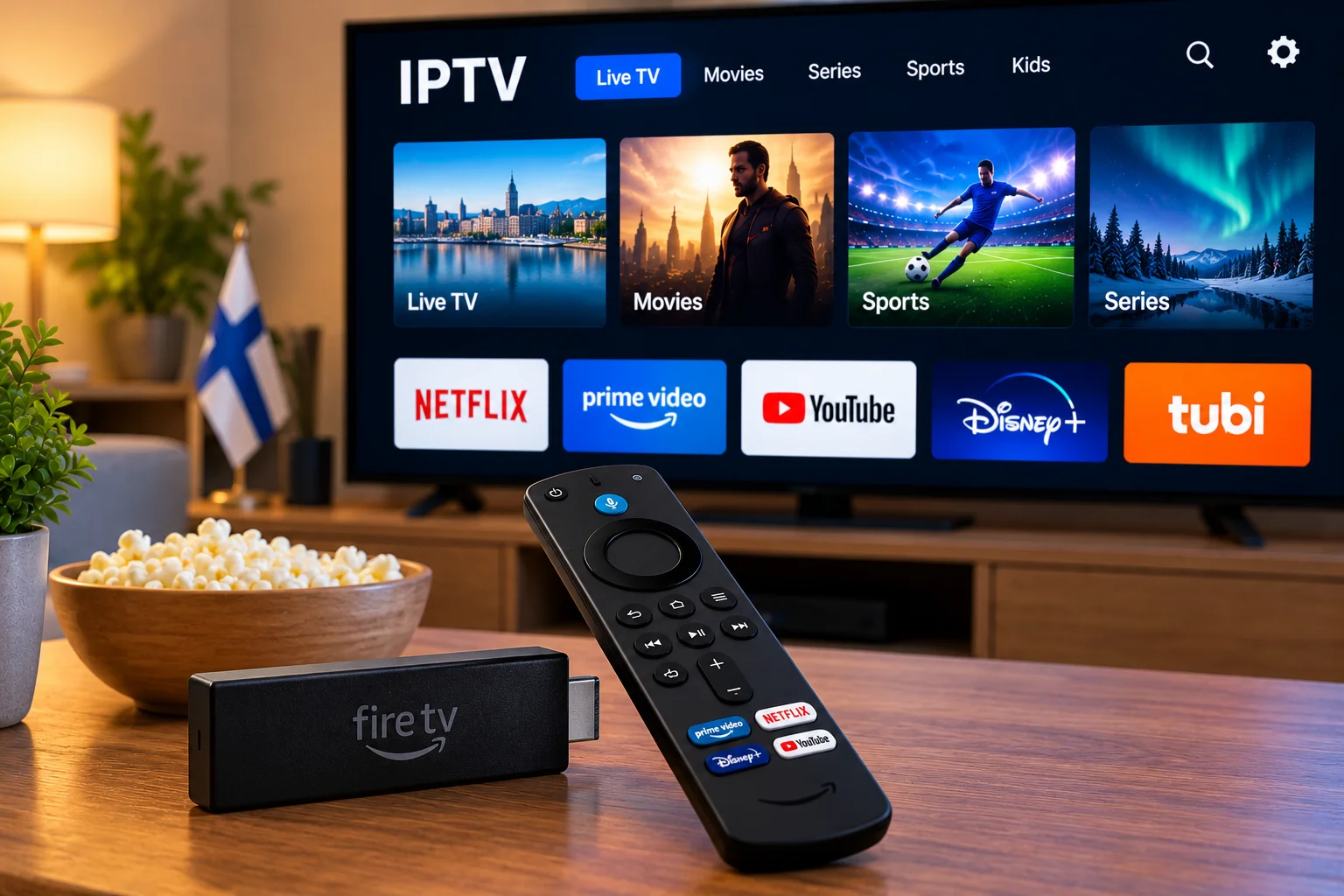
Amazon Fire TV devices are popular because they can turn an ordinary television into a flexible streaming setup without adding much hardware. A Firestick is small, easy to move between televisions, and works with a wide range of entertainment apps.
For viewers in Finland who want to use IPTV, Fire TV can also be a convenient option. The setup itself is usually straightforward, but the quality of the experience depends on the IPTV player, internet connection, device performance, and the login method provided by the service.
Here is what is worth checking before you start.
What You Need to Watch IPTV on Firestick
An IPTV setup on Firestick usually needs four things:
- A compatible Fire TV device
- A reliable internet connection
- An IPTV player
- Login or playlist details from your IPTV service
The IPTV player is simply the app used to display and organize the streams. It does not normally provide the television content itself.
That distinction is useful because many people assume that installing an IPTV app is enough. In reality, the player still needs valid account or playlist information from a service.
Check Your Firestick Before Installing Anything
Not every Fire TV model performs in exactly the same way.
Newer devices generally have faster processors and better wireless support, while older models may become slower when several apps are installed.
Before setting up IPTV, check that your Firestick has enough free storage and is running the latest available Fire OS version.
If the device already feels slow when opening normal streaming apps, adding another large application may not improve the situation.
Removing unused apps can help free storage and keep the interface more responsive.
Choose an IPTV Player That Works Well With a Remote
An IPTV player designed for television should feel simple when controlled with the Fire TV remote.
You should be able to move between channels, categories, favorites, and settings without fighting the interface.
Useful features can include:
- Live TV categories
- Search
- Favorites
- EPG support
- Movies and series sections
- Playlist management
There is no need to choose the app with the longest feature list. A simple player that loads quickly and is easy to navigate is often a better choice for everyday use.
Understand the Login Method
Before choosing an IPTV app, check which type of login information your service provides.
Two common methods are M3U playlists and Xtream-style logins.
M3U Playlist
An M3U playlist is usually provided as a web address.
You add that address to a compatible IPTV player, and the app loads the available streams.
The downside on a Firestick is that long URLs can be awkward to type using a remote. Some apps make this easier by allowing playlist management through another device.
Username and Password Login
Some services provide a server address, username, and password instead.
This can be easier to enter on a television because each detail goes into a separate field.
The best approach is simply to use the format supplied by your provider rather than trying to convert one method into another.
Wi-Fi Quality Can Make or Break the Experience
Many Firestick streaming problems are actually network problems.
A household may have a fast broadband connection but still experience buffering if the Firestick receives a weak Wi-Fi signal.
This often happens because the device sits behind the television, where the TV itself and nearby electronics can affect wireless reception.
If playback is inconsistent, check the connection near the television rather than relying only on the speed advertised by your internet provider.
Try 5 GHz Wi-Fi if the Router Is Nearby
Most modern routers support both 2.4 GHz and 5 GHz Wi-Fi.
The 2.4 GHz band usually reaches farther, while 5 GHz can offer better performance over shorter distances.
If your Firestick is reasonably close to the router, testing the 5 GHz network may improve streaming stability.
If the television is several rooms away, 2.4 GHz may sometimes provide a stronger signal.
There is no universal best choice. The layout of the home matters.
Ethernet Can Be Useful
If Wi-Fi remains unreliable, Ethernet is worth considering.
Some Fire TV devices can use a wired connection with a compatible adapter.
A wired setup can be useful when the router is close to the television or when the wireless network is crowded with phones, laptops, tablets, consoles, and other streaming devices.
Ethernet will not fix every IPTV issue, but it can help rule out Wi-Fi as the cause.
Do Not Ignore Storage Space
Firesticks have limited storage compared with many phones and computers.
Over time, apps, cached files, and updates can use a large portion of the available space.
If the device starts becoming slow, review the installed apps and remove anything you no longer use.
There is also little benefit in keeping several IPTV players installed if you regularly use only one.
Keep Fire OS and the IPTV App Updated
Software updates can improve compatibility and fix playback problems.
Check periodically for Fire OS updates and updates to the IPTV player itself.
This becomes especially important when an app starts behaving differently after a system update.
Using current software also helps reduce avoidable security and stability problems.
Use the EPG if It Is Available
An Electronic Programme Guide can make live TV easier to browse.
Instead of seeing only channel names, an EPG may show what is currently playing and what is scheduled next.
Depending on the service and app, the guide may include:
- Programme names
- Start times
- End times
- Upcoming programmes
- Short descriptions
If the channels work but the guide is empty, the problem may be with EPG data rather than the stream itself.
Refreshing the programme guide can sometimes solve the issue.
Create a Short Favorites List
A large channel list can quickly become inconvenient on a television.
Favorites make navigation much easier.
Instead of scrolling through every category, save the channels you actually watch.
For a Finnish household, that might include a mix of Finnish channels, Nordic content, sports, news, movies, or international programming.
The point is to reduce unnecessary browsing.
Match Video Quality to Your Connection
Higher resolution is not always better in practice.
If a 4K stream keeps pausing while an HD stream plays smoothly, the lower resolution may provide the better viewing experience.
The right setting depends on:
- Internet stability
- Wi-Fi signal
- Firestick model
- Television resolution
- Other network activity
A stable picture is usually more useful than chasing the highest possible resolution.
Household Network Activity Matters
Your Firestick shares the same connection as other devices in the home.
Streaming quality can change when someone else starts downloading a large file, watching 4K video, gaming online, or uploading data to the cloud.
If IPTV works well at quiet times but buffers when the network is busy, bandwidth competition may be the reason.
Testing the stream when other devices are inactive can help confirm this.
Restart Before Reinstalling the App
When something goes wrong, reinstalling the IPTV player should not be the first reaction.
Try the simple fixes first.
Restart the app, then restart the Firestick and router.
Check whether other streaming services work normally.
If they are also slow, the problem is probably not limited to the IPTV app.
Only consider reinstalling after checking the connection, updates, and login details.
Be Careful With Cache and App Data
Fire TV settings allow users to clear an application's cache.
This can sometimes help when an app becomes unusually slow.
However, clearing app data is different.
Doing that may remove saved playlists, login details, favorites, and preferences.
It is worth knowing the difference before selecting either option.
Troubleshoot One Thing at a Time
When playback problems appear, avoid changing several settings at once.
A simple testing order works better:
First, try another channel.
Then check another streaming app.
After that, restart the Firestick and router.
If the problem continues, test Wi-Fi strength or try Ethernet if available.
Finally, check whether the IPTV player and Fire OS need updates.
This approach makes it much easier to identify the actual cause.
Protect Your Login Details
IPTV credentials should be treated like any other account information.
Do not post playlist URLs, usernames, passwords, or private server details in public forums.
Only enter account details into applications you trust.
Whenever possible, use apps from official stores or recognized developer sources rather than unknown downloads.
Check Firestick Support Before Choosing a Service
Not every IPTV service provides the same level of support for Fire TV devices.
Before subscribing, check whether the provider explains how its service works with Firestick and which login methods are supported.
Viewers comparing IPTV options for Finland can review Nordic One IPTV when researching Firestick compatibility, IPTV setup methods, and support for different streaming devices.
Doing this before purchasing can save time later.
Using a Firestick While Travelling
One advantage of a Firestick is its portability.
It can easily be moved to another television or packed for travel.
However, the quality of the experience away from home depends on the local internet connection.
Hotel and guest Wi-Fi networks may have slower speeds, login pages, or restrictions that affect streaming.
Content availability can also vary by location, so users should check the terms of their service before relying on it when travelling.
Firestick or Built-In Smart TV Apps?
A Firestick is not always necessary.
If your Smart TV already supports a suitable IPTV player and performs well, the built-in system may be enough.
A Firestick becomes more useful when:
- The TV has limited app support
- The Smart TV interface is slow
- The television no longer receives useful software updates
- You want a separate streaming platform
This allows an older television to remain useful without replacing the screen itself.
Keep the Setup Simple
A reliable IPTV setup does not need to be complicated.
For most users, the essentials are enough:
- One dependable IPTV player
- Correct login details
- A stable internet connection
- Updated Fire TV software
- A small favorites list
Additional apps and advanced settings should only be added when they solve a real problem.
Final Thoughts
A Firestick can be a practical IPTV device for viewers in Finland, especially when the television itself has limited streaming features.
The most important part is not the number of apps installed. It is having a player that works well with the Fire TV remote, a stable network connection, and a setup that matches the login method supplied by the service.
If buffering or playback problems appear, work through the connection, device, app, and account separately. In most cases, a simple setup is easier to maintain and easier to troubleshoot than one filled with unnecessary apps and complicated settings.