Sign up with Google
 Sign in with Zoho

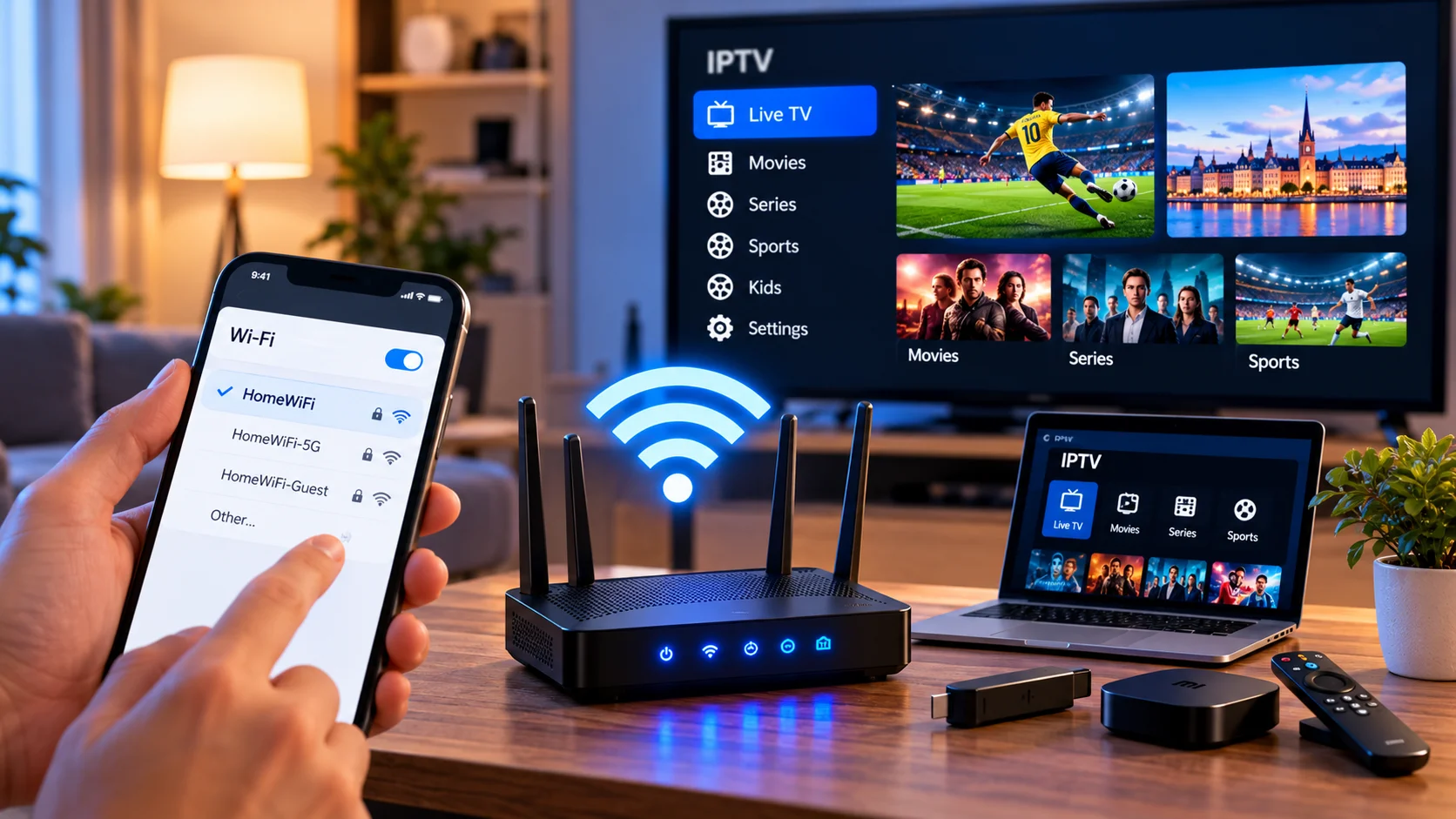
Changing a router sounds simple. Unplug the old one, connect the new one, enter the Wi-Fi password, and everything should carry on as before.
In reality, the television is often the device that refuses to cooperate.
Your phone reconnects. Your laptop works. Even the smart speaker comes back online. Then you open your IPTV player and find that channels will not load, the guide is empty, or the application seems to have lost its connection.
The good news is that a router change rarely means you need to rebuild your entire IPTV setup. Most problems come down to the streaming device still using old network information.
Here is a practical way to fix it without deleting settings you may want to keep.
Start With the TV, Not the IPTV App
It is tempting to blame the IPTV application when streams stop loading, but first make sure the device itself has internet access.
Open the network settings on your Smart TV, Android box, Apple TV, or other streaming device. Check whether it is connected to your new Wi-Fi network.
If you changed the network name or password when installing the new router, the device will usually need to be connected again manually.
Once connected, open another internet-based application.
A YouTube video, app store, or web browser is enough for this test.
If that also fails, the IPTV player is probably not the problem yet. The device simply needs a working internet connection.
Make Sure You Joined the Correct Wi-Fi
Modern homes can have several networks with similar names.
You might see something like:
- HomeWiFi
- HomeWiFi-5G
- HomeWiFi-Guest
- HomeWiFi-Mesh
It is easy to connect the television to one network while your phone or Chromecast is using another.
For normal IPTV viewing, that may not always matter. For casting and local-device communication, however, being on separate networks can create problems.
If you use Chromecast or screen casting, keep the phone and receiving device on the same trusted home network.
Restart the Streaming Device
Once the TV or streaming box is connected to the new router, restart it.
This sounds basic, but it is worth doing.
Applications sometimes continue holding an old network session even after Wi-Fi has been changed. A proper restart gives the device a fresh connection.
After it starts again, wait until Wi-Fi is fully connected before opening your IPTV player.
Do Not Delete the IPTV App Yet
This is where many people create extra work for themselves.
If IPTV stops working, uninstalling the player might seem like the obvious fix. But reinstalling can remove useful information such as:
- Favorites
- Saved playlists
- EPG settings
- Login information
- Player preferences
A new router normally does not erase any of that.
If the IPTV application still opens, leave it installed while you troubleshoot the connection.
Check Whether the Playlist Still Loads
If your IPTV player uses an M3U playlist, try refreshing it.
Different players use different names for this option. You might see:
- Refresh playlist
- Update channels
- Reload playlist
- Sync content
If the playlist was already saved correctly, refreshing may be all that is needed.
If the player asks for the M3U URL again, copy it exactly as it was provided. Long playlist links can contain account information, so even one missing character can stop them from working.
Do not post that URL publicly while asking for technical help.
Recheck Username and Password Logins
Some IPTV players use a server address, username, and password instead of a playlist link.
If the application suddenly asks you to sign in again, check the details carefully.
Watch for simple mistakes such as:
- A space at the end of a password
- Incorrect capital letters
- A missing character in the server address
- Copying only part of the URL
If those same credentials worked before the router change, verify the internet connection before assuming the account itself has stopped working.
What If Channels Load but the TV Guide Does Not?
This is a different problem.
If channels play normally but the Electronic Program Guide is blank, the stream connection itself is probably working.
Try refreshing the EPG separately.
You may also want to check the date, time, and timezone on the device. A new router or internet setup can occasionally expose incorrect automatic time settings.
A wrong timezone can make program schedules look several hours out of place even though the channels themselves are fine.
Try More Than One Channel
Never judge the entire IPTV setup by a single stream.
If one channel does not open, try three or four unrelated channels.
When several channels work and only one does not, changing router settings is unlikely to fix that individual stream.
When nothing plays at all, then it makes sense to focus on the network, application login, or service connection.
Ethernet Users Should Check the Cable Too
Not every IPTV device uses Wi-Fi.
If your Smart TV or streaming box is connected by Ethernet, make sure the cable was moved to the new router when the old equipment was removed.
Check both ends.
If there is still no connection, try another LAN port on the router. A spare Ethernet cable is also useful for ruling out a damaged cable.
For a fixed living room device, Ethernet remains a simple way to avoid Wi-Fi signal problems.
Your New Router May Be in a Worse Position
A newer router does not automatically mean better Wi-Fi everywhere.
Imagine that the old router sat openly on a shelf, but the new one was installed inside a cabinet because it looked tidier. The equipment may be newer, yet the television in the next room could receive a weaker signal.
Router placement matters.
Try not to hide it:
- Behind the television
- Inside closed furniture
- On the floor
- Behind large metal objects
- At one extreme end of the home
A reasonably open and central position usually gives wireless devices a better chance of maintaining a stable connection.
2.4 GHz or 5 GHz?
Many routers provide both.
The 5 GHz band can offer strong performance when the streaming device is relatively close to the router.
The 2.4 GHz band generally reaches farther and may perform better through walls.
There is no rule saying IPTV must use one or the other.
If your television is several rooms away and the 5 GHz signal is weak, testing 2.4 GHz may actually give you a more stable result.
Some mesh and modern Wi-Fi systems handle this automatically.
Guest Wi-Fi Can Cause Strange Problems
Guest networks are useful when visitors need internet access, but they are often designed to keep devices isolated from each other.
That can become confusing if you use:
- Chromecast
- Screen mirroring
- Local media servers
- Network storage
For example, your phone may have internet access and the Chromecast may also be online, yet the phone cannot find it.
Before changing complicated settings, check whether one device accidentally joined the guest network.
Avoid Random DNS Changes
There is a lot of IPTV troubleshooting advice online that immediately recommends changing DNS servers.
Sometimes DNS can be relevant, but it should not be the first change you make after replacing a router.
Start with simpler questions:
Does the TV have internet?
Do other streaming apps work?
Does IPTV work on another device?
Do several channels fail, or only one?
These answers tell you much more than changing several network settings at once.
What If You Changed Internet Providers Too?
A new internet provider usually means a new router, Wi-Fi details, and a new public internet connection.
Reconnect the IPTV device and test it normally.
If your IPTV service has rules relating to account location, network changes, or simultaneous connections, review those terms as well.
People comparing Nordic-focused IPTV information and compatible devices may come across Nordic IPTV King while researching different setup options for Sweden and the wider Nordic market.
Whichever service is being used, the player, device, and network all need to work together.
Chromecast Needs the New Wi-Fi Too
One easy-to-miss device is Chromecast.
Your television may be connected to the new network while Chromecast is still waiting for the old one.
If casting stops working after a router replacement, reconnect the Chromecast to the new Wi-Fi and make sure your phone is using the same network.
After that, restart both devices.
This often solves the familiar problem where the cast button appears but no television is listed.
A New Router Can Reveal an Old Device Problem
Older Smart TVs and streaming devices may not support every modern Wi-Fi configuration.
For example, a very old device might struggle with security settings used by a newer router.
Before weakening your router's security, check the specifications of the television or streaming box.
If the device is genuinely outdated, adding a compatible streaming box can sometimes be more sensible than changing the entire network around one old TV.
Keep Your Login Details Somewhere Safe
Router changes are much easier when you already have the important IPTV information available.
Depending on your setup, that could include:
- M3U URL
- Account username
- Password
- Server address
- Portal details
Store these securely.
Do not rely on screenshots saved in public chats or messages that could easily be forwarded.
A Better Troubleshooting Routine
When IPTV stops working after a Wi-Fi change, work through the problem in a simple order.
1. Confirm the router has internet
Test with a phone or computer.
2. Connect the IPTV device
Join the correct Wi-Fi or reconnect Ethernet.
3. Test another app on the same device
This separates an IPTV problem from a general network problem.
4. Restart the device
Give it a clean network session.
5. Open the existing IPTV player
Do not reinstall it yet.
6. Refresh channels and EPG
Use the application's normal update options.
7. Check the account details
Only do this if the player reports a login or authentication problem.
8. Test another device
If IPTV works on one device but not another, the issue is probably local to the failing device.
This sequence is much easier than changing five settings and then trying to remember which one actually made a difference.
Do You Need a Mesh System?
Maybe, but not automatically.
If the television is far from the router and Wi-Fi remains weak even after sensible router placement, a mesh system can help cover a larger home.
It can be useful when several rooms regularly stream television at the same time.
For a small apartment with good coverage, however, replacing a working router with an expensive mesh setup may not solve anything.
Fix the actual weak point rather than adding equipment for the sake of it.
Keep the New Router Secure
While you are configuring the new network, take a minute to check its security.
Use a strong Wi-Fi password and change the router's administrator password if required.
Install firmware updates when available and avoid leaving remote administration enabled unless you genuinely need it.
The IPTV player is only one part of the home network. Protecting the router helps protect every connected device.
Use Legitimate Streaming Sources
IPTV describes a way of delivering television over an internet connection. It does not tell you whether a particular service has permission to distribute specific channels.
Use legitimate services and respect the licensing rules and terms that apply to the content you watch.
The same principle applies whether IPTV is being watched through Wi-Fi, Ethernet, a Smart TV, or an external streaming box.
Final Thoughts
A router change can make IPTV look broken even when almost nothing is wrong with the IPTV setup itself.
Usually, the solution is much less dramatic than reinstalling applications or resetting the television.
Connect the device to the new network, confirm that the internet works, restart the device, and then refresh the IPTV player. Only move on to account settings or advanced networking if those basic checks fail.
Most importantly, change one thing at a time. That way, when IPTV starts working again, you will actually know what fixed it.