Sign up with Google
 Sign in with Zoho

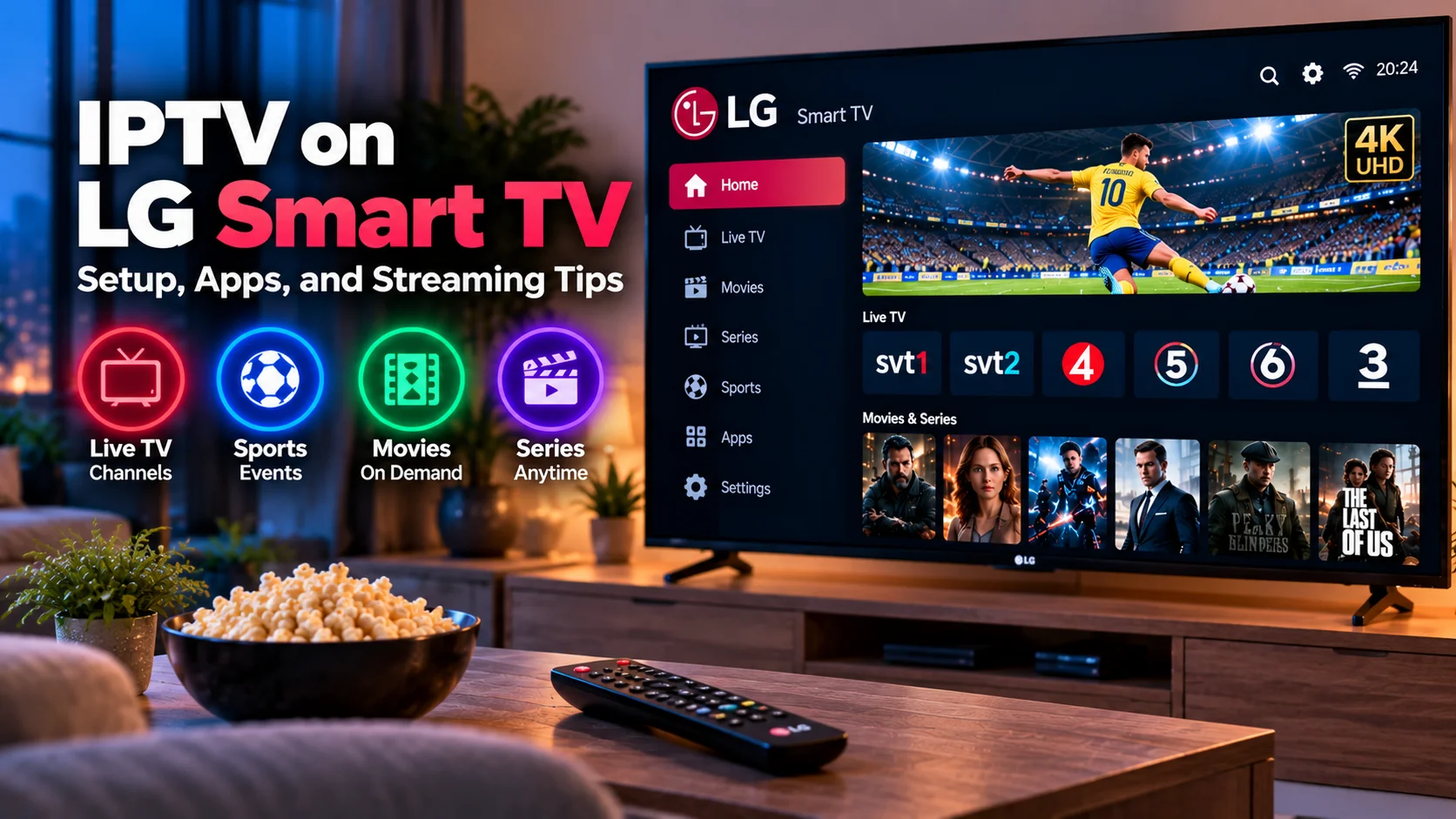
LG Smart TVs provide a convenient way to watch internet-based television without adding a separate streaming box. With a compatible IPTV player and a stable internet connection, viewers can access live TV, sports, movies, series, and other supported content directly through the television.
However, IPTV performance on an LG TV depends on more than simply installing an application. The television model, webOS version, network connection, available storage, IPTV login method, and player compatibility can all affect everyday viewing.
This guide explains what to check when setting up IPTV on an LG Smart TV and how to improve the experience.
Can You Use IPTV on an LG Smart TV?
Many LG Smart TVs support IPTV player applications through the LG Content Store.
Most modern LG televisions use webOS, although available applications can vary depending on:
- Television model
- Manufacturing year
- webOS version
- Country or region
- Application availability
Before beginning the setup, identify your television model and confirm that a suitable IPTV player is available.
What You Need for IPTV on LG TV
A basic setup normally requires:
- LG Smart TV
- Stable internet connection
- Compatible IPTV application
- Valid subscription credentials
- Supported login method
The IPTV application acts as the interface between the television and the IPTV service.
It may organize content into sections such as live television, movies, series, sports, favorites, and program guides.
Choose a Compatible IPTV Player
Not every IPTV application works with every subscription.
Before installing a player, check which login method your IPTV service provides.
Common options include:
M3U Playlist
An M3U playlist contains stream information inside a URL or playlist file.
Many IPTV players support this format.
Username and Password
Some applications allow users to enter a server address, username, and password instead of a long playlist URL.
Portal Login
Certain IPTV systems use a portal address and device-specific information.
This method is more common with dedicated IPTV boxes but may also be supported by selected applications.
Checking the connection format before installing an app can prevent unnecessary setup problems.
Install an IPTV App on LG Smart TV
On compatible televisions, the general process is straightforward.
- Open the LG Content Store.
- Search for an IPTV player.
- Check the app description and compatibility.
- Install the application.
- Open the player.
- Enter the required subscription information.
- Allow the playlist or account to load.
The exact process can differ between apps, so users should follow the instructions provided by the application and IPTV service.
Viewers comparing subscription information and compatible devices can also review MONSTER IPTV when researching an IPTV setup that matches their television and viewing needs.
Check Your Internet Connection
IPTV depends on continuous internet delivery.
If the connection becomes unstable, users may experience:
- Buffering
- Freezing
- Delayed channel loading
- Audio interruptions
- Sudden quality changes
A high advertised broadband speed does not always guarantee smooth playback. The connection between the television and router also needs to be stable.
Wi-Fi or Ethernet?
LG Smart TVs commonly support both Wi-Fi and wired networking.
Wi-Fi
Wireless connectivity keeps the installation simple and avoids additional cables.
It can work well when:
- The router is nearby
- Signal strength is good
- Wireless congestion is limited
- Few devices are competing for bandwidth
Ethernet
A wired connection can provide more consistent network performance.
Ethernet may be particularly useful for:
- Live sports
- Long viewing sessions
- Full HD streaming
- 4K content
- Homes with busy Wi-Fi networks
If IPTV frequently buffers over Wi-Fi, testing Ethernet can help determine whether the wireless connection is contributing to the problem.
Improve Wi-Fi Signal Quality
If Ethernet is not practical, improve the wireless environment.
Try to keep the router:
- Away from enclosed cabinets
- Away from large metal objects
- Relatively close to the television
- In an open location
- Away from unnecessary sources of interference
Router placement can have a noticeable effect on streaming stability.
Choose the Right Video Quality
Higher resolution requires more bandwidth and processing power.
HD
HD can provide a good experience while using less bandwidth than higher resolutions.
It may be suitable for smaller televisions or slower connections.
Full HD
Full HD provides greater detail and works well on many modern LG televisions.
4K UHD
4K can provide sharper images on compatible displays, but the television, IPTV player, video source, and internet connection must all support it.
If 4K playback repeatedly freezes, Full HD may provide a smoother viewing experience.
Organize Channels With Favorites
Large IPTV playlists can become difficult to navigate.
A favorites feature allows users to create a shorter list of frequently watched channels.
For example, viewers might organize favorites into:
- Swedish television
- Sports
- News
- Movies
- Entertainment
- Children's programming
A well-organized channel list can make everyday navigation much faster with an LG remote control.
Use the Electronic Program Guide
An Electronic Program Guide, commonly called an EPG, displays information about television schedules.
Depending on the player, an EPG may show:
- Current program
- Upcoming program
- Start time
- End time
- Channel schedule
- Program description
The guide can be particularly helpful for live television and sports.
If EPG information appears at the wrong time, check the television's time zone and date settings.
Keep webOS Updated
LG periodically releases software updates for supported televisions.
Updates can contain:
- Security improvements
- Bug fixes
- App compatibility changes
- System performance improvements
Keeping the television reasonably updated can help applications continue working correctly.
The IPTV player should also be updated when stable updates become available.
Avoid Filling the TV With Unused Apps
Smart TVs have limited internal storage compared with computers and many dedicated streaming boxes.
Installing numerous applications can eventually reduce available space.
Remove software that is no longer needed and keep the TV interface organized.
This can also make it easier to find frequently used streaming applications.
Restart the Television When Needed
LG televisions may spend long periods in standby rather than completely restarting.
If an IPTV application becomes slow or stops responding, restart the television before making major configuration changes.
A restart can sometimes help with:
- Frozen applications
- Slow menus
- Temporary network problems
- Playback errors
It is a simple troubleshooting step that should usually be tried before reinstalling the player.
What to Do When IPTV Buffers
Buffering can have several causes.
Start by checking the home network.
Test Another Channel
If only one channel buffers, the problem may be limited to that particular stream.
Check Other Devices
Large downloads, cloud backups, gaming, and other video streams can consume network capacity.
Restart the Router
A router restart can sometimes resolve temporary network problems.
Reduce Video Quality
If a high-resolution stream is unstable, try a lower quality option when one is available.
Test Ethernet
If possible, connect the television directly to the router and compare performance.
These steps can help identify whether the problem comes from the local network or another part of the setup.
Audio Problems on LG IPTV Apps
Sometimes a channel displays video correctly while audio is missing.
Possible causes include:
- Incorrect audio track
- Unsupported sound format
- TV audio configuration
- Soundbar settings
- Application compatibility
Check whether the IPTV player offers another audio track.
Users with external sound systems should also confirm that the television's audio output settings match their equipment.
Using Subtitles
Movies and series may provide subtitle tracks when supported by the source.
An IPTV player may allow users to:
- Enable subtitles
- Select language
- Choose another subtitle track
- Adjust timing
If subtitle options do not appear, the content may not contain compatible subtitle data.
The IPTV application must also support the particular subtitle format.
Older LG Smart TVs
Older televisions may still provide excellent picture quality even when their Smart TV software becomes outdated.
Possible signs of an aging smart platform include:
- Fewer available applications
- Slow menus
- App crashes
- Missing software updates
- Poor IPTV player performance
This does not necessarily mean the television needs to be replaced.
Use a Streaming Device if Necessary
If the preferred IPTV application is unavailable on an LG television, an external streaming device can provide another option.
Examples include:
- Android TV devices
- Google TV devices
- Apple TV
- Fire TV devices
- Dedicated IPTV boxes
The external device handles the applications and processing while the LG television continues to act as the display.
This can extend the useful life of an older television.
Check Connection Limits on Multiple TVs
Households may use IPTV on several televisions.
However, installing the same account on multiple devices does not automatically mean they can all stream simultaneously.
IPTV subscriptions may have limits on active connections.
Users should check the applicable subscription conditions before running several streams at the same time.
Keep IPTV Credentials Private
Subscription credentials should be treated as private account information.
Avoid publicly sharing:
- M3U URLs
- Usernames
- Passwords
- Server addresses
- Portal information
These details may allow another person to access the account.
Store them securely in case the IPTV application needs to be configured again.
Common LG IPTV Problems
IPTV App Does Not Appear in the Store
Application availability can vary by television model, webOS version, and region.
Channels Do Not Load
Check the internet connection and verify the subscription credentials.
IPTV Keeps Buffering
Test Wi-Fi strength, network activity, and Ethernet if available.
EPG Shows Incorrect Times
Check the TV time zone and refresh the program guide.
App Runs Slowly
Restart the television and remove unnecessary applications.
No Sound
Check available audio tracks and the LG television's sound settings.
Smart TV App or External Box?
Using the built-in LG platform is often the simplest option when a compatible IPTV app works reliably.
An external box may make more sense when:
- The television is older
- The desired player is unavailable
- Apps frequently crash
- More customization is required
- Better hardware performance is needed
There is no need to add another device when the built-in setup already works well.
Final Thoughts
LG Smart TVs can provide a convenient IPTV experience without requiring additional hardware.
Start by checking the television model, webOS version, IPTV login format, and available player applications. Once the service is configured, focus on network stability, channel organization, EPG accuracy, and suitable picture quality.
Ethernet can help when Wi-Fi is unreliable, while favorites can make large channel lists easier to navigate.
If an older LG television no longer supports the required IPTV application, adding a modern streaming device can provide an effective upgrade without replacing the screen itself.
With the right application, connection, and configuration, an LG Smart TV can provide a straightforward platform for live television, sports, movies, series, and other IPTV content.