
 Sign up with Google
 Sign in with Zoho
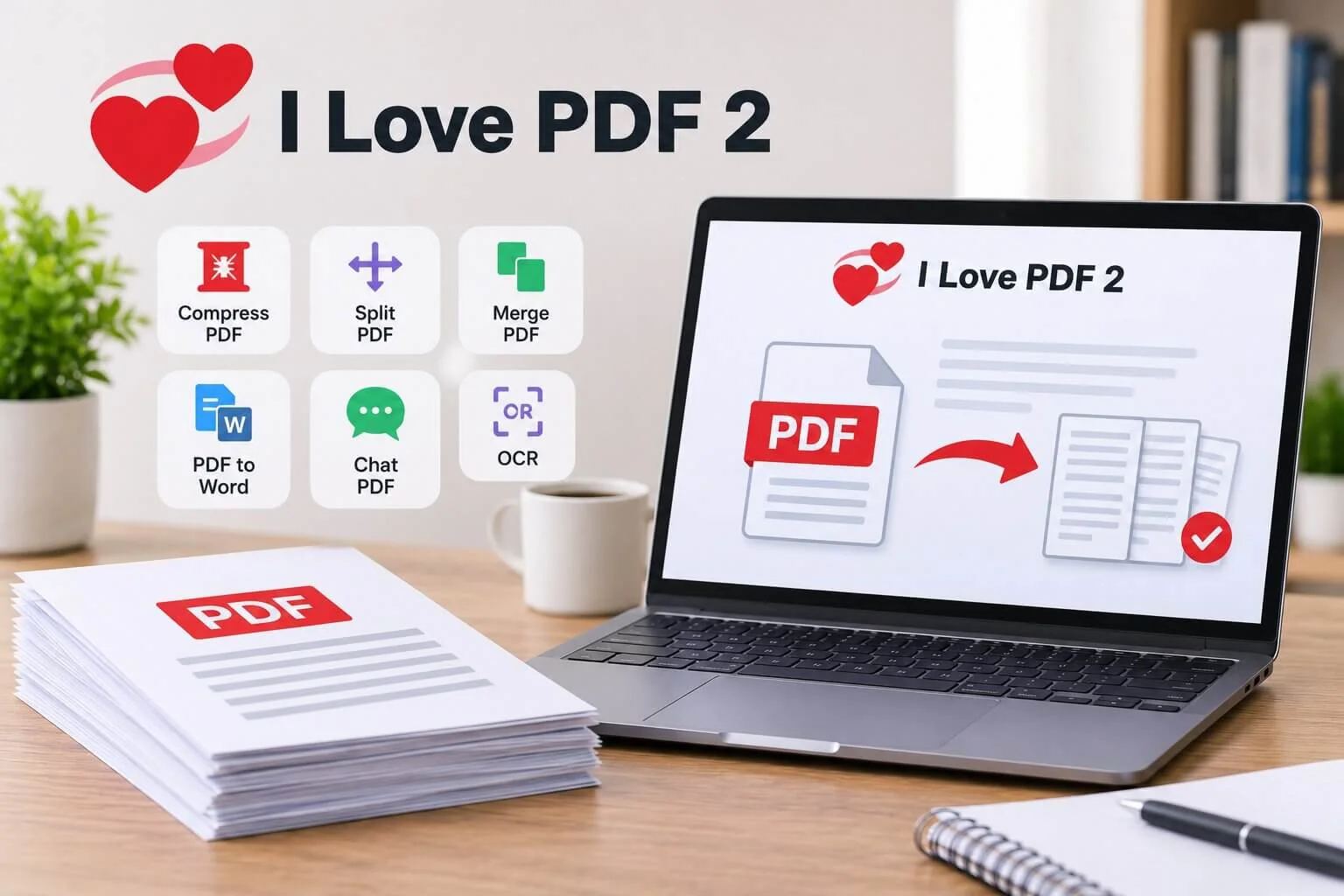
A 94-page report is open on your screen, the meeting is at nine, and you’ve already lost your place twice. Scroll, scroll, back up, scroll again. Sound familiar? You don’t actually have to read every page in order. A few free pdf tools can shrink the job quite a bit, and most of them run right in your browser. Not a magic trick, just a smarter order of doing things. No account, no software.
Why Long PDFs Feel So Slow
Part of it is the format. PDFs are made to look identical on every screen, which is lovely for printing and awful for skimming. No reflow. No collapsing headings. Sometimes you can’t even search. Try finding one clause in a 90-page contract that way.
Size makes it worse. Big files crawl open, choke email, and get bounced by upload forms. Ever tried attaching a scanned contract to a job portal at the last minute? Yeah.
So reading faster isn’t the fix. Changing what you’re reading is. Smaller chunks, text you can search, a way to ask a question instead of hunting for the answer. A browser-based set of free pdf tools handles most of that, and you don’t need to sign up for anything.
Which Free PDF Tools Come First
My rough order for a scary-looking document goes like this.
Check the file first. Huge? Compress it. Pages sideways? Rotate them. It’s dull work, but a file that opens quickly and sits upright already feels half-read.
Then cut it down. Most of us need fifteen pages out of a hundred, maybe fewer. Splitting gets you there.
Need to quote something or edit it? Convert to Word. It’s handy, though fancy layouts can come out messy, so look it over before sending it to anyone.
One detail I like: the Compress tool has 200KB and 100KB targets, which helps when a portal has a strict limit and you’re tired of guessing.
Split First, Read Second
Picture a 120-page annual report where your manager only wants the finance part. Starting at page one is a waste of an evening. Split the file at the pages that matter and you’re opening something small instead of a monster. Honestly, it’s a small change that saves more time than reading speed ever will.
For heavy files, this routine tends to work:
- Skim the contents page and jot down the page ranges you need.
- Split at those ranges.
- Compress anything still bulky.
- Merge the useful pieces into one short file.
- Read that. Only that.
Group projects get a lot out of this too. Five people, five separate PDFs, total chaos. Merge them once in the right order and everybody’s looking at the same thing. A simple set of free pdf tools does split, merge and compress in one place, so you’re not juggling tabs.
Ask the Document Instead of Scrolling It
Sometimes you don’t want to read at all. You want one answer. When’s the refund deadline? Which clause covers late payment? What’s the total on this invoice?
That’s what Chat PDF is for. Upload the file, type your question in plain language, get an answer pulled from the document. Often it beats Ctrl+F, mostly because you don’t need to guess the author’s exact wording.
It’s not always right, though. Use the answer as a shortcut, then open the page it came from. Especially for contracts, medical papers, anything with money attached. A summary can skip the one detail that matters.
Students, this is a decent way to get your bearings on a dense paper before the proper read. Before, not instead.
When the PDF Is Just a Picture
Ever searched a PDF for a word you can see right there on the page, and got nothing? Usually that’s a scan. Your computer sees a photo of text, not text.
OCR fixes that. It reads the image and turns it into text you can search, copy and edit. iLovePDF 2 has it built in, so a scanned invoice or an old lecture handout becomes searchable without another app.
Results depend on the scan. Blurry, tilted or faint pages come out worse, so rotate first, and rescan at higher quality if you can. Handwriting? Don’t count on much. Worth a minute of prep, since the text it produces is only as good as the image.
When Something Goes Wrong
Even simple tools hit snags. Here are the ones that come up most:
- Upload hangs or fails. Usually the file is too big, or your connection dropped. Compress it, or try a smaller piece.
- Converted text looks scrambled. Tables and multi-column layouts do this. Expect to tidy by hand.
- Pages in the wrong order after merging. Check the order before you press the button.
- OCR spits out gibberish. Bad scan, most likely.
- Password-protected file. Unlock it with the password first.
Most of these take a minute or two to fix, which is why I’d keep a set of free pdf tools bookmarked for deadline nights.
One more thing, and it matters. Be careful with sensitive files on any online tool, this one included. Passports, bank statements, signed contracts, medical records. If a file is truly private, think twice before uploading it, and strip out details nobody needs to see. Keep your originals too.
Frequently Asked Questions
How can I read a long PDF faster? Split it down to the sections you need and skim the headings first. For a single fact, ask Chat PDF or search the text rather than scrolling.
Can I make a PDF smaller for an upload limit? Yes. Use Compress and pick the 200KB or 100KB target if the form is strict. Image-heavy files may lose some quality.
Does OCR work on handwritten notes? Rarely well. It’s built for printed text.
Do I need to install anything or make an account? No. It runs in your browser on a phone, tablet or laptop, and there’s no signup.
Is it safe to upload confidential documents? Be careful with any online tool. If a file is private, upload only what’s needed, and skip anything highly sensitive unless you’re comfortable with the risk.
Are there free pdf tools that convert PDF to Word? Yes, iLovePDF 2 has PDF to Word. Simple documents usually convert fine, while complex layouts may need tidying.
Conclusion
Long documents aren’t going anywhere, but you can stop treating them like novels. Shrink the file, make the text searchable, ask direct questions, then read only what’s left. That’s most of the trick. Good free pdf tools won’t do the thinking for you. They just clear away the slow, irritating parts so your attention goes where it counts. If you’d like to try that routine, iLovePDF 2 keeps these tools in one place, right in your browser.