Sign up with Google
 Sign in with Zoho

Introduction
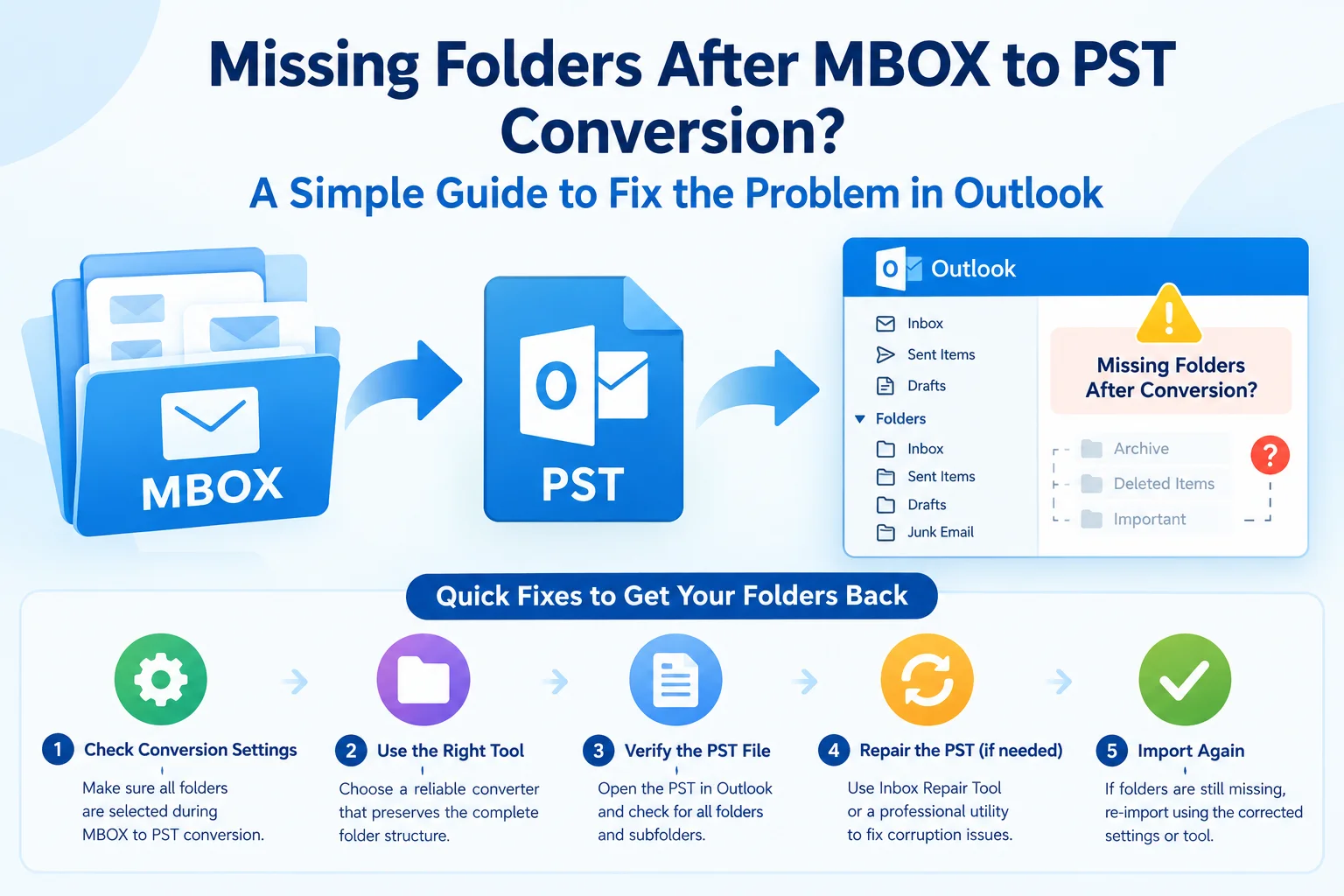
MBOX to PST conversion is a common practice when users want to move an archived email database to Microsoft Outlook. But the method may not always result in the expected folder arrangement. When you view the converted PST file in Outlook, you may find that some folders or subfolders are missing, empty, or difficult to find.
This doesn’t always mean the information in the original email is permanently lost. The issue could be due to the conversion procedure, folder hierarchy, source MBOX files, or the way you open the resultant PST in Outlook. Knowing the cause can allow users to choose the correct strategy to tackle the problem.
What Does Missing Folders Mean After MBOX to PST Conversion?
A missing folder can signify different things. After conversion, users may face several situations, such as:
- The folder does not exist anywhere in the Outlook folder hierarchy.
- There is a folder, but it includes no emails.
- The main folder is available, but there are no subfolders.
- Folders show up under an unexpected parent folder.
- The folder exists but contains no messages.
Because proper troubleshooting can depend on what went wrong in the mailbox conversion, it is vital to check the specific problem first.
Why Are Folders Missing After MBOX to PST Conversion?
There are many reasons why folder transfer could not be complete. The source MBOX archive may have a complex folder hierarchy, many mailbox files, or bad email data. Conversion processes can also be aborted before all data is processed.
Other possible reasons include
- Handling of partial MBOX data
- Problems with nested or subdirectory structures
- Source mailbox data is corrupted or inconsistent
- Conversion interruption
- Problems with large email repositories
- Incorrect selection of source files
- Problems while viewing or importing the created PST in Outlook
So, before claiming that the folders are lost forever, users should compare the original MBOX structure with the converted PST.
Things to Check in Outlook Before Re-Conversion
Before going for another conversion, review the converted PST carefully.
First, expand the entire folder tree in Outlook to see if the missing folder is located under another parent folder. Then, verify whether the folder exists and is empty. You can also search for emails that should have been in the missing folder in Outlook.
Compare the original MBOX folder structure to the PST structure, if possible. By looking at significant messages, attachments, and subfolders, you may establish whether the issue is affecting one folder or the entire conversion.
Manual Method: Convert MBOX to PST Using Thunderbird and Outlook
- Install Mozilla Thunderbird and set up the email account connected with the MBOX archive if necessary.
- Add the MBOX data in Thunderbird and view the archived emails, folders, and subfolders.
- Add the same email account to classic Outlook and wait for the mailbox data to sync.
- Copy or move the necessary emails and folders from Thunderbird to the respective Outlook inbox folders.
- Allow Outlook to sync all messages that have been transferred.
- In classic Outlook, click File > Open & Export > Import/Export > Export to a file > Outlook Data File (.pst).
- Choose the mailbox/folders to export and select Include subfolders.
- Select the location for the PST file and click Finish.
- Open the resultant PST file in Outlook and inspect the folders, subfolders, emails, and attachments.
Disadvantages of Manual Approach
A manual approach may be workable for a small mailbox or basic migration, but it can be very time-consuming if the archive contains years of email data.
If the resulting PST does not contain the necessary folders, the user may need to repeat the steps numerous times. It can also be harder to have a consistent folder structure if you’re working with numerous mailbox files separately. If the initial output gives incomplete results, you may need to do some extra troubleshooting to find out precisely where the problem occurred.
Professional Approach: Use a Dedicated MBOX to PST Converter
If the manual conversion does not provide the desired output, a dedicated conversion solution can provide a simpler approach. If you want to convert MBOX mailbox data into PST for Outlook, then the GainTools MBOX to PST Converter can be used.
A professional converter can be useful when dealing with multiple MBOX files, larger email archives, or in case the users need to repeat the conversion after an incomplete result. Instead of using a manual approach, users can follow a specific conversion process and then validate the created PST.
Convert MBOX to PST Using This Tool
- Launch the MBOX to PST converter tool.
- Select the desired MBOX files.
- Check the mailbox folders and data found.
- Choose PST as the export format.
- Choose a suitable location for the converted file.
- Start the conversion process and let it finish without interruption.
- Open this PST in Outlook.
- Compare the directory structure with the original MBOX archive.
How to Check for Missing Folders After Conversion
Verification is a core component of the migration process. Open the converted PST in Outlook and verify the following:
☐ All expected folders exist.
☐ Nested folders are well arranged.
☐ Important emails can be accessed.
☐ Attachments are available
☐ Email dates and sender information appear correctly.
☐ The PST opens without any errors.
☐ Important emails are present.
If key data is still missing, users should retain the source MBOX files and analyze the source data further before removing anything.
How to Avoid Missing Folders in Future Migrations
A few procedures can lessen the chances of an incomplete mailbox conversion. Always back up the original MBOX files before you start. Verify the structure of the source folder and ensure that all the needed MBOX files are selected.
Do not interrupt the conversion process, especially with large archives. Verify the PST in Outlook after conversion before deleting or transferring the original mailbox data.
Which Method Should You Choose?
For a tiny, uncomplicated archive, a manual approach might be enough. However, if there are several folders, large volumes of email, or repeated conversion attempts, a specific MBOX to PST conversion method might be more feasible.
The trick is to find out whether the folders really are gone before trying another conversion. In the event of an incomplete conversion, the problem may usually be fixed by repeating the conversion and carefully checking the generated PST file.
Conclusion
Missing folders during MBOX to PST conversion might occur due to incomplete processing of MBOX files, issues with the folder hierarchy, source data errors, or other conversion-related issues. Before presuming emails are lost, users should review the whole PST folder tree and compare it to the original MBOX archive.
If the first conversion was not completed, users can repeat the conversion process with a proper method and check the resultant PST in Outlook. Keeping a copy of the original MBOX files and verifying the converted mailbox prior to migration completion can also help avoid future data gaps.
Frequently Asked Questions
Q1. Can MBOX Reconversion Retrieve Lost Folders?
Ans. If the original conversion was not complete, then re-conversion after examining the MBOX source files can help create a complete PST.
Q2. Why Are MBOX Subfolders Missing in Outlook?
Ans. Nested folder structures may not always display as expected after conversion. Users need to compare the original MBOX hierarchy with the converted PST.
Q3. Should I delete the original MBOX files after conversion?
Ans. No. Keep the original MBOX files until the conversion to PST is thoroughly validated and the appropriate emails, folders, and attachments are verified.