Sign up with Google
 Sign in with Zoho

Every website gets visits from bots. Some are search engine crawlers like Googlebot. Some are AI crawlers that feed tools like ChatGPT and Perplexity. Others are scrapers you never invited.
You need a way to tell these bots where they can go and where they cannot. That job belongs to a tiny text file called robots.txt. It is easy to write and easy to get wrong. One bad line can hide your whole site from Google.
This guide explains robots.txt in simple words. You will see the rules and real examples. You will also learn how to handle AI crawlers and which mistakes to avoid.
What Is Robots.txt?
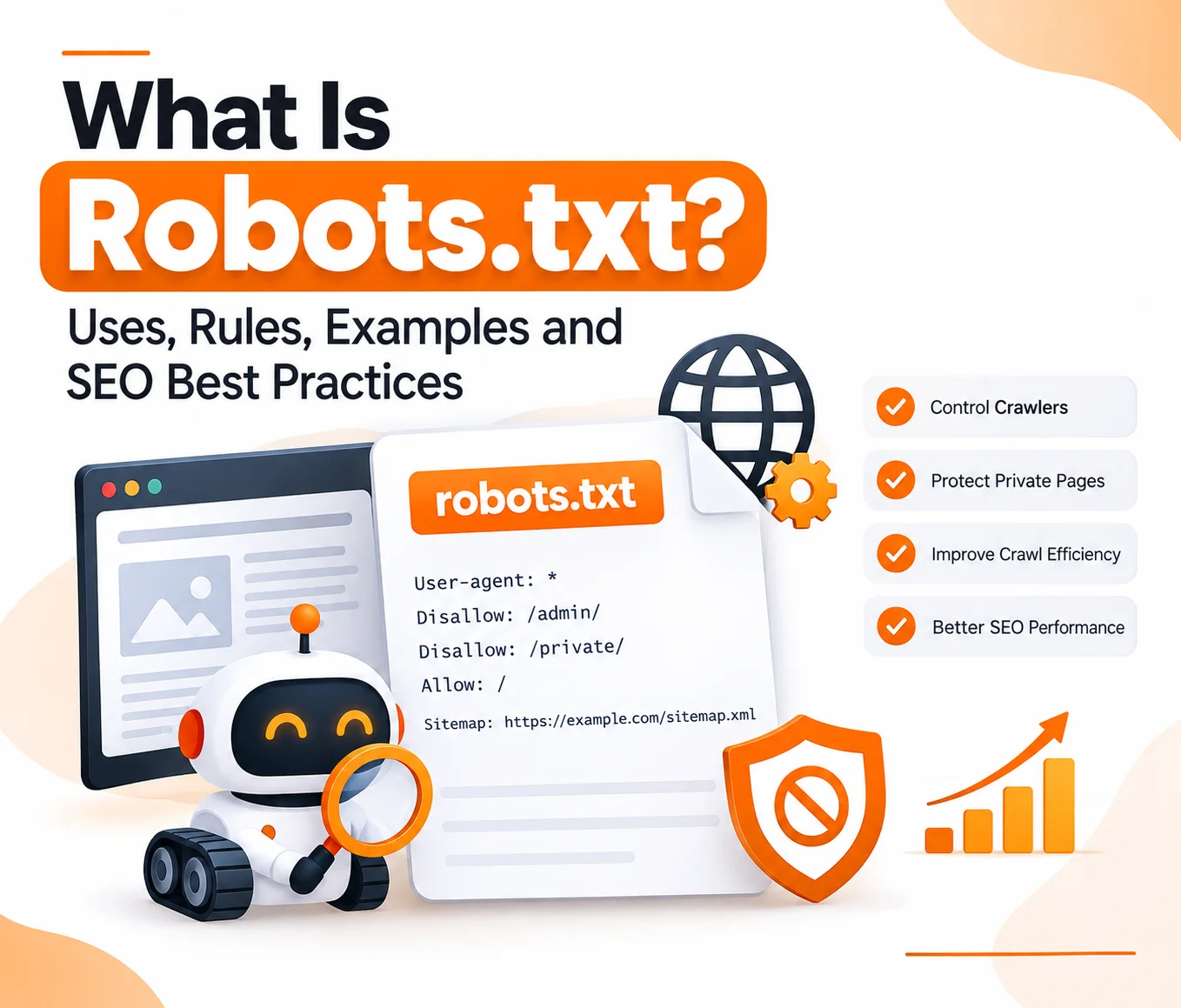
Robots.txt is a plain text file at the root of your website. It gives crawlers instructions about which pages or folders they may visit. The file follows the Robots Exclusion Protocol which is now an official internet standard (RFC 9309).
If you searched what is robots.txt after seeing a warning in Google Search Console this is the file it means. It always lives at one fixed address like yoursite.com/robots.txt.
Think of it as a sign on your front gate. It tells polite visitors which doors are open. Good bots like Googlebot and Bingbot follow it. Bad bots often ignore it.
Robots.txt Key Facts at a Glance
- Location: the root of your domain such as example.com/robots.txt
- Format: plain text saved in UTF-8
- Name: must be exactly robots.txt in lowercase
- Size limit: Google reads only the first 500 KiB of the file
- Scope: each domain and each subdomain needs its own file
- Main job: control crawling and not indexing
- What it cannot do: hide private pages or guarantee a page stays out of Google
How Does Robots.txt Work?
A crawler visits your domain and asks for the robots.txt file first. It reads the rules that match its name. Then it crawls only the areas those rules allow.
Google keeps a copy of the file for up to 24 hours so a change may not act right away. The server reply matters too. A 404 means no rules exist so bots crawl everything. A 5xx error makes Google pause crawling for a while because it cannot read your rules.
What Happens Step by Step
- The bot requests yoursite.com/robots.txt
- It finds the group of rules that matches its user agent name
- It checks each URL against the Allow and Disallow lines
- It crawls the URLs that pass and skips the rest
- It follows the Sitemap line if you added one
Why Robots.txt Matters for SEO
Search engines give each site a limited amount of crawling time. This is called crawl budget. On a small site it rarely matters. On a store with thousands of filter pages it matters a lot.
A clean robots.txt keeps bots away from junk pages so they spend time on pages that earn traffic. It also protects your server from heavy crawling. If your pages still fail to rank after this our guide on why a website is not ranking on Google covers the other common causes.
Main Uses of Robots.txt
- Block internal search result pages
- Block cart, checkout and login pages
- Stop bots from crawling endless filter and sort URLs
- Keep staging or test areas from being crawled
- Point crawlers to your XML sitemap
- Allow or block specific AI crawlers
Robots.txt Syntax: The Rules Explained
The file is built from groups. Each group starts with a user agent line and is followed by rules. Google supports only four fields: user-agent, allow, disallow and sitemap.
Here is a simple example.
User-agent: *
Disallow: /cart/
Disallow: /checkout/
Allow: /
Sitemap: https://www.example.com/sitemap.xml
The star means all bots. Each Disallow line blocks a path. The Sitemap line shows bots where your sitemap sits.
Robots.txt Directives at a Glance
- User-agent: names the bot the rules apply to and * means every bot
- Disallow: blocks a path from being crawled
- Allow: opens a path inside a blocked folder
- Sitemap: gives the full URL of your XML sitemap
- Crawl-delay: asks for a pause between requests and Google ignores it while Bing may follow it
- Comments: any line starting with # is ignored by bots
Pattern Rules to Remember
- * matches any run of characters
- $ marks the end of a URL
- Paths are case sensitive so /Blog/ and /blog/ are different
- A rule matches from the start of the path
- When rules clash the most specific one wins in Google
Here is a pattern example that blocks all PDF files.
User-agent: *
Disallow: /*.pdf$
Robots.txt Examples You Can Copy
Real examples make the rules easier to grasp. Change the paths to fit your own site before you use them.
Allow everything:
User-agent: *
Disallow:
Block everything (use only on staging sites):
User-agent: *
Disallow: /
Block one folder but allow one file inside it:
User-agent: *
Disallow: /private/
Allow: /private/public-guide.html
A common setup for an online store:
User-agent: *
Disallow: /cart/
Disallow: /checkout/
Disallow: /account/
Disallow: /*?sort=
Disallow: /*?filter=
Sitemap: https://www.example.com/sitemap.xml
WordPress sites often use this:
User-agent: *
Disallow: /wp-admin/
Allow: /wp-admin/admin-ajax.php
Sitemap: https://www.example.com/sitemap_index.xml
What to Block and What to Leave Open
- Block cart, checkout, login and account pages
- Block internal search and endless parameter URLs
- Leave CSS and JavaScript files open so Google can render your pages
- Leave your main content pages open
- Never block images you want to rank in image search
Robots.txt vs Noindex vs Sitemap
These three get mixed up all the time. They do different jobs.
Robots.txt controls crawling. A noindex tag controls indexing. A sitemap suggests pages you want found.
The big trap is this. A page blocked in robots.txt can still show in Google if other sites link to it. Google just shows the URL with no description. To keep a page out of results use a noindex tag and let Google crawl the page so it can see the tag. Google stopped supporting noindex inside robots.txt in 2019.
How to Pick the Right Tool
- Use robots.txt to save crawl time on low value URLs
- Use noindex to keep a crawlable page out of search results
- Use a password or login to protect private content
- Use a sitemap to list the pages you want indexed
Your sitemap should also be linked from robots.txt. Our guide on how to create an XML sitemap and submit it to Google shows the steps.
Robots.txt for AI Crawlers, AI Overviews and LLM Platforms
AI tools now send their own crawlers. Some collect data to train models. Others fetch pages live to answer a user question. You can treat them differently.
Google AI Overviews and AI Mode use pages already in the Google index. So they follow Googlebot rules. If Googlebot can crawl and index a page it can appear as a link inside an AI answer. Blocking it in robots.txt removes that chance.
Other platforms use separate bot names. This is where your file gives you real control. A strong AI search optimization plan starts by checking that useful bots are not blocked by mistake.
Common AI Crawlers and What They Do
- GPTBot: OpenAI crawler that collects training data
- OAI-SearchBot: OpenAI crawler that finds pages for ChatGPT search results
- ChatGPT-User: fetches a page when a user asks ChatGPT to open it
- ClaudeBot: Anthropic crawler that collects training data
- Claude-SearchBot: Anthropic crawler that supports search results
- PerplexityBot: builds the Perplexity search index
- Google-Extended: a control token that lets you opt out of Gemini training and grounding and it does not affect normal Search
- Applebot-Extended: lets you opt out of Apple AI training
- CCBot: Common Crawl bot whose data is used by many AI projects
Bot names change so check each company's own documentation before you edit your file.
Example: Allow AI Search but Block AI Training
User-agent: OAI-SearchBot
Allow: /
User-agent: PerplexityBot
Allow: /
User-agent: GPTBot
Disallow: /
User-agent: CCBot
Disallow: /
Should You Block AI Crawlers?
- Block training bots if you do not want your content used to train models
- Allow search bots if you want your brand to be cited in AI answers
- Remember that blocking may cut your visibility in AI tools
- Remember that robots.txt is a request and not a lock
How to Create a Robots.txt File
You do not need special software. Any text editor works. Many platforms also make the file for you.
Steps to Create and Upload Your File
- Open a plain text editor and create a file named robots.txt
- Add a User-agent line and then your Allow and Disallow rules
- Add your Sitemap line at the bottom
- Save the file in UTF-8 format
- Upload it to the root folder of your site
- Open yoursite.com/robots.txt in a browser to confirm it loads
Where to Edit Robots.txt on Popular Platforms
- WordPress: edit through Yoast SEO or Rank Math or upload a file by FTP
- Shopify: edit the robots.txt.liquid template in your theme
- Wix: open the robots.txt editor in the SEO tools
- Webflow: add rules under SEO settings in Site Settings
- Next.js: add a robots.txt file or an app/robots.ts file
Your platform can decide how much freedom you get. Our post on choosing the right CMS for your business website explains how this affects your SEO options.
How to Test Your Robots.txt File
Never publish changes without a test. A small typo can block whole sections of your site.
Google Search Console has a robots.txt report. It shows the files Google found and the last crawl time. It also lists errors and warnings. You can also use the URL Inspection tool to see whether one page is blocked.
A quick site scan helps too. Our free SEO audit tool can flag blocked pages and other crawl problems in one run.
Testing Checklist
- Open the file in your browser and check it loads with a 200 status
- Check the robots.txt report in Search Console for errors
- Test important URLs with the URL Inspection tool
- Confirm that CSS and JavaScript files are not blocked
- Confirm your sitemap line uses a full URL
- Recheck after every site update or redesign
Common Robots.txt Mistakes to Avoid
Most robots.txt disasters come from a handful of habits. Many happen after a site launch when a staging rule goes live by accident.
Mistakes That Hurt Your Rankings
- Leaving Disallow: / live after moving from staging to the real site
- Blocking CSS or JavaScript so Google cannot render the page
- Using robots.txt to hide private pages
- Blocking a page and also adding a noindex tag so Google never sees the tag
- Putting the file in a subfolder instead of the root
- Using the wrong case in paths
- Writing a relative sitemap URL instead of a full one
- Blocking AI search bots by accident while trying to stop AI training
- Forgetting that each subdomain needs its own file
A full crawl review catches these issues fast. Our technical SEO audit checklist covering 47 issues gives you a list to work through.
Robots.txt Best Practices for 2026
Keep the file short and clear. Every extra rule is one more chance for a mistake.
Best Practices Checklist
- Keep the file small and readable
- Add comments to explain why each rule exists
- Block only low value URLs and never your main content
- Always include a full Sitemap URL
- Use noindex or a password for pages that must stay private
- Decide your AI crawler policy and write it down
- Review the file after every redesign or platform change
- Keep a backup of your last working version
Sites that change often need regular checks. Our website maintenance and security service covers this kind of upkeep.
Conclusion
Robots.txt is a small file with a big say over how bots see your site. It controls crawling and not indexing. It helps search engines spend time on the right pages and gives you a way to set rules for AI crawlers.
Start by opening your own file and reading it line by line. Remove rules you do not understand. Add your sitemap. Decide which AI bots you want to allow. Then test the file in Search Console and check it again after every big site change.
Frequently Asked Questions
What is robots.txt in simple words?
Robots.txt is a text file on your website that tells search engine and AI crawlers which pages they may visit and which they should skip.
Where do I find my robots.txt file?
Add /robots.txt to the end of your domain in a browser. For example yoursite.com/robots.txt. If you see a 404 error your site has no file.
Is robots.txt required for SEO?
No. A site without one is crawled fully by default. Still most sites gain from having one because it can point bots to your sitemap and block junk URLs.
Does robots.txt stop a page from appearing in Google?
Not always. It stops crawling but the URL can still be indexed if other sites link to it. Use a noindex tag to keep a page out of results.
What is the difference between robots.txt and a sitemap?
Robots.txt tells bots where not to crawl. A sitemap lists the pages you want found. They work best together and your robots.txt can link to your sitemap.
Does Google respect crawl-delay in robots.txt?
No. Google ignores the crawl-delay rule. Bing and some other crawlers may follow it.
Should I block AI crawlers in robots.txt?
It depends on your goal. Block training bots like GPTBot if you do not want your content used to train models. Allow search bots like OAI-SearchBot and PerplexityBot if you want your brand cited in AI answers.
Does blocking Google-Extended remove me from AI Overviews?
No. Google-Extended controls use of your content for Gemini training and grounding. AI Overviews depend on Googlebot and your normal Search indexing.
How long does it take for robots.txt changes to work?
Google may cache the file for up to 24 hours. Most changes take effect within a day.
Can robots.txt protect private or secret pages?
No. Anyone can open your robots.txt file and read it. Blocked paths can even point people to sensitive areas. Protect private content with a login or password.