
 Sign up with Google
 Sign in with Zoho

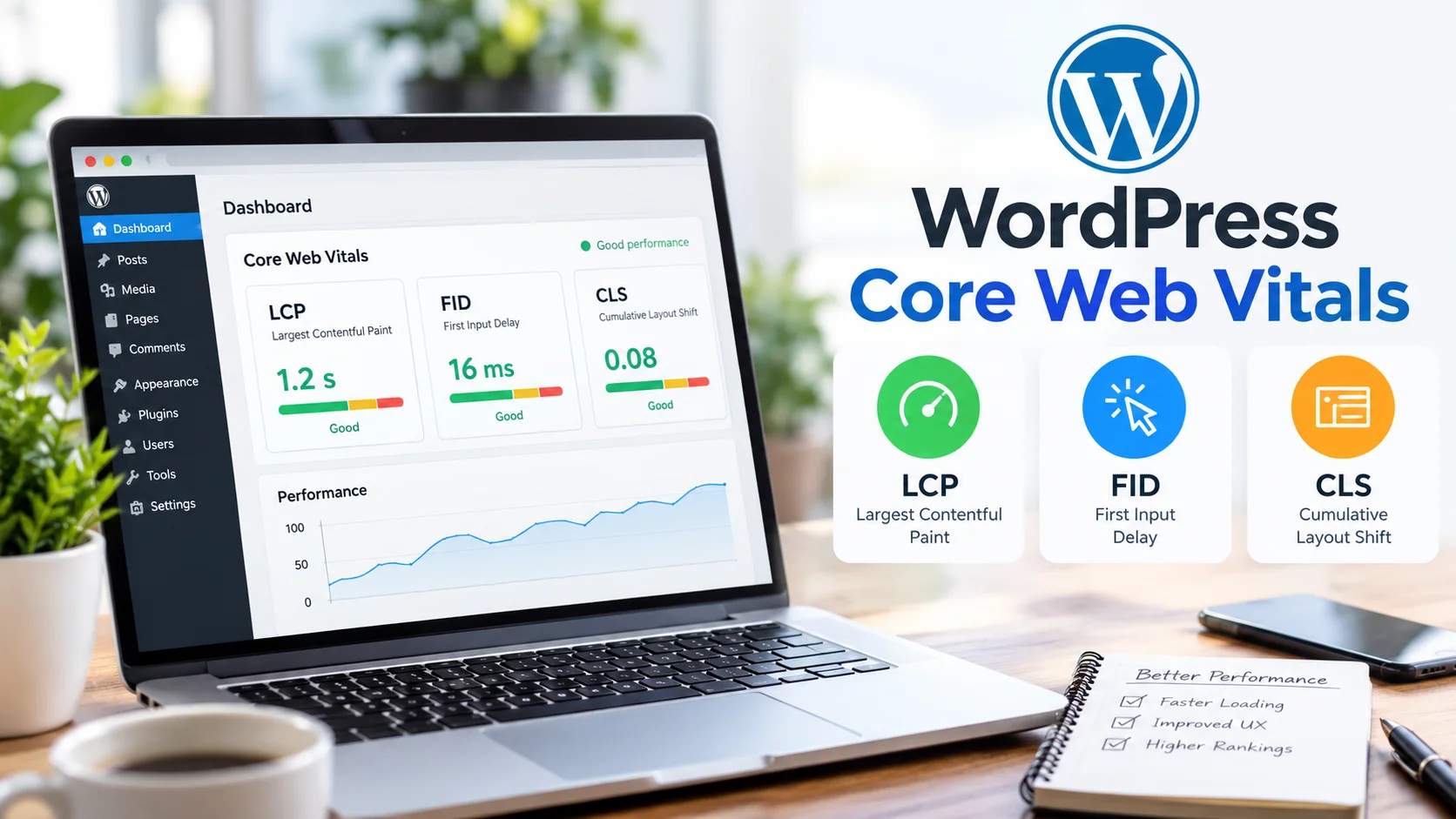
WordPress core web vitals are three Google metrics that show how your pages feel to real visitors. They are Largest Contentful Paint (LCP), Interaction to Next Paint (INP), and Cumulative Layout Shift (CLS). LCP measures loading performance, INP measures responsiveness, and CLS measures visual stability.
Most WordPress sites struggle because of heavy themes, too many plugins, oversized images, and unnecessary scripts. Each problem has a specific solution. This checklist explains how to measure your scores, identify performance issues, and fix each Core Web Vitals metric.
What Are WordPress Core Web Vitals?
Core Web Vitals measure the real-world user experience of a web page. The performance targets for WordPress websites are the same as those for any other website. Google considers these metrics part of its page experience signals.
According to Google's Core Web Vitals guidelines, websites should aim to meet the following performance thresholds:
- LCP: 2.5 seconds or less
- INP: 200 milliseconds or less
- CLS: 0.1 or less
Google evaluates these metrics at the 75th percentile of real user visits. In simple terms, at least three out of four visitors should experience performance within the recommended limits.
INP replaced First Input Delay (FID) in March 2024. Unlike FID, which measured only the delay before the first interaction, INP evaluates responsiveness throughout a visitor's experience on a page.
Good content still matters most for search visibility. However, slow-loading pages, delayed interactions, and unexpected layout shifts can frustrate visitors and reduce conversions. Improving Core Web Vitals helps create a smoother experience for people using your website.
Why WordPress Sites Often Fail Core Web Vitals
WordPress offers flexibility, but that flexibility can create performance problems when websites are not properly maintained.
Every plugin can introduce additional scripts, stylesheets, database queries, and background processes. Multipurpose themes may load features that your website never uses. Page builders can add extra HTML markup, CSS, and JavaScript that increase page size.
Third-party tools also affect performance. Live chat widgets, advertising scripts, analytics tools, social media feeds, and tracking codes can increase loading time and delay user interactions.
Hosting is another important factor. Cheap shared hosting plans often provide limited server resources. When several websites share the same resources, server response times can become slower, particularly during periods of high traffic.
Mobile traffic makes these problems more noticeable. Smartphones often have slower processors and less reliable network connections than desktop computers. Heavy scripts and oversized images can therefore create a poor mobile experience.
Understanding these common causes helps you prioritise improvements. Start with the metric that performs worst on your most important pages.
How to Measure Your WordPress Site First
Fixing performance issues without measuring them first wastes time. Before changing plugins, themes, or website settings, establish a performance baseline.
Follow these steps:
- Test your important pages: Run performance tests on your homepage, blog posts, service pages, and product pages.
- Check real-user data: Review field data to understand how actual visitors experience your website.
- Review Search Console: Open the Core Web Vitals report to identify groups of URLs with performance problems.
- Use browser testing tools: Run Lighthouse or Chrome DevTools to investigate individual performance issues.
- Prioritise mobile performance: Test mobile pages first because limited processing power and slower connections can expose problems.
- Compare different page templates: Test each page type separately because different templates may load different scripts, images, and elements.
Field data represents real user experiences collected over a rolling 28-day period. This means improvements may not appear immediately in reports. Lab testing, on the other hand, helps you identify changes more quickly in a controlled environment.
Use both types of data to understand the actual problem and measure whether your improvements are working.
Checklist to Fix LCP Issues
Largest Contentful Paint (LCP) measures how long it takes for the largest visible content element to appear on the screen.
On WordPress websites, this element is often a hero image, featured image, banner, or large heading. The recommended LCP target is 2.5 seconds or less.
Find the LCP Element
Start by testing the affected page and identifying its LCP element. It may be an image, video poster, or large block of text.
Understanding which element is responsible helps you choose the correct solution.
LCP performance depends on four main stages:
- Time to First Byte: How quickly the browser receives the first response from the server.
- Resource Load Delay: How long the browser waits before starting to load the main resource.
- Resource Load Duration: How long the resource takes to download.
- Element Render Delay: How long the browser takes to display the element after the resource becomes available.
Identify which stage contributes most to the delay before making changes.
LCP Fixes
Use the following checklist to improve LCP performance on your WordPress website:
- Improve hosting and server response time: Choose reliable hosting with sufficient resources to handle your website traffic.
- Enable page caching: Use a suitable caching plugin or your hosting provider's caching solution to reduce repeated database processing.
- Compress the main image: Reduce the file size of your LCP image without noticeably affecting visual quality.
- Use modern image formats: Serve images in WebP or AVIF formats where supported.
- Resize images correctly: Avoid uploading a 4,000-pixel image when the actual display area only requires 800 pixels.
- Avoid lazy loading the LCP image: The most important above-the-fold image should load promptly rather than waiting for scrolling.
- Prioritise important images: Use appropriate fetchpriority="high" settings or preload the main image when testing confirms that it helps.
- Use a CDN: Deliver static files from servers closer to your visitors.
- Reduce render-blocking resources: Defer non-critical JavaScript and optimise CSS delivery.
- Remove unnecessary sliders: Multiple large images and scripts above the fold can delay the main content.
After implementing these changes, test the same page again and compare the results with your original performance baseline.
Checklist to Fix INP Issues
Interaction to Next Paint (INP) measures how quickly a page responds after a visitor clicks, taps, or presses a key.
A poor INP score makes a website feel unresponsive. For a good user experience, aim for an INP score of 200 milliseconds or less.
INP considers interactions throughout a visitor's time on a page. A slow navigation menu, delayed form submission, or unresponsive button can affect the overall result.
Common INP Causes in WordPress
Several WordPress features can contribute to poor interaction responsiveness:
- Page builders that load heavy JavaScript files.
- Live chat widgets, pop-ups, and social media feeds.
- Analytics, advertising, and tracking scripts.
- Plugins that load unnecessary code across every page.
- Complex animations and interactive elements.
- Long JavaScript tasks that block the browser's main thread.
- Large pages containing excessive HTML elements.
INP Fixes
Follow these recommendations to improve responsiveness:
- Audit your plugins: Remove plugins that are outdated, unnecessary, or no longer used.
- Load scripts conditionally: Load plugin scripts only on pages where their functionality is required.
- Reduce third-party scripts: Delay non-essential tracking, advertising, and chat scripts where appropriate.
- Simplify animations: Replace heavy animations and interactive effects with lightweight alternatives.
- Choose a lightweight theme: Use a theme that avoids unnecessary JavaScript and additional functionality.
- Identify long tasks: Use Chrome DevTools to investigate JavaScript tasks that take more than 50 milliseconds.
- Reduce DOM complexity: Avoid unnecessary page elements, deeply nested layouts, and excessive widgets.
- Optimise event handlers: Keep click, tap, and keyboard event handlers short and efficient.
- Improve form responsiveness: Remove unnecessary scripts that delay form interactions and validation.
Pay particular attention to navigation menus, contact forms, search functionality, and other elements visitors interact with frequently.
Reducing unnecessary JavaScript can make these elements respond more quickly and improve the overall user experience.
Checklist to Fix CLS Issues
Cumulative Layout Shift (CLS) measures unexpected movement of visible page elements while a page loads or during a visitor's experience.
You may have experienced this when a button moves just before you click it or when an advertisement pushes the content down the page.
The recommended CLS score is 0.1 or less.
CLS problems are often caused by images without reserved dimensions, dynamically loaded content, advertisements, and fonts that change the page layout.
CLS Fixes
Use this checklist to reduce unexpected layout shifts:
- Set image dimensions: Add width and height attributes to images so browsers can reserve the required space before loading.
- Check video dimensions: Reserve appropriate space for videos, embedded media, and other visual content.
- Review your theme: Check whether your theme or page builder removes image dimension attributes.
- Reserve space for advertisements: Set aside fixed space for advertisements, embeds, and iframes before their content loads.
- Optimise font loading: Preload important fonts where appropriate and use font-display: swap to reduce invisible text.
- Avoid inserting content above existing elements: Cookie notices, promotional banners, and notifications should not unexpectedly push page content downward.
- Use transform animations: Animate elements with CSS transform instead of changing properties such as height, width, or top.
- Check dynamic content: Review related posts, newsletter forms, recommendation sections, and other elements that load after the initial page render.
- Maintain consistent layouts: Avoid changing element dimensions after the page has already displayed.
- Test interactive elements: Check whether menus, buttons, and expandable sections cause unexpected movement.
After applying these changes, test your pages again to identify any remaining layout shifts.
How to Keep Your Scores Healthy
Improving Core Web Vitals once is not enough. New plugins, theme updates, additional scripts, and design changes can introduce performance problems over time.
A page with good LCP and INP but poor CLS may still fail the overall Core Web Vitals assessment. All three metrics need attention.
Follow these practices to maintain good performance:
- Monitor important pages: Regularly review the performance of your homepage, service pages, blog posts, and landing pages.
- Check Search Console monthly: Look for new Core Web Vitals warnings and affected URL groups.
- Test updates before publishing: Use a staging website to check the impact of plugin, theme, and design changes.
- Make one change at a time: This helps identify which optimisation produces the improvement.
- Remove unused plugins: Avoid keeping unnecessary plugins and scripts active.
- Review mobile performance: Check whether your website provides a consistent experience across different mobile devices.
- Monitor third-party integrations: Review the impact of chat tools, analytics, advertising, and embedded content.
- Keep backups: Create a backup before making major performance or configuration changes.
Regular monitoring helps prevent small performance issues from becoming larger problems.
Conclusion
WordPress Core Web Vitals come down to three important goals: load the main content quickly, respond to visitor interactions without delay, and keep the page layout stable.
Start by measuring your website's performance and identifying which metric needs the most attention. Then work through the LCP, INP, and CLS checklists one step at a time.
Reliable hosting, effective caching, optimised images, fewer unnecessary scripts, and properly reserved content space can solve many common WordPress performance problems.
Test your changes after each optimisation and continue monitoring real-user performance over time. Small, consistent improvements can create a faster, more responsive, and more stable experience for your website visitors.