Sign up with Google
 Sign in with Zoho

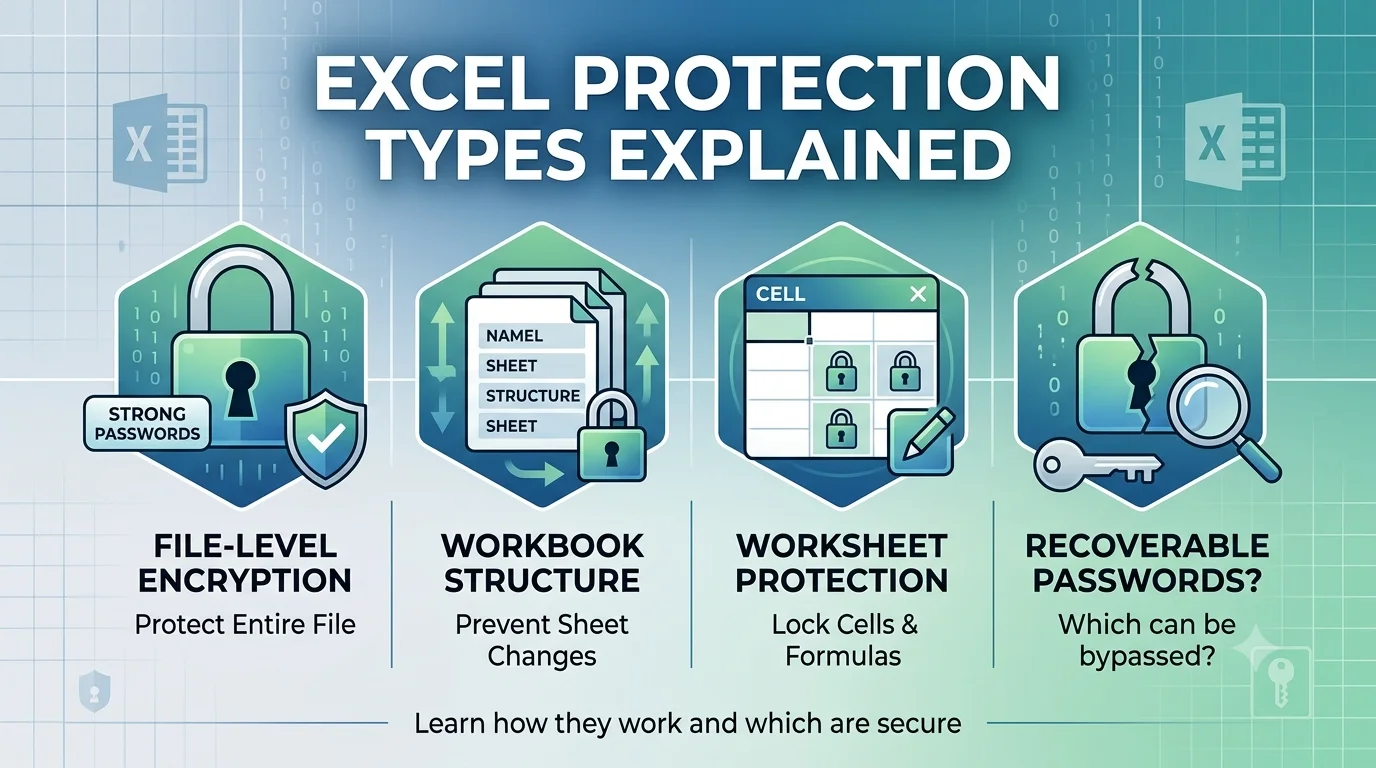
If you've ever shared a spreadsheet and watched someone accidentally overwrite a formula, you already know why Excel's protection features exist. Microsoft built in several layers of security, and picking the right one depends on what you're actually trying to guard against — a nosy coworker, an accidental keystroke, or someone who shouldn't see the file at all.
Here's a breakdown of each protection type, how it works, and — importantly — whether you can undo it yourself if you forget the password.
What Excel Protection Actually Covers
At its core, Excel protection lets you decide who can view or edit a workbook, and how much they're allowed to touch. This matters for anything you don't want tampered with: budgets, invoice templates, HR records, client data, or a report that took you three days to build.
There are five main flavors:
- Protect Sheet
- Protect Workbook Structure
- Password to Open
- Password to Modify
- Cell-level locking
Each one does something different, so it's worth knowing which is which before you apply one blindly.
Why Bother Protecting a Spreadsheet?
Spreadsheets tend to hold things people care about — payroll numbers, customer lists, pricing models. Leave one unprotected and it's just a matter of time before someone edits a cell they shouldn't, deletes a tab by mistake, or messes with a formula without realizing it.
Protection helps with the basics:
- Stopping accidental edits to formulas or key data
- Keeping unauthorized people out of certain areas
- Locking down confidential business info
- Making sure the numbers stay consistent
- Controlling who touches what
If your team relies on spreadsheets daily, applying the right layer of protection is a small effort that saves a lot of cleanup later.
The Different Protection Types, One by One
1. Protect Sheet
This is the one most people reach for first. It stops others from editing locked cells, changing formulas, or restructuring the sheet — inserting or deleting rows and columns, for instance.
You get to choose what's still allowed even with protection on: selecting cells, formatting, sorting, filtering, and so on. It's flexible that way.
Can you remove it yourself? Yes, easily, as long as you know the password — just go to Review and click Unprotect Sheet. Without the password, older Excel files can sometimes be cracked with manual tricks or scripts, but newer versions have tightened this up considerably.
2. Protect Workbook Structure
This one isn't about individual cells — it locks the shape of the workbook itself. With it on, nobody can add, delete, rename, move, or copy sheets.
It's handy when you've built a workbook with a specific layout and don't want anyone rearranging it.
Can you remove it yourself? If you have the password, sure — Review → Protect Workbook → enter the password. Without it, your options shrink and depend a lot on which Excel version and encryption method were used.
3. Password to Open
This is the heavyweight option. Rather than restricting what someone can do inside the file, it encrypts the whole thing — nobody gets in without the password, full stop.
Modern Excel leans on AES encryption for this, which is genuinely hard to break.
Can you remove it yourself? No. There's no built-in "forgot password" option, and unlike sheet or workbook protection, there's nothing to manually toggle off — the file itself is encrypted. If you've lost this password, you're looking at dedicated recovery software, not a five-minute fix.
4. Password to Modify
This lets anyone open the file in read-only mode, but they need a password to actually save changes. It's a nice middle ground for sharing a document broadly while still controlling who can edit it.
Can you remove it yourself? Often, yes — open it read-only and save a copy under a new name if you have access to the content. If there's extra protection layered on top, though, you may need a proper recovery method.
5. Cell-Level Protection
Instead of locking a whole sheet, this lets you protect specific cells while leaving others open for input. It's the go-to for templates — invoices, financial calculators, dashboards — where you want people to fill in a few fields without touching the formulas underneath.
Can you remove it yourself? Yes, with the worksheet password. Without it, it comes down to how the protection was set up and which version of Excel was used.
Quick Reference: Can You Remove It Without a Password?
The pattern here is simple: sheet, workbook, and cell protection are about restricting editing. Password-to-open is about encryption, which is a fundamentally different — and much stronger — kind of lock.
Why "Password to Open" Is So Hard to Crack
When a file is protected this way, Excel doesn't store the password anywhere you could just go dig it up. Instead, it uses encryption to check whether whatever you type in matches — without ever revealing what the original password was.
So if you lose it:
- You can't open the file, period
- There's no reset or recovery button built into Excel
- Renaming the file extension won't help
- "Repairing" the file does nothing to the encryption
- Even removing other protections won't touch this layer
The only real path back in is password recovery software built specifically for this.
When You're Genuinely Locked Out
If you're staring at a password prompt with no idea what the password is, manual tricks won't get you anywhere — the data is encrypted, not just restricted.
This is where a tool like SysTools Excel Password Recovery comes in. It's built to recover lost passwords on encrypted XLS and XLSX files using a few different approaches:
- Brute Force Attack
- Mask Attack
- Dictionary Attack
It won't work miracles instantly, but it's designed for exactly this scenario — getting back into a workbook you're otherwise locked out of.
The Bottom Line
Not all Excel protection is created equal. Sheet, workbook, and cell-level protections are mostly about preventing accidental or unauthorized edits, and they're usually manageable if you still have the password. Password-to-open is a different animal entirely — it encrypts the file, and losing that password means you need specialized recovery software, not a workaround.
Knowing the difference before you apply protection (or before you panic when you're locked out) makes the whole process a lot less stressful.