Sign up with Google
 Sign in with Zoho

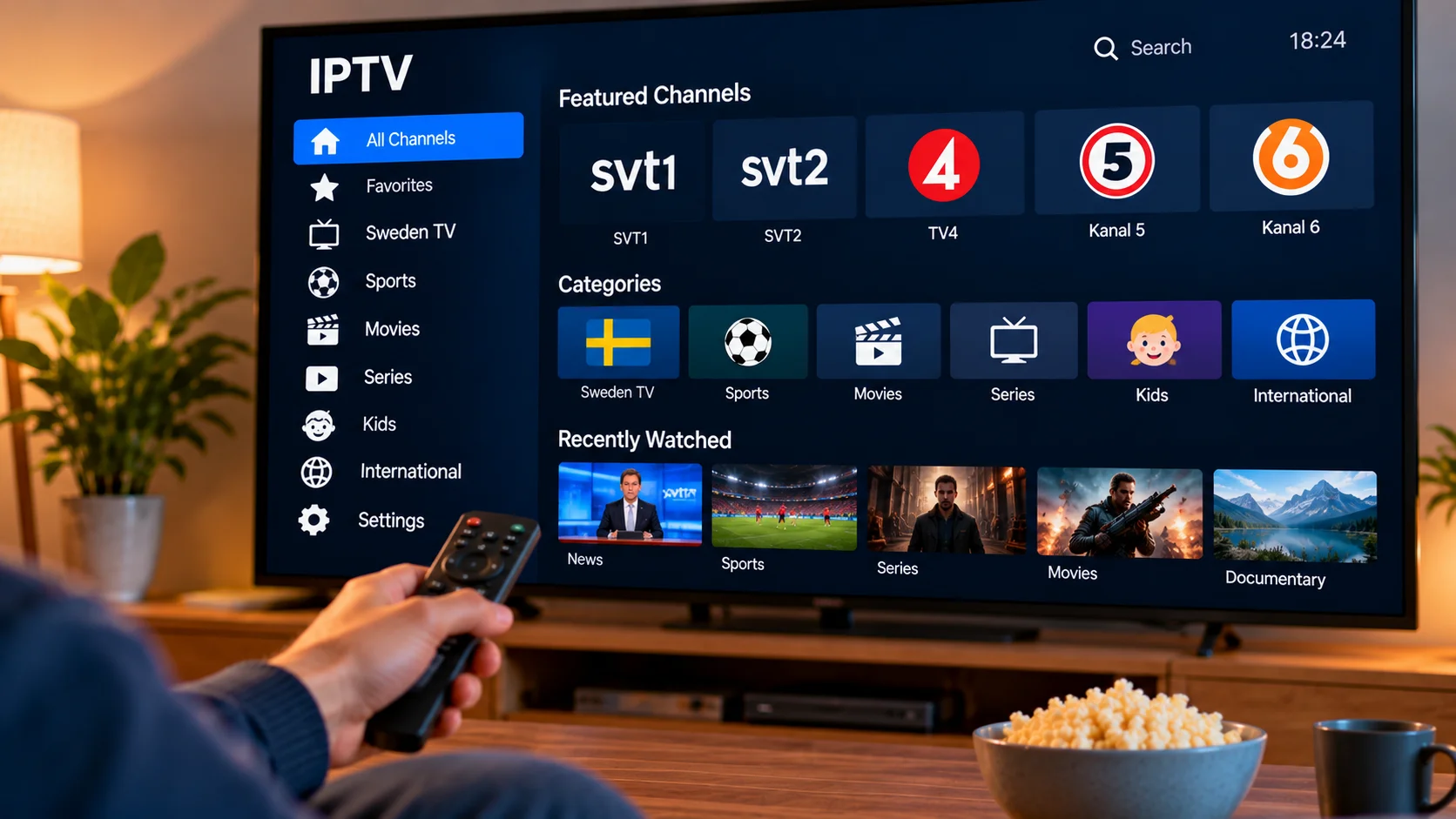
A shared television can quickly become complicated when everyone in the house watches something different. Adults may want sports, films, or news, while younger viewers need a simpler and more appropriate selection of content.
That is where parental controls can be useful. Many IPTV players and streaming devices include tools that let parents lock channels, hide categories, protect settings with a PIN, or create a cleaner viewing experience for children.
The exact options depend on the app and device, but a few basic steps can make a family IPTV setup much easier to manage.
Start With the Device, Not Just the IPTV App
Parents often look inside the IPTV player first, but the television or streaming device may already have useful restrictions built in.
Smart TVs, Android TV devices, Apple TV, tablets, and streaming boxes can sometimes restrict app installations, purchases, profiles, or access to certain settings.
Using these controls alongside the IPTV player's own options gives you more flexibility.
For example, the device can prevent a child from installing another app, while the IPTV player can lock certain channel categories.
Look for Parental Controls Inside the IPTV Player
Open the settings menu of the IPTV application and look for terms such as:
- Parental controls
- Channel lock
- Category lock
- Security
- Profiles
- PIN protection
Some players allow individual channels to be protected. Others let you lock an entire category.
The available features vary considerably, so it is worth checking before choosing an app.
If you are comparing services such as Rapid IPTV, also check which devices and IPTV players are supported so you know what parental control options will be available in your setup.
Choose a PIN That Children Cannot Guess Easily
Many IPTV apps use a PIN to protect restricted sections.
Avoid obvious combinations such as 0000, 1111, or 1234. Birth years and simple household numbers are also easy to guess.
A better PIN should be memorable for the adults using the device but difficult for children to work out.
If the application offers a recovery method, make sure the email address or account connected to that recovery process is secure as well.
Hide Categories You Do Not Need
A long IPTV playlist can feel cluttered even for adults.
If the player allows categories to be hidden, remove sections that nobody in the household uses. This makes the interface cleaner and reduces the chance of younger users opening unsuitable areas by accident.
You might keep only a few visible sections, such as:
- Family entertainment
- Children's programming
- News
- Sports
- Educational content
- Frequently watched channels
A smaller menu is often easier to manage than trying to control hundreds of individual channels.
Use Favorites as a Simple Family Menu
Favorites can be surprisingly useful for families.
Instead of allowing children to browse the full channel list, parents can create a short collection of approved channels. This gives younger viewers an easy place to start without having to search through every category.
A favorites list could include children's programming, educational channels, family films, or other content that parents have already reviewed.
This is not a replacement for parental controls, but it can make everyday use much simpler.
Protect the Settings Menu
If the app allows it, lock the settings area as well.
Children can accidentally change important options while exploring menus. A changed server address, deleted playlist, or altered EPG setting can make the service appear broken even though nothing is wrong with the subscription.
Protecting settings can prevent changes to:
- Login details
- Playlist information
- Server addresses
- EPG settings
- Playback preferences
- Parental control options
This is especially helpful on a shared living-room television.
Separate Profiles Can Help
Some devices or applications support different user profiles.
When available, profiles can help keep adult and child viewing separate. A child's profile may have a different set of apps, recommendations, favorites, or restrictions from the main adult account.
Not every IPTV player has its own profile system, but the operating system of the streaming device may offer something similar.
It is worth checking both places.
Restrict New App Installations
Parental controls should cover more than the IPTV application.
A child who can freely install new apps may simply move to another streaming application when restrictions are placed on one player.
On supported devices, require a password, PIN, or account approval before installing new apps or making purchases.
This also helps prevent accidental purchases and keeps the device easier to manage.
Stick to Trusted IPTV Players
A parental control feature is only useful if the application itself is trustworthy.
Avoid installing modified IPTV apps from unknown websites simply because they claim to offer extra features.
Whenever possible, use:
- Official app stores
- Recognized developers
- Trusted device marketplaces
Unknown APK files and modified apps may be outdated, unstable, or risky from a privacy perspective.
Keep Login Information Away From Shared Users
IPTV login information should be treated like any other account credential.
Do not leave usernames, passwords, or private playlist URLs in notes that children or guests can easily open.
You should also avoid sharing screenshots online if they reveal:
- Usernames
- Passwords
- M3U links
- Server information
- Portal addresses
If the IPTV app offers a way to lock account settings, use it.
Check Your Smart TV's Own Restrictions
Smart TVs often have controls that are separate from the IPTV player.
Depending on the model, you may be able to lock specific apps, restrict purchases, require a PIN for settings, or control which inputs are available.
These options can be useful even if your IPTV application has only basic parental controls.
It is a good idea to check the television settings before assuming that everything must be handled inside the IPTV app.
Android TV and Google TV Can Add Another Layer
Android TV and Google TV devices may offer profile or account controls depending on the model and software version.
Some devices allow parents to manage apps, restrict purchases, or create supervised experiences for younger users.
Because Android-based devices vary by manufacturer, menus can look different from one television or box to another.
Use the settings available on your specific device rather than relying on instructions written for a different model.
Apple TV Also Has Family Restrictions
Apple TV includes its own controls for apps, purchases, accounts, and other device functions.
These can work alongside any parental controls offered by the IPTV player.
For example, you might restrict purchases at the Apple TV level while using a separate PIN inside the IPTV application for selected categories.
Using more than one layer can make accidental changes less likely.
Do Not Judge Content Only by the Channel Name
A channel name does not always tell you exactly what will be shown throughout the day.
Programming changes, and the same channel can carry very different content at different times.
If you are setting up favorites or an approved list for children, review the channels first rather than relying only on their names.
It is also worth checking the list again occasionally.
An EPG Can Help Parents Review Programming
If your IPTV player supports an Electronic Program Guide, or EPG, it can make family viewing easier.
The guide may show:
- What is playing now
- What starts next
- Program titles
- Start and end times
- Channel schedules
This gives parents more context before selecting a channel.
EPG information is not always complete or perfectly accurate, but it can still be useful for planning what the family watches.
Review Controls After Major Updates
Applications and streaming devices change over time.
After a major system or app update, take a minute to confirm that the restrictions are still working as expected.
Check that:
- Locked categories are still protected
- The PIN still works
- App installation controls remain active
- Profiles are still configured correctly
- Purchase restrictions have not changed
It only takes a few minutes and can prevent surprises later.
Keep the Setup Simple
A family IPTV setup does not need dozens of complicated rules.
For many households, a simple arrangement works well:
- Use a trusted IPTV player.
- Protect selected categories with a PIN.
- Create a small favorites list for children.
- Restrict new app installations.
- Lock important settings.
- Keep login details private.
- Update the device and apps regularly.
A setup that is easy for adults to maintain is more likely to stay useful over time.
Final Thoughts
Parental controls can make a shared IPTV setup more practical for families, but they work best when several tools are used together.
Start with the IPTV player's own restrictions, then check what your television or streaming device can do. Lock sensitive categories, protect the settings menu, create a simple favorites list, and keep account details private.
It is also worth reviewing the setup occasionally, especially after software updates or when new devices are added to the home.
The goal is not to make streaming complicated. It is to give adults better control over what appears on a shared screen while keeping the experience simple for everyone else.