Sign up with Google
 Sign in with Zoho

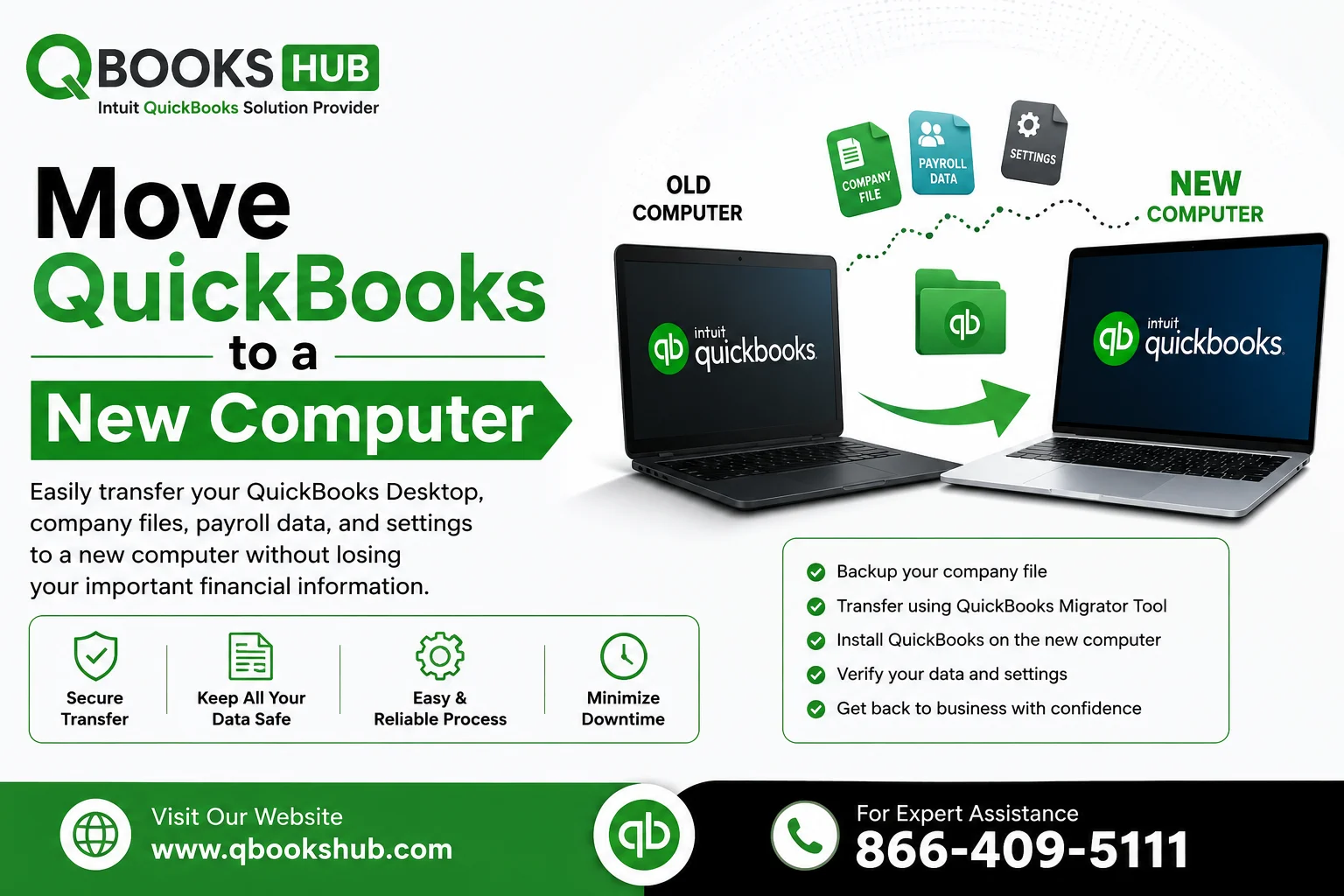
Changing your computer can improve performance security and productivity. However if your business relies on QuickBooks Desktop transferring the software and company data correctly is essential to avoid disruptions. Whether you're replacing an old system or setting up a new workstation, learning how to Move QuickBooks to a New Computer ensures that your accounting records, payroll information, and financial reports remain accessible and secure.
This guide explains the safest methods to transfer QuickBooks, prepare your files for migration, and troubleshoot common issues that may arise during the process.
Why Move QuickBooks to a New Computer?
There are several reasons why businesses decide to move QuickBooks to another system:
- Upgrading to newer hardware
- Replacing a damaged computer
- Improving system performance
- Migrating to a remote work setup
- Enhancing security and storage capacity
- Upgrading operating systems
What to Do Before Moving QuickBooks
Preparation is crucial when transferring accounting software.
1. Verify Your QuickBooks Version
Before starting, identify the QuickBooks version installed on your current computer.
- Open QuickBooks Desktop.
- Press F2 on your keyboard.
- Note your product version and release information.
You'll need this information when installing QuickBooks on the new computer.
2. Locate Your License Information
- License Number
- Product Number
- Intuit account credentials
These details are required for activation after installation.
3. Create a Company File Backup
Always back up your QuickBooks data before migration.
- Open QuickBooks.
- Select File.
- Choose Back Up Company.
- Click Create Local Backup.
- Save the backup file to a secure location.
A backup protects your accounting records if any issues occur during the transfer process.
4. Update QuickBooks
Install all available updates before moving QuickBooks to a new computer.
- Better compatibility
- Improved security
- Reduced migration errors
Method 1: Use the QuickBooks Migrator Tool
The QuickBooks Migrator Tool is the easiest and most recommended way to transfer QuickBooks.
Step 1: Open QuickBooks on the Old Computer
Launch QuickBooks Desktop.
Navigate to:
File > Utilities > Move QuickBooks to Another Computer
Step 2: Create a One-Time Password
QuickBooks will generate a one-time password.
Write it down because you'll need it later.
Step 3: Insert a USB Drive
Connect a USB flash drive with enough available storage.
The Migrator Tool will automatically copy migration files to the USB drive.
Step 4: Install QuickBooks on the New Computer
Download and install the same QuickBooks version on the new machine.
Do not open your company file yet.
Step 5: Run the Migrator Tool
Insert the USB drive into the new computer.
Launch the Migrator Tool and enter the one-time password.
The tool will transfer:
- Company files
- Templates
- Preferences
- Letters
- Images
Once completed, restart QuickBooks.
Method 2: Manually Move QuickBooks to a New Computer
If the Migrator Tool isn't available, you can transfer QuickBooks manually.
Step 1: Install QuickBooks Desktop
Download and install QuickBooks using your license and product information.
Step 2: Activate QuickBooks
Sign in with your Intuit account and activate the software.
Step 3: Copy Company Files
Locate your QuickBooks company file.
Common file extensions include:
- .QBW (Company File)
- .QBB (Backup File)
- .QBM (Portable Company File)
Copy the files to:
- USB drive
- External hard drive
- Cloud storage
Transfer them to the new computer.
Step 4: Restore or Open the Company File
Launch QuickBooks
Select:
File > Open or Restore Company
Browse to the transferred file and open it.
Verify that all data appears correctly.
Important Files to Transfer
Many users focus only on the company file and forget other important QuickBooks components.
You should also transfer:
- Custom invoice templates
- Payroll information
- Memorized reports
- Letters and forms
- Logos and images
- User settings
Ensuring these files move successfully helps maintain workflow continuity.
What Happens to Payroll After Migration?
Payroll users should take additional precautions.
After you move QuickBooks to a new computer:
- Verify payroll subscription status
- Confirm payroll service keys
- Install the latest payroll tax table
- Test payroll calculations
In some cases, payroll services may require reactivation.
Failing to verify payroll settings can result in payroll update errors or inaccurate calculations.
Common Issues After Moving QuickBooks
While most migrations proceed smoothly, some users encounter problems after transferring QuickBooks.
QuickBooks Won't Open Company File
Possible causes include:
- Damaged company files
- Incorrect file locations
- Incomplete file transfer
Verify the company file was copied successfully.
Missing Templates or Reports
Custom templates and memorized reports may not transfer automatically.
Review your templates after migration and copy any missing files manually.
Payroll Update Errors
Many users experience payroll update issues after migration.
Common reasons include:
- Missing payroll service keys
- Inactive payroll subscription
- Firewall restrictions
- Outdated QuickBooks version
Updating payroll settings typically resolves the issue.
Multi-User Mode Problems
Businesses using QuickBooks in a network environment may need to:
- Reconfigure hosting settings
- Adjust firewall permissions
- Verify network access
Testing multi-user functionality immediately after migration is recommended.
Best Practices for a Successful Migration
Following these recommendations can help ensure a smooth transfer.
Keep the Old Computer Available
Do not remove QuickBooks from the old computer until you've verified that everything works correctly on the new system.
Verify Data Integrity
Run:
File > Utilities > Verify Data
before creating backups.
This helps identify potential data issues before migration.
Test Key Functions
After moving QuickBooks, test:
- Reports
- Payroll
- Banking functions
- Invoice creation
- Customer records
Confirm everything functions normally before relying on the new system.
Create Multiple Backups
Store backups in more than one location, such as:
- External drives
- Cloud storage
- Secure network folders
Multiple backups provide extra protection against data loss.
Benefits of Moving QuickBooks to a New Computer
A successful QuickBooks migration offers several advantages.
Improved Performance
Newer hardware typically processes reports and transactions faster.
Better Security
Updated systems provide stronger protection against cyber threats.
Enhanced Reliability
Modern computers reduce the risk of hardware-related failures.
Improved Compatibility
New systems often support the latest QuickBooks updates and features.
When Should You Seek Professional Help?
Consider professional assistance if:
- Company files are damaged
- Payroll data won't transfer
- Multi-user setups are complex
- Activation issues occur
- Data appears missing after migration
Expert guidance can help prevent downtime and protect critical financial information.
Conclusion
Knowing how to Move QuickBooks to a New Computer is essential for businesses upgrading hardware or replacing aging systems. By backing up your company files, using the QuickBooks Migrator Tool, verifying payroll settings, and testing key functions after migration, you can transfer QuickBooks safely and efficiently.




.webp)