Sign up with Google
 Sign in with Zoho

Not long ago, "AV equipment" meant a projector bolted to the ceiling, a screen that never quite hung straight, and a whiteboard covered in marker stains from meetings past. Today, that same corner of the room is far more likely to hold a single sleek touch panel — one that handles presentations, video calls, live annotation, and collaborative brainstorming, all without a tangle of cables. That shift is the story of interactive displays, and it's reshaping conference rooms and classrooms alike.
Whether the goal is running sharper business meetings or building more engaged classrooms, interactive displays have become one of the more meaningful technology upgrades an organization can make. This guide covers what these displays actually do, the specific benefits they bring to conference rooms and educational settings, and how the underlying technology works.
What Is an Interactive Display?
An interactive display — also called an interactive flat panel — is a large touchscreen that combines the functions of a monitor, whiteboard, and computer into a single device. Instead of just showing content passively, users can write, draw, navigate, and collaborate directly on the screen, while the display itself runs apps, connects wirelessly to other devices, and saves session content for later use.
The core distinction from a standard screen is interactivity: a group can walk into a room, pull up a shared file, mark it up together, save the changes, and return to exactly where they left off next time — no cables, no separate whiteboard, no lost notes scribbled on a napkin.
Interactive Displays in the Conference Room
An interactive display for conference room use has to do a lot in a short window of time — connect quickly, handle multiple presenters, support remote participants, and keep a meeting moving without technical friction. Here's where the benefits show up most clearly.
Faster Meeting Starts
Traditional AV setups often eat the first several minutes of a meeting on cable-swapping and connection troubleshooting. A quality interactive touchscreen with wireless casting lets participants connect almost instantly, keeping meetings focused on the actual agenda rather than the technology.
Better Hybrid Collaboration
With hybrid work now standard, conference rooms need to bridge in-person and remote attendees smoothly. Displays with integrated video conferencing support let remote participants see live annotations and shared content in real time, rather than watching a static screen while the room collaborates without them.
Multi-Presenter Flexibility
Business meetings rarely involve just one presenter. A strong interactive display supports several devices connecting simultaneously, letting different team members share their screens in sequence without the delay of reconnecting cables each time — a small detail that keeps momentum in fast-moving strategy or client sessions.
A More Professional Impression
In client-facing conference rooms, a smart interactive display signals a business that invests in modern tools. That impression matters more than it might seem — professionalism in the room often shapes how seriously a client takes the meeting itself.
Consolidated, Simpler Technology
Replacing a projector, a separate conferencing unit, and a physical whiteboard with a single interactive panel reduces the number of devices that can fail and simplifies IT support — a real advantage for businesses managing multiple meeting spaces.
Interactive Displays in Education
The classroom tells a different, equally compelling story. Educational interactive displays have shifted teaching from static, one-directional instruction toward active, participatory learning.
Higher Student Engagement
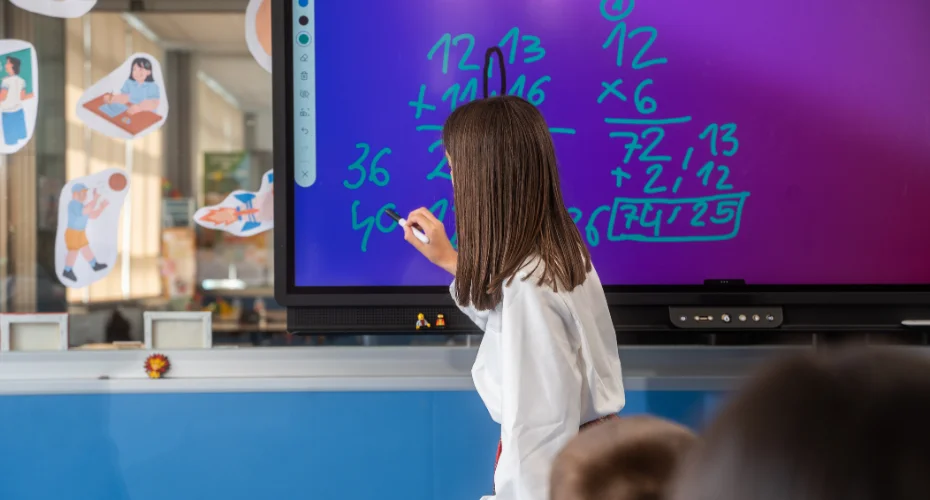
Classroom interactive displays turn lessons into something students actively participate in rather than passively watch. Whether it's solving a problem directly on screen, dragging elements into place, or annotating a diagram together, hands-on interaction consistently improves how well material is retained compared to a traditional lecture format.
Simplified Lesson Delivery for Teachers
Interactive screens for classrooms let teachers pull up multimedia content, write directly over slides, save annotated notes for later review, and switch between resources quickly — all without juggling a separate whiteboard, projector remote, and laptop simultaneously.
Supporting Different Learning Styles
Visual learners benefit from rich multimedia content, kinesthetic learners benefit from hands-on screen interaction, and auditory learners benefit from integrated audio and video resources — a well-equipped interactive touchscreen in the classroom can support all three within a single lesson.
Easier Content Sharing and Review
Because lessons and annotations can be saved directly on the display or synced to cloud storage, students who were absent — or simply want to review material — can access exactly what was covered in class, rather than relying on secondhand notes.
Built for Daily, High-Frequency Use
Interactive displays for education face a different usage pattern than a conference room — used by different classes throughout the day, every school day, often by younger users still learning careful handling. This makes build quality and touch durability especially important considerations for schools and training institutions.
How Interactive Displays Actually Work
Understanding the mechanics behind these displays explains why they perform so differently from a standard screen.
Touch sensing. Most interactive flat panel displays use infrared touch sensing, where a grid of infrared beams across the screen surface detects the exact position of a finger or stylus. Better systems support true multi-touch, allowing several people to write or interact with different parts of the screen at the same time — essential in both busy classrooms and collaborative meetings.
An embedded operating system. Rather than depending entirely on a connected laptop, interactive displays run their own operating system — often a customized version of Android — allowing them to run apps, manage files, and connect to cloud storage independently.
Wireless casting. Screen sharing works through wireless protocols that let laptops, tablets, or phones transmit their screens to the display over a local network. Higher-quality displays support several devices connecting at once and switching between presenters smoothly.
AI-powered processing. Many modern displays include onboard AI capabilities for smart content search, optimized annotation tools, and intelligent device management — adding genuine functionality beyond basic touch response.
Integrated connectivity. Built-in Wi-Fi, multiple input ports, and often integrated cameras, microphones, and speakers allow the display to function as a complete collaboration or teaching hub rather than just a large screen.
Features That Matter Most When Choosing an Interactive Display
Whether the display is headed for a boardroom or a classroom, a few features consistently separate a genuinely useful device from a disappointing one:
Display resolution. 4K Ultra HD is now the standard for clear, sharp visuals — especially important in larger rooms or classrooms where students or attendees sit at a distance from the screen.
Touch responsiveness and accuracy. Low latency and reliable palm rejection make writing and navigating on the screen feel natural rather than frustrating.
Multi-device wireless sharing. The ability for multiple devices to connect and switch between users without reconnecting cables matters equally in fast-moving meetings and active classroom sessions.
AI-powered functionality. Built-in intelligent tools add real day-to-day value, from smart search to optimized performance.
Certified operating systems. Google EDLA-certified Android builds tend to offer more reliable app support and smoother long-term updates.
Centralized device management. For schools or businesses managing multiple rooms, remote monitoring and updates significantly reduce IT workload and downtime.
Durability for high-frequency use. Especially relevant for classroom interactive displays used by multiple groups throughout the day, every school day.
How Logic AV Supports Both Conference Rooms and Classrooms
Logic AV, the flagship display solutions brand of Online Instruments India Limited, has been developing AV technology in India since 2006, and its interactive display lineup has been engineered to serve both business and educational environments effectively.
Logic AV's range spans three series — the CX Series, ZX Series, and HX Series — each built around AI-powered functionality and certified reliability.
The CX Series and ZX Series are powered by NeoAI and are Google EDLA certified, supporting wireless screen sharing from up to nine devices simultaneously — a genuinely useful feature whether it's a busy boardroom with rotating presenters or a classroom where students take turns sharing work from their own devices.
The HX Series runs on Android 14, is also Google EDLA certified, and includes split-screen multi-tasking — useful for a teacher referencing lesson notes while presenting, or a business user comparing two documents during a meeting.
Across all three series, Logic AV's displays share a consistent foundation: 4K Ultra HD clarity, AI-powered content search and device optimization, and centralized device management — making it easier for IT teams and school administrators alike to maintain multiple displays across different rooms or campuses without needing to physically visit each one.
For conference rooms specifically, Logic AV's interactive displays integrate smoothly with video conferencing setups, supporting the kind of fast, professional meeting experience modern businesses expect. For classrooms, the same underlying reliability — durable touch performance, intuitive controls, and dependable software support — makes Logic AV's panels a practical fit for the demands of daily educational use.
Businesses and institutions exploring the right option for their space can review the complete range — the CX Series, ZX Series, and HX Series — to compare features against their specific room size, use case, and budget. Logic AV also offers complementary display mounting solutions and connectivity solutions to simplify full-room installation.
Choosing the Right Fit for Your Space
A few practical questions help narrow down the right choice:
Is this primarily for meetings, teaching, or both? Conference rooms prioritize video conferencing integration and multi-presenter flexibility; classrooms prioritize durability and educational software support. Some displays handle both well, but it's worth confirming before purchase.
How many rooms need to be equipped? If scaling across multiple conference rooms or classrooms, centralized device management becomes essential for manageable long-term maintenance.
What's the room size? Screen size should match the room — too small and people at the back struggle to see; too large and it can feel disproportionate in a smaller space.
What existing tools need to integrate? Confirm compatibility with your video conferencing platform or educational software suite before rolling out the display broadly.
Interactive displays have proven their value in two very different environments for a similar underlying reason: they turn passive viewing into active participation. In the conference room, that means faster, more focused meetings and stronger collaboration between in-person and remote teams. In the classroom, it means more engaged students and simpler lesson delivery for teachers.
Choosing the right interactive display — one built for genuine reliability and daily use, not just an impressive spec sheet — makes a measurable difference in how much value a business or school actually gets out of the investment over time.
Frequently Asked Questions
1. What's the difference between an interactive display for a conference room and one for a classroom?
The core technology is similar, but the priorities differ. Conference room displays typically emphasize video conferencing integration and multi-presenter wireless sharing, while classroom displays prioritize durability for daily high-frequency use, simplified controls for teachers, and integration with educational software. Many modern displays are versatile enough to perform well in both settings.
2. How do interactive touchscreens improve student engagement in classrooms?
By allowing students to interact directly with lesson content — solving problems on screen, annotating diagrams, or participating in collaborative activities — interactive displays turn lessons into active learning experiences rather than passive viewing, which has been shown to improve information retention and classroom participation.
3. Can multiple people use an interactive display at the same time?
Yes, quality interactive flat panel displays support true multi-touch input from several users simultaneously, along with wireless connections from multiple devices — some supporting as many as nine devices at once — making them well-suited for both collaborative meetings and group classroom activities.
4. Do interactive displays require a separate computer to operate?
No. Most interactive displays run their own embedded operating system, allowing users to access apps, files, and cloud storage directly on the device without needing a connected computer, though laptops can still be connected for specific tasks or software.
5. Are interactive displays durable enough for daily classroom use?
Well-built classroom interactive displays are specifically designed to handle high-frequency daily use across multiple class periods, with durable touch surfaces and reliable hardware built to withstand regular handling by students throughout the school day.
6. What features should schools prioritize when choosing educational interactive displays?
Schools should prioritize touch durability, ease of use for teachers, compatibility with educational software, reliable long-term software support through a certified operating system, and centralized device management if equipping multiple classrooms across a campus.
7. Can interactive displays support video conferencing for hybrid meetings?
Yes, many interactive displays include integrated cameras, microphones, and speakers, or support connection to external conferencing equipment, allowing remote participants to join meetings and see shared, annotated content in real time alongside those in the room.