Sign up with Google
 Sign in with Zoho

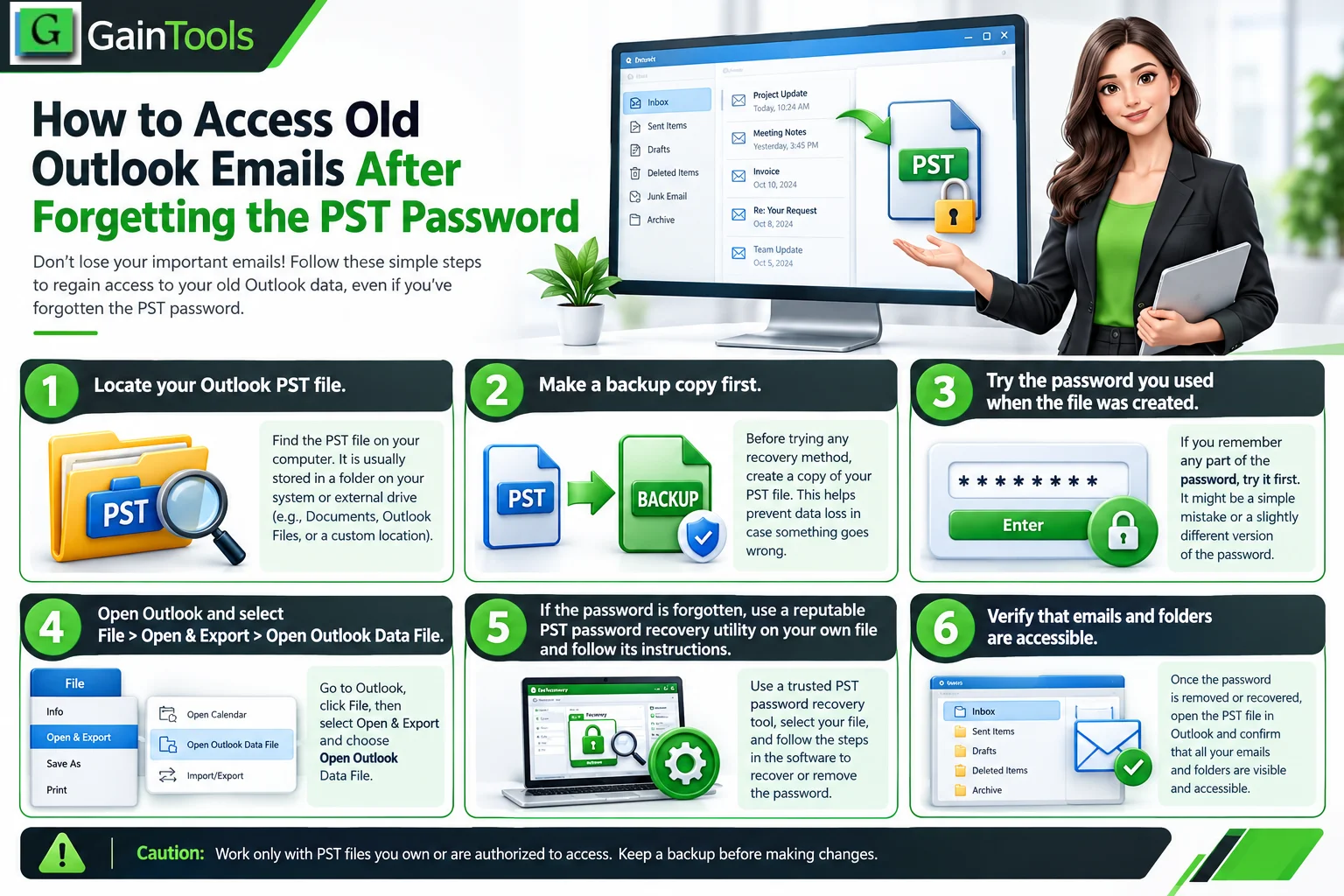
Microsoft Outlook uses the Personal Storage Table (PST) file format to store local data archives, backup folders, and offline communications. For years, many professionals and home users have been using passwords to safeguard these archives and preserve sensitive communications, financial information,n and personal history. But you may find yourself facing a locked archive file with a lost password, bringing your productivity to an abrupt halt.
But if you forget or lose your PST password, accessing that important old email becomes an urgent difficulty. This comprehensive guide details everything from understanding what PST locks are and the manual troubleshooting workarounds in Outlook to using professional software like the GainTools PST Password Recovery Tool to solve the problem safely and efficiently, whether you are working with legacy Unicode files or older ANSI formats.
Understanding the Effect of a Locked PST File
A Personal Storage Table (.pst) file is an individual data file that contains e-mail messages, calendar entries, contacts, tasks, and attachments. When you set a password for a PST file in Microsoft Outlook, the program encrypts the file structure.
Later, if you try to open or import the archive into Outlook and don’t use the precise key combination, Outlook refuses access altogether. This will essentially keep you out of your past data by continuously prompting you for credentials. Microsoft utilizes stringent encryption standards for Outlook data files, meaning that getting beyond these barriers needs specialized methods, from native configuration checks to automated decryption applications.
Method 1: Outlook Manual Methods and Workarounds
Before you go and download some external software, it is worth trying some basic approaches and native workarounds to get back into your archives.
1. The Common Password Survey
Seems easy enough; however, users will often lock files using common patterns, temporary phrases, or obsolete credentials they used years ago. Try out systematically possible variations:
Previous workspace password combinations.
Short passphrases that contain ancient phone numbers or zip codes.
Default or blank entries (very seldom, encryption was applied just in part).
2. Begin with New Outlook Profile Import
In the event you have a secondary profile or clean setup of Microsoft Outlook, you might try to circumvent active prompt loops by natively importing the data file:
Open Mail from the Control Panel on your Windows machine.
Show Profiles and click Add to establish a new, clean Outlook profile.
Now start Outlook using this new profile.
Go to File > Open & Export > Open Outlook Data File.
Choose your locked PST file. If Outlook asks for a password and you don't remember it, the application will refuse to mount it; therefore, this approach only works if you can circumvent the file prompt using cached credentials (which is unusual for fully encrypted standalone files).
Note: The native manual way in Outlook to reset a forgotten password usually requires you to know the old password to be able to go into the change menu (Data File Properties > Advanced > Change Password). In case you’ve forgotten this totally, Outlook doesn’t come with a native “Recover Password” button.
Method 2: Instant Recovery Using GainTools PST Password Recovery Tool
If manual approaches do not work and you do not want to risk ruining your mailbox history, then a specialized tool is the safest and fastest route. GainTools PST Password Recovery Tool is a specialized utility to unlock, reset, or delete forgotten passwords for Outlook PST files without affecting or harming the underlying database.
Key Benefits of GainTools Utility:
Total independence: The program is self-running, which means that you do not need to have Microsoft Outlook installed on your computer to start the password recovery procedure.
Zero Data Loss. It securely removes or resets the protective layer while guaranteeing that your emails, attachments, and folder structures are perfectly preserved.
Batch Processing: You may add a single file or a complete folder filled with several PST archives to remove passwords concurrently.
Universal Format Support: It supports both ANSI (previous versions of Outlook) and UNICODE (Outlook 2007, 2010, 2013, 2016, 2019, and beyond) PST files without any hassle.
Complex & Multilingual Key Support: No matter if your password is random symbols, long strings of alphanumeric letters, or multilingual characters, the utility wipes it out with ease.
GainTools PST Password Recovery: Step-by-Step Instructions To Recover Your PST Password
You don't need to be a technical expert to use the program. Here’s how to access your previous emails in a few easy steps:
Download and Install: Get GainTools PST Password Recovery Tool on your Windows PC and run the application
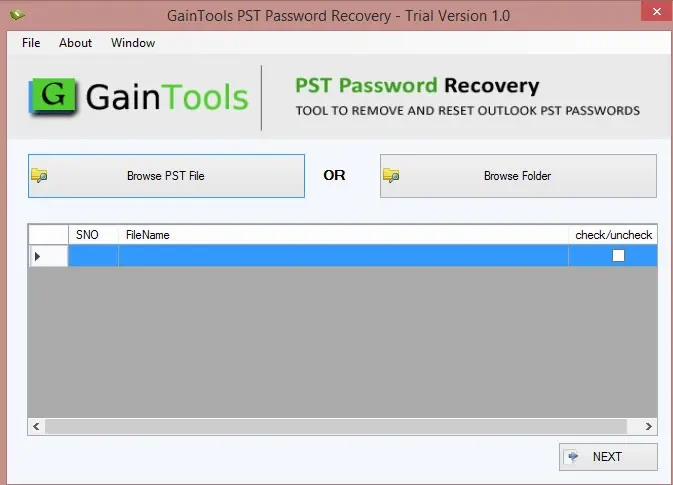
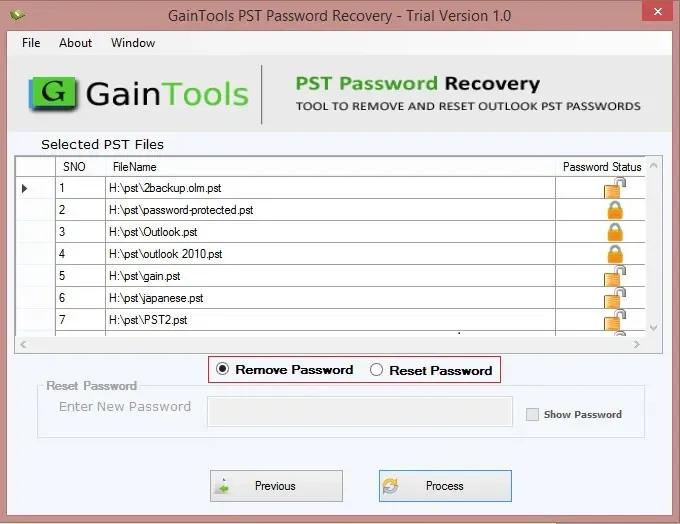
Browse and Add PST Files: To pick your locked PST file, click the Browse button. Or you may specify an entire directory containing several archive files for bulk processing.
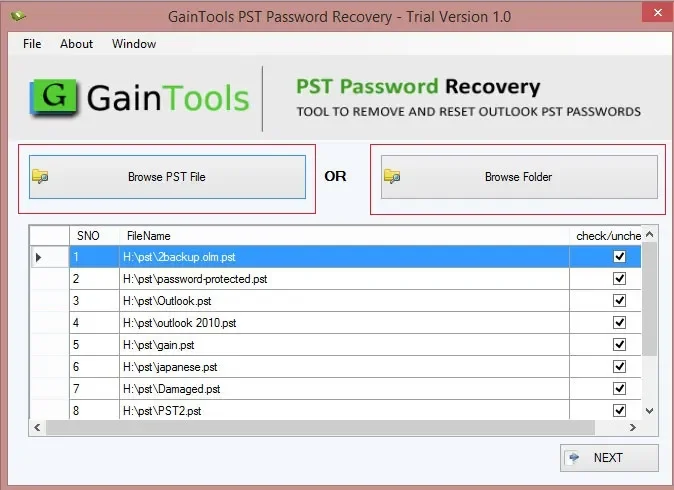
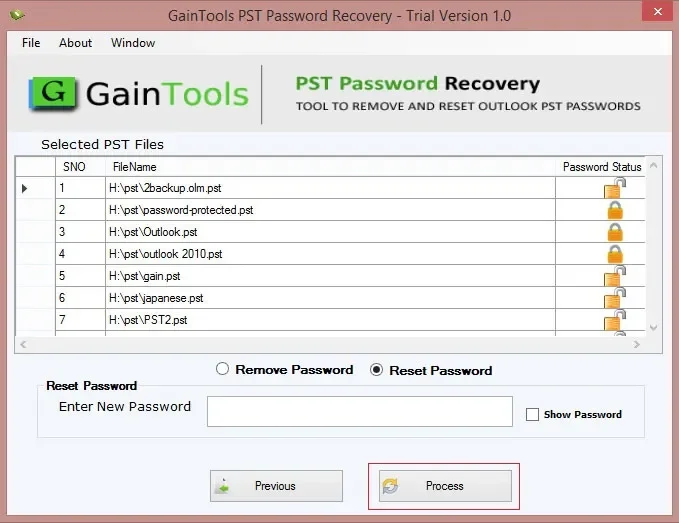
Choose Recovery Action: Choose from Remove Password (to permanently remove the protection) or Reset Password (to establish a fresh password of your choosing).
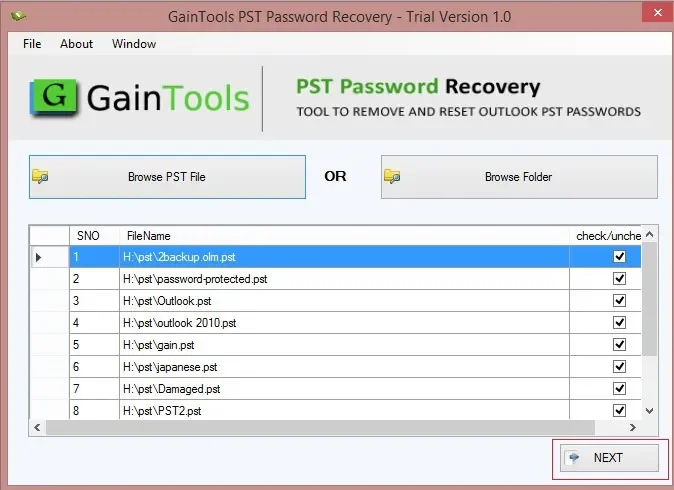
Run the Process: Click on the Process Now or Start button. The tool will skip the security wrapper in a matter of seconds.
Access Your Emails: Open your cleaned PST file straight in Microsoft Outlook or any compatible reader with no password prompts after you are done.
Avoiding Future Lockouts: Best Practices
Keep these easy ideas in mind, so you never lose sight of your archiving data again:
Secure Documentation: Store passwords for important data files in a trusted, encrypted offline password manager rather than memorizing them.
Make Regular Backups: Always save unencrypted secondary copies of important archives on secure, restricted local storage devices.
Standardize Naming Conventions: Clearly identify your PST files with creation date or ownership tags so you can readily track their origin.
Conclusion
Losing your Outlook PST password may be a very distressing experience, especially when you can no longer access your past Outlook communication. But this does not imply that your data is lost forever. If you have lost your credentials altogether, there is not much you can do inside Outlook to troubleshoot manually. Third-party automation fills in the missing links safely. With dedicated solutions such as GainTools PST Password Recovery Tool, you can easily break through the protection walls, safeguard your database integrity, and recover full access to your old emails in a few clicks.