Sign up with Google
 Sign in with Zoho

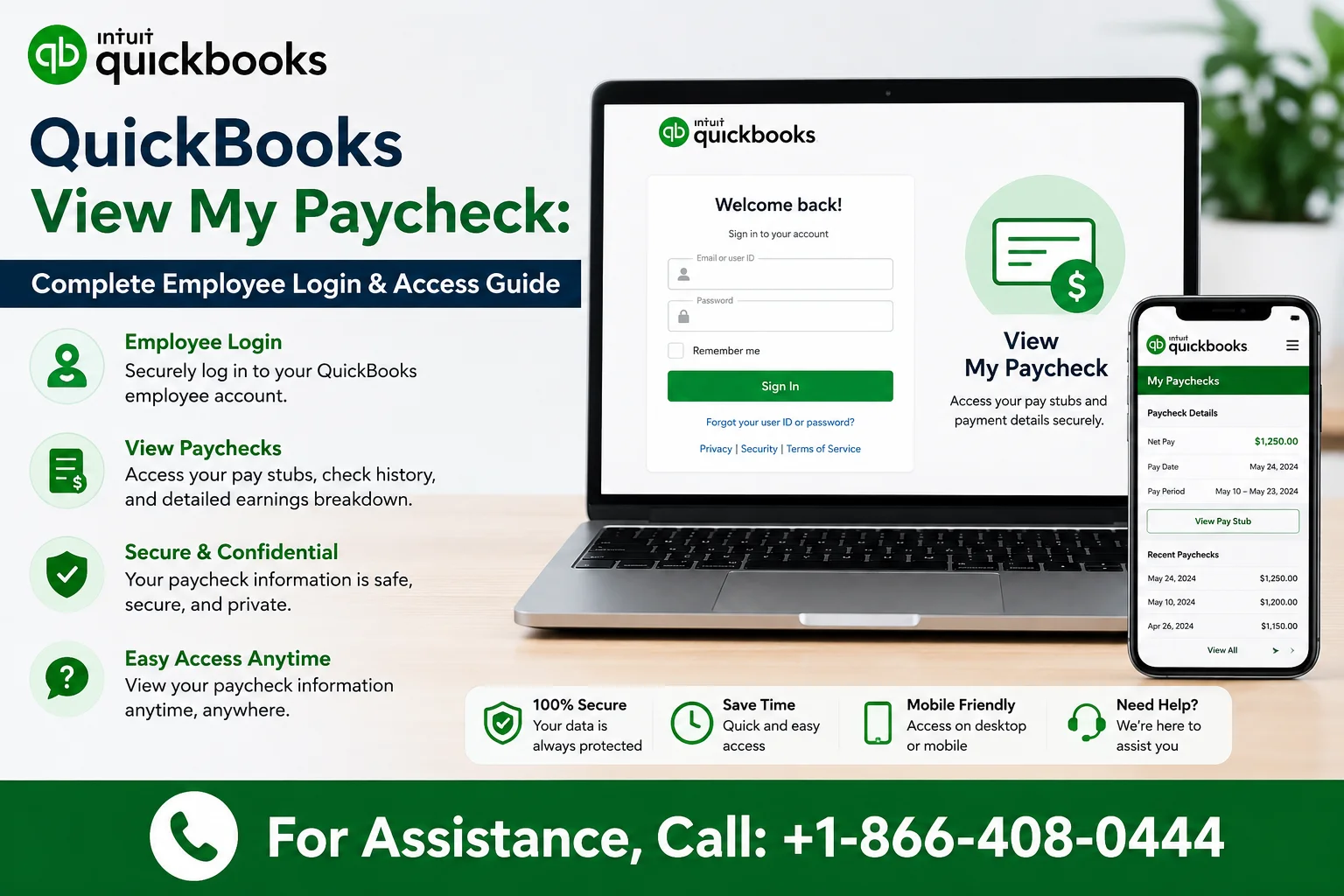
If you've ever finished a pay period and thought, "Where do I actually go to see my paycheck in QuickBooks?" — you're not alone. QuickBooks handles payroll for millions of small businesses, and whether you're an employee trying to check your pay stub or a business owner verifying payroll details, the process isn't always obvious the first time you look for it.
This guide walks through exactly how to view your paycheck in QuickBooks, covers the differences between QuickBooks Online, QuickBooks Desktop, and QuickBooks Workforce, and answers the most common questions people run into along the way.
Understanding Where Your Paycheck Lives
Before diving into steps, it helps to know that "QuickBooks" isn't a single product — it's a family of tools, and where you view your paycheck depends on which one your employer uses.
- QuickBooks Workforce is the employee-facing portal most workers use to view pay stubs, W-2s, and personal payroll information.
- QuickBooks Online Payroll is what employers use to run payroll; employees are typically invited to Workforce to see their own pay details.
- QuickBooks Desktop Payroll is an older, locally installed version some businesses still use, and it has a slightly different paycheck viewing process.
Most employees today will be viewing paychecks through QuickBooks Workforce, so we'll start there.
Step-by-Step: Viewing Your Paycheck in QuickBooks Workforce
Step 1: Get Your Invitation When your employer sets you up in payroll, you'll receive an email invitation from QuickBooks Workforce (usually from Intuit) asking you to set up your account. If you never received this, check your spam folder or ask your employer's payroll administrator to resend it.
Step 2: Create or Sign In to Your Account Click the link in the invitation email and either create a new Intuit account or sign in with an existing one. You'll set a password and may need to verify your identity with a code sent to your email or phone.
Step 3: Go to Workforce Once logged in, you'll land on the QuickBooks Workforce dashboard at workforce.intuit.com. This is your personal payroll hub — no employer login needed once you're set up.
Step 4: Click "Paychecks" On the left-hand menu (or top navigation, depending on the interface version), select Paychecks. This displays a list of all your pay periods, most recent first.
Step 5: Select a Pay Period Click on any listed pay date to open the detailed pay stub. This shows:
- Gross pay
- Federal, state, and local tax withholdings
- Deductions (health insurance, retirement contributions, etc.)
- Net pay (your take-home amount)
- Hours worked, if you're an hourly employee
Step 6: Download or Print Most pay stubs have a small download or print icon, letting you save a PDF copy for your records — useful for loan applications, rental applications, or tax filing.
Viewing Paychecks in QuickBooks Online (For Employers/Admins)
If you're a business owner or payroll admin checking paychecks you've issued:
- Log in to QuickBooks Online.
- Navigate to Payroll in the left menu.
- Click Employees.
- Select the employee whose paycheck you want to review.
- Click Paycheck list to see a history of all paychecks issued to that employee.
- Click any individual paycheck to view or edit details (before it's been sent to payroll processing) or view a read-only summary (after processing).
This view is especially useful when reconciling payroll expenses, correcting an error before submission, or providing an employee with proof of a specific payment.
Viewing Paychecks in QuickBooks Desktop
QuickBooks Desktop handles this slightly differently since it's not cloud-based by default:
- Open QuickBooks Desktop and go to the Employees menu.
- Select Payroll Center.
- Click the Pay Employees tab, then View/Print Paycheck.
- Alternatively, go to Employee Center, select the employee, and view their Payroll Transactions tab for a full history.
Desktop users without direct Workforce integration may need their employer to email or print a physical pay stub copy.
Common Reasons You Can't See Your Paycheck
If you've followed these steps and still can't find your paycheck, a few things are usually to blame:
- You haven't been invited to Workforce yet. Ask your payroll administrator to send or resend the invite.
- Your employer uses a different payroll system entirely. Not every business that uses QuickBooks for accounting also uses QuickBooks for payroll.
- The pay period hasn't processed yet. Paychecks sometimes don't appear until the pay date itself, even if payroll was run a few days earlier.
- You're logged into the wrong Intuit account. If you have multiple Intuit accounts (for example, one from a previous job), make sure you're signed into the correct one.
- Browser or cache issues. Clearing your cache or trying an incognito window resolves a surprising number of "missing paycheck" complaints.
Tips for Keeping Track of Your Pay History
- Bookmark workforce.intuit.com directly rather than relying on email links each time.
- Download PDF copies of pay stubs periodically, especially before changing jobs — access to Workforce is typically tied to your employment status.
- Set up multi-factor authentication for security, since pay stubs contain sensitive financial information.
- If you switch employers who both use QuickBooks, your paycheck history may appear in the same Workforce account, organized by employer.
5 Frequently Asked Questions
1. Can I view my paycheck in QuickBooks without an email invitation? Generally, no. QuickBooks Workforce requires employer-initiated setup for security reasons. If you never received an invite, contact your payroll administrator directly — they can resend it or confirm you're set up in their system.
2. Why does my paycheck show a different amount than expected? Differences usually come down to changes in tax withholdings, benefit deductions, retirement contribution adjustments, or overtime/bonus pay included in that period. Check the detailed breakdown on the pay stub — it itemizes every deduction. If something still looks off, your payroll administrator can review it against their records.
3. Can I access old paychecks after leaving a job? This depends on your former employer's settings and how long they retain payroll records in the system. Many people download PDF copies of important pay stubs before their last day specifically to avoid losing access later.
4. Is QuickBooks Workforce the same as QuickBooks Online? No. QuickBooks Online is the accounting and payroll platform employers use to run their business finances and payroll. QuickBooks Workforce is a separate, employee-facing portal purely for viewing personal pay stubs, tax forms, and time-off balances.
5. What should I do if my paycheck information looks incorrect or suspicious? Contact your employer's payroll or HR department first — they have direct visibility into what was submitted and processed. If you believe your account itself has been compromised, change your Intuit account password immediately and enable two-factor authentication.