
 Sign up with Google
 Sign in with Zoho
You’re scrolling through Instagram, and a Reel stops you. Maybe it’s a five-minute pasta recipe, a travel clip from a place you’ve always wanted to visit, or a tutorial you know you’ll need again next week. You tap save, and then forget where saved posts even live.
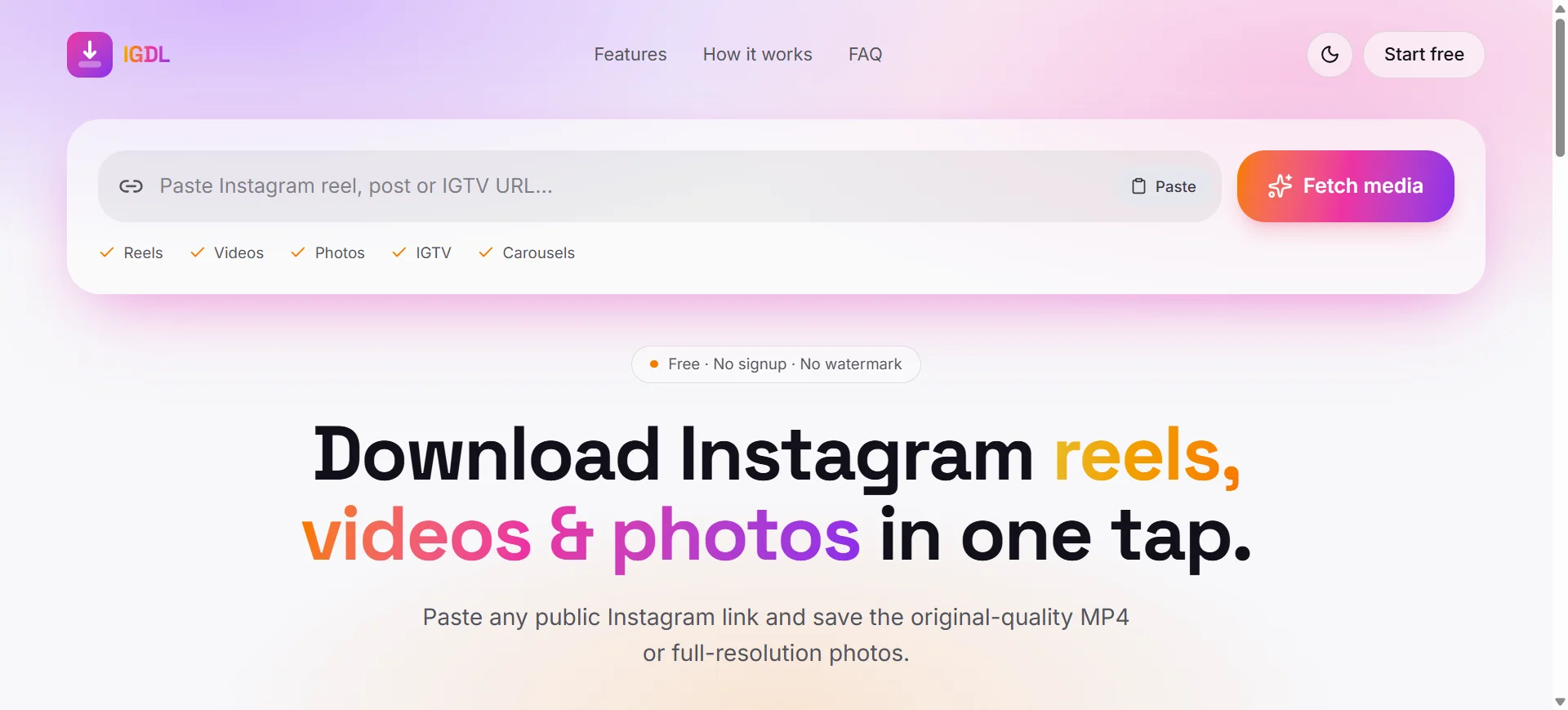
Instagram’s save button only bookmarks a Reel inside the app. It doesn’t give you the actual video file. If you want it on your phone or laptop to watch on a plane, edit, or send to a friend, you need another route. A free online tool like IGDL.net does the job without any apps or sign-ups. Here’s how to use it.
Why Bother Downloading Reels?
People save Reels for all kinds of reasons:
- Offline viewing. Handy for flights, long commutes, or patchy Wi-Fi.
- Backing up your own work. If you posted a Reel and lost the original file, this gets it back.
- Inspiration. Designers, marketers, and creators often keep reference clips close.
- Easy sharing. A video file is simpler to send in a chat than a link that may need a login.
Downloading a Reel with IGDL.net
The steps are nearly identical on a phone, tablet, or computer. Nothing to install.
Step 1: Find the Reel
Open Instagram and pull up the Reel you want. One thing to check first: it needs to be from a public account. Online downloaders generally can’t reach content from private profiles.
Step 2: Copy the link
Tap the paper-plane Share icon under the Reel, then hit Copy link. On a computer, click the three dots and choose Copy link, or just copy the URL from your browser’s address bar.
Step 3: Go to IGDL.net
Open igdl in whatever browser you like. Chrome, Safari, Firefox, and Edge all work. You’ll see a box waiting for your link.
Step 4: Paste and download
Paste the link into the box and press the download button. Give it a few seconds while the tool gets your video ready.
Step 5: Save the file
When the download option appears, tap or click it. On a phone, the video usually lands in your gallery or Downloads folder. On a computer, it goes to your default Downloads folder.
No account, no settings to fiddle with, no extra software.
What to Expect on Different Devices
iPhone: Safari tends to behave best. Once the download finishes, tap the Downloads icon in Safari’s toolbar or look in the Files app. If you’d rather have it in Photos, you can move it from there.
Android: Chrome is usually the smoothest option. Your Reel should show up in Downloads, and often in your gallery too.
Windows or Mac: Paste the link into any desktop browser. The video saves to your Downloads folder, ready to play, edit, or upload somewhere else.
A Few Tips So Things Go Smoothly
- Copy the link again if something fails. A cut-off link or one from the wrong post causes most problems. Grab it fresh from the Share menu.
- Check your connection. Reels are short, but a shaky signal can still interrupt things.
- Stay with public accounts. A link-based tool can’t fetch private content.
- Update your browser. Old versions sometimes break buttons and pop-ups.
- Watch for pop-ups. If something odd opens, close it and only click the real download button for your video.
When Things Go Wrong
No download button? Refresh the page, paste the link again, and confirm the Reel is public.
Video won’t play? Try another player. VLC opens just about any MP4 you throw at it.
Can’t find the file? Check your browser’s download history first. On phones, it may be sitting in the Files app instead of your gallery.
Link not recognized? Make sure you copied the link to the Reel itself, not to a profile or a story.
Be Decent About It
Downloading a Reel is easy, but every Reel was made by someone who put time into it, and it’s protected by copyright. Saving one for yourself to watch offline is fine in most cases. Re-posting it as your own, or using it in a business campaign without asking, is not.
If you want to share someone’s Reel, ask first and credit them clearly. For anything commercial, get permission in writing. It keeps creators happy, and it keeps you out of takedown headaches.
Wrapping Up
Downloading Instagram Reels takes about a minute: copy the link, paste it into IGDL, and save the video. It works on phones, tablets, and computers, and you don’t have to install a thing.
So next time a Reel is worth keeping, you know exactly what to do. Just treat the creator’s work with respect once it’s on your device.